

What’s supported
Supported actions
This connector supports:- Proxy Actions, using the base URL
https://{{.workspace}}.okta.com.
Before you get started
To connect Okta with Ampersand, you will need an Okta account. Once your account is created, you’ll need to create an OAuth 2.0 app in Okta and obtain the following credentials:- Client ID
- Client Secret
- Scopes
Create an Okta account
Here’s how you can sign up for an Okta developer account:- Go to the Okta Developer Sign Up page and create an account.
- Complete the registration process and verify your email.
Creating an Okta app
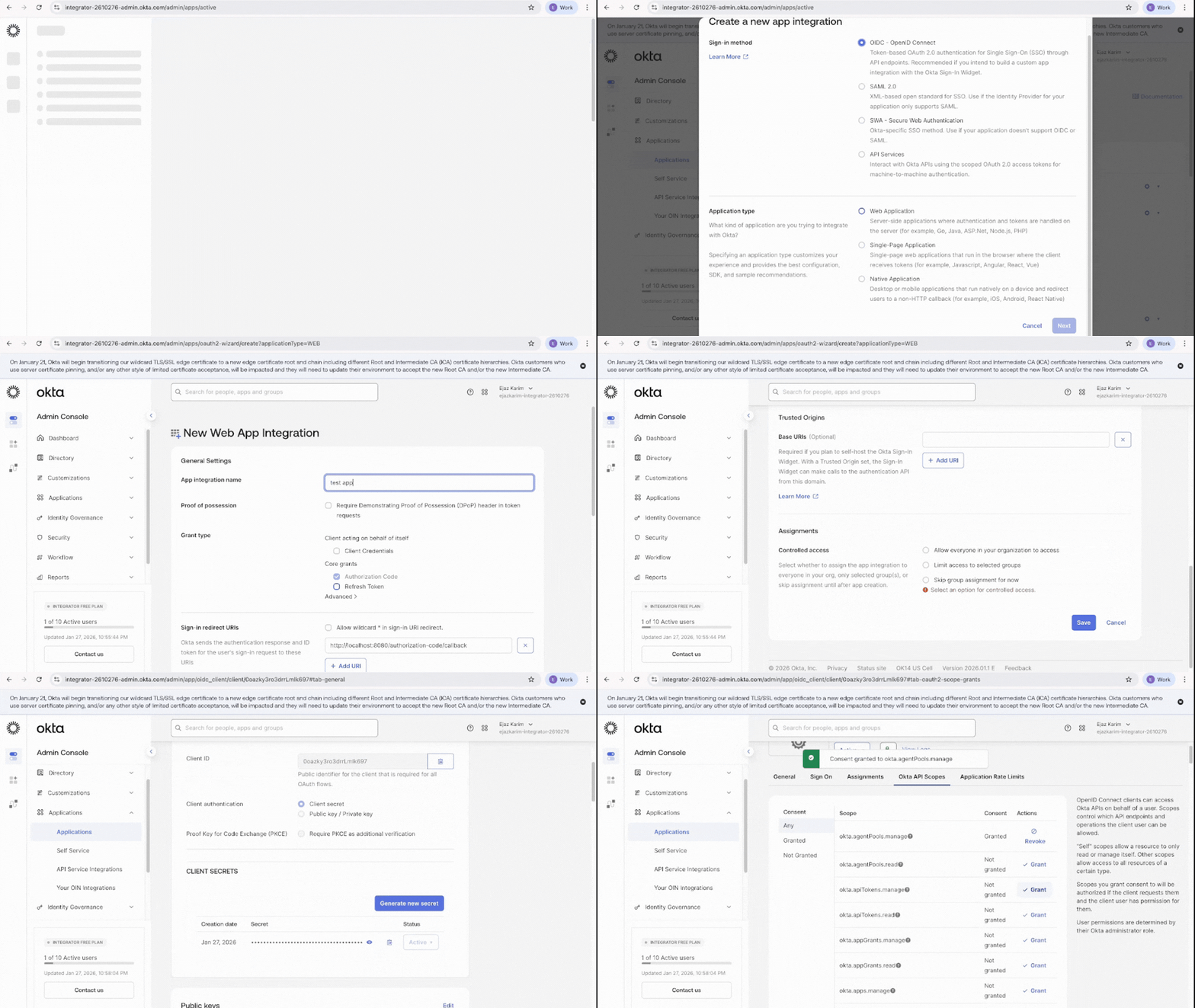
Follow the steps below to create an OAuth 2.0 app in Okta:- Sign in to your Okta Admin Console.
- Navigate to Applications > Applications in the left sidebar.
- Click Create App Integration.
- Select OIDC - OpenID Connect as the sign-in method.
- Select Web Application as the application type and click Next.
- Enter a descriptive App integration name.
- In the Sign-in redirect URIs field, enter the Ampersand redirect URL:
https://api.withampersand.com/callbacks/v1/oauth - Click Save.
Add your Okta app info to Ampersand
- Log in to your Ampersand Dashboard.
-
Select the project where you want to create an Okta integration.

- Select Provider Apps.
- Select Okta from the Provider list.
- Enter the previously obtained Client ID in the Client ID field and the Client Secret in the Client Secret field.
-
Enter the scopes set for your application in Okta. For a list of available scopes, refer to the Okta documentation.
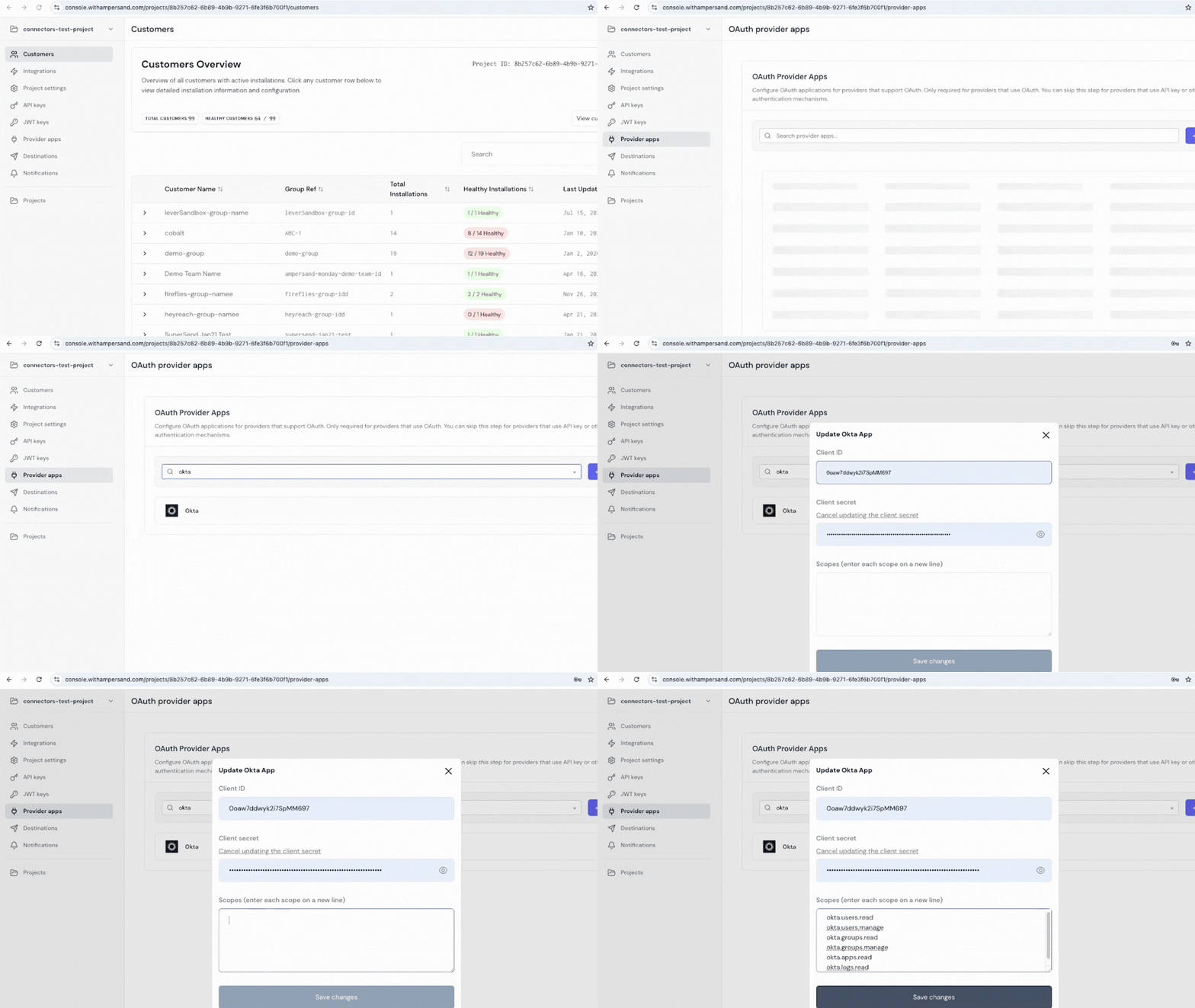
- Click Save Changes.