

What’s supported
Supported actions
This connector supports:- Read Actions, including full historic backfill. Please note that incremental reading is only supported for
contextcapture/jobs,reality-analysis/jobs, andrealityconversion/jobs. For all other objects, a full read of the Bentley instance will be done per scheduled read. - Write Actions.
- Proxy Actions, using the base URL
https://api.bentley.com.
Supported objects
The Bentley connector supports reading from the following objects:- contextcapture/jobs (incremental read)
- curated-content/cesium
- edfs/packages
- itwins
- itwins/exports
- itwins/favorites
- itwins/recents
- library/applications
- library/brands
- library/catalogs
- library/categories
- library/components
- library/manufacturers
- reality-analysis/detectors
- reality-analysis/files
- reality-analysis/jobs (incremental read)
- reality-management/reality-data
- realityconversion/jobs (incremental read)
- webhooks
- contextcapture/jobs
- contextcapture/workspaces
- itwins
- itwins/exports
- grouping-and-mapping/datasources/imodel-mappings
- imodels
- library/applications
- library/catalogs
- library/categories
- library/components
- library/manufacturers
- named-groups
- savedviews/groups
- savedviews
- savedviews/tags
- schedules
- reality-management/reality-data
- reality-analysis/detectors
- reality-analysis/jobs
- realityconversion/jobs
- insights/reporting/reports
- insights/carbon-calculation/ec3/configurations
- insights/carbon-calculation/ec3/jobs
- insights/carbon-calculation/oneclicklca/jobs
- changedelements/comparisonjob
- forms
- export/connections
- synchronization/imodels/manifestconnections
- synchronization/pnidtoitwin/inferences
- synchronization/imodels/storageconnections
- transformations
- transformations/configurations/createfork
- mesh-export
- webhooks
Example integration
For an example manifest file of a Bentley integration, visit our samples repo on Github.Before you get started
To connect Bentley with Ampersand, you will need a Bentley Account. Once your account is created, you’ll need to register an application in the Bentley developer portal and obtain the following credentials:- Client ID
- Client Secret
- Scopes
Creating a Bentley app
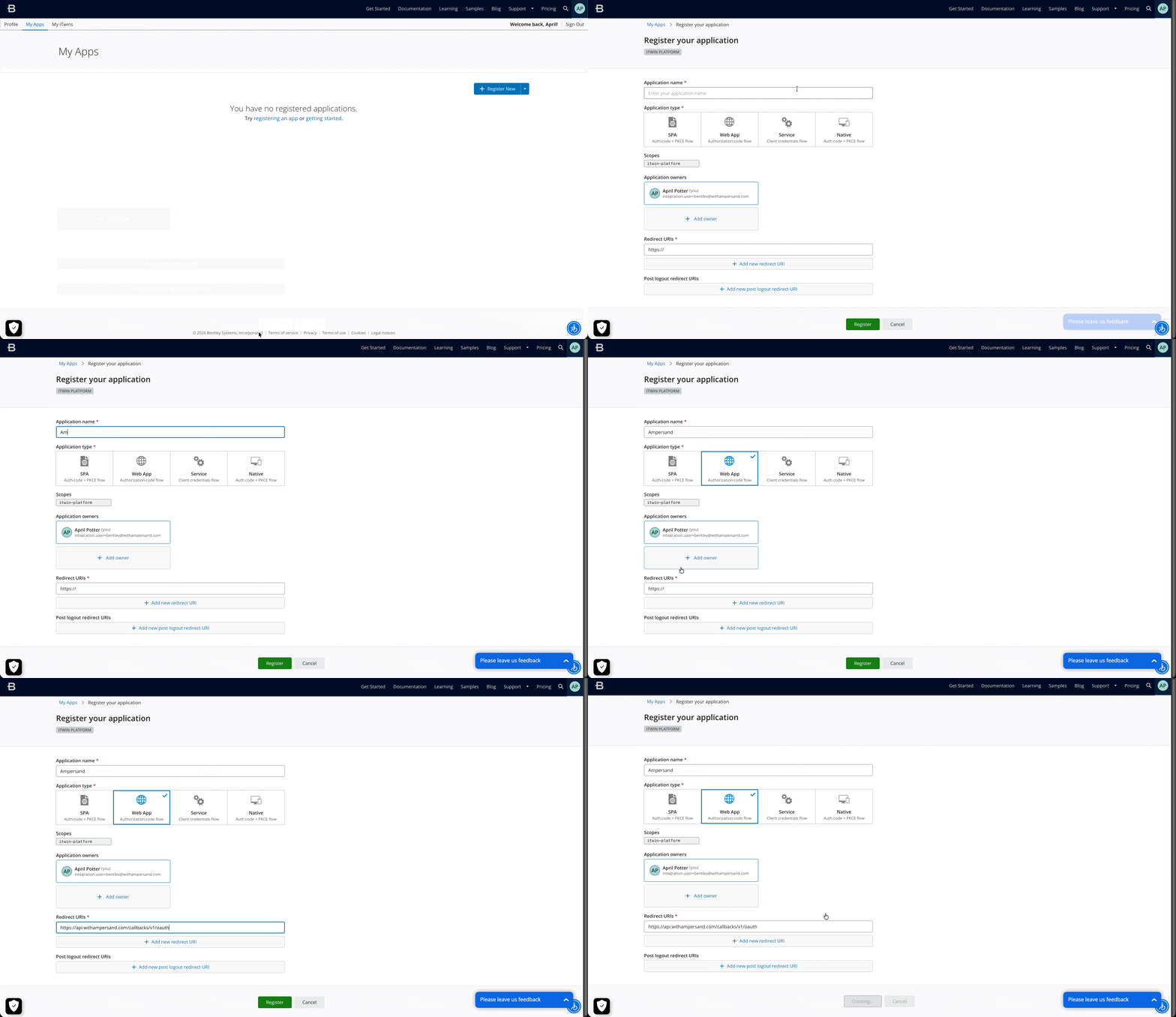
- Log in to the Bentley Developer Portal.
- Navigate to My Apps and click Register New.
-
Enter the following details for your application:
- Application Name: The name of your app.
- Application Type: Select Web App (for Authorization Code grant).
-
Under Redirect URIs, add:
https://api.withampersand.com/callbacks/v1/oauth - Select the scopes required for your integration.
- Click Register. Note the Client ID and Client Secret. You will need these to connect your app to Ampersand.
Add your Bentley app info to Ampersand
- Log in to your Ampersand Dashboard.
-
Select the project where you want to create a Bentley integration.

- Select Provider Apps.
- Select Bentley from the Provider list.
- Enter the Client ID and Client Secret obtained from your Bentley app.
-
Enter the scopes configured for your application in Bentley.
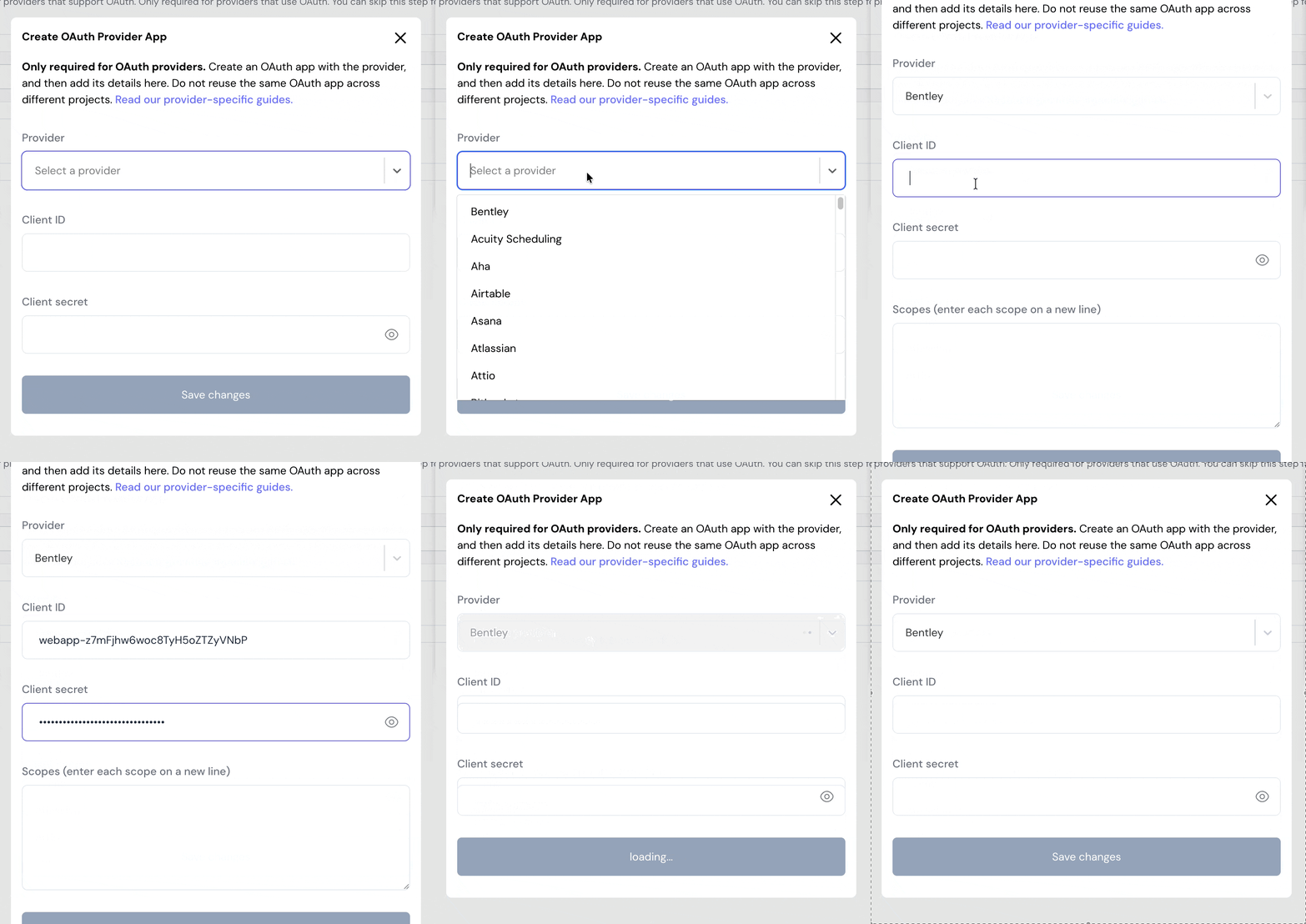
- Click Save Changes.
Using the connector
To start integrating with Bentley:- Create a manifest file like the example above.
- Deploy it using the amp CLI.
- If you are using Read Actions, create a destination.
- Embed the InstallIntegration UI component. The UI component will prompt the customer for OAuth authorization.
- Start using the connector!
- If your integration has Read Actions, you’ll start getting webhook messages.
- If your integration has Write Actions, you can start making API calls to our Write API.
- If your integration has Proxy Actions, you can start making Proxy API calls.