What’s supported
Supported actions
This connector supports:- Read Actions, including full historic backfill. Please note that incremental read is supported for
incidentsonly. For all other objects, a full read of the SolarwindsServiceDesk instance will be done for each scheduled read. - Write Actions.
- Proxy Actions, using the base URL
https://api.samanage.com.
Supported Objects
The SolarwindsServiceDesk connector supports writing to and reading from the following objects:- incidents
- users
- roles
- problems
- changes
- change_catalogs
- releases
- solutions
- catalog_items
- configuration_items
- sites
- departments
- groups
- categories
- hardwares
- mobiles
- other_assets
- contracts
- purchase_orders
- vendors
Example Integration
For an example manifest file of a SolarWinds Service Desk integration, visit our samples repo on Github.Using the connector
This connector uses API Key authentication, so you do not need to configure a Provider App before getting started. (Provider Apps are only required for providers using the OAuth2 Authorization Code grant type.) To integrate with SolarWinds Service Desk:- Create a manifest file similar to the example above.
- Deploy it using the amp CLI.
- Embed the InstallIntegration UI component, which will prompt the customer for an API key.
- Start making Proxy Calls, and Ampersand will automatically attach the API key provided by the customer. Please note that this connector’s base URL is
https://api.samanage.com.
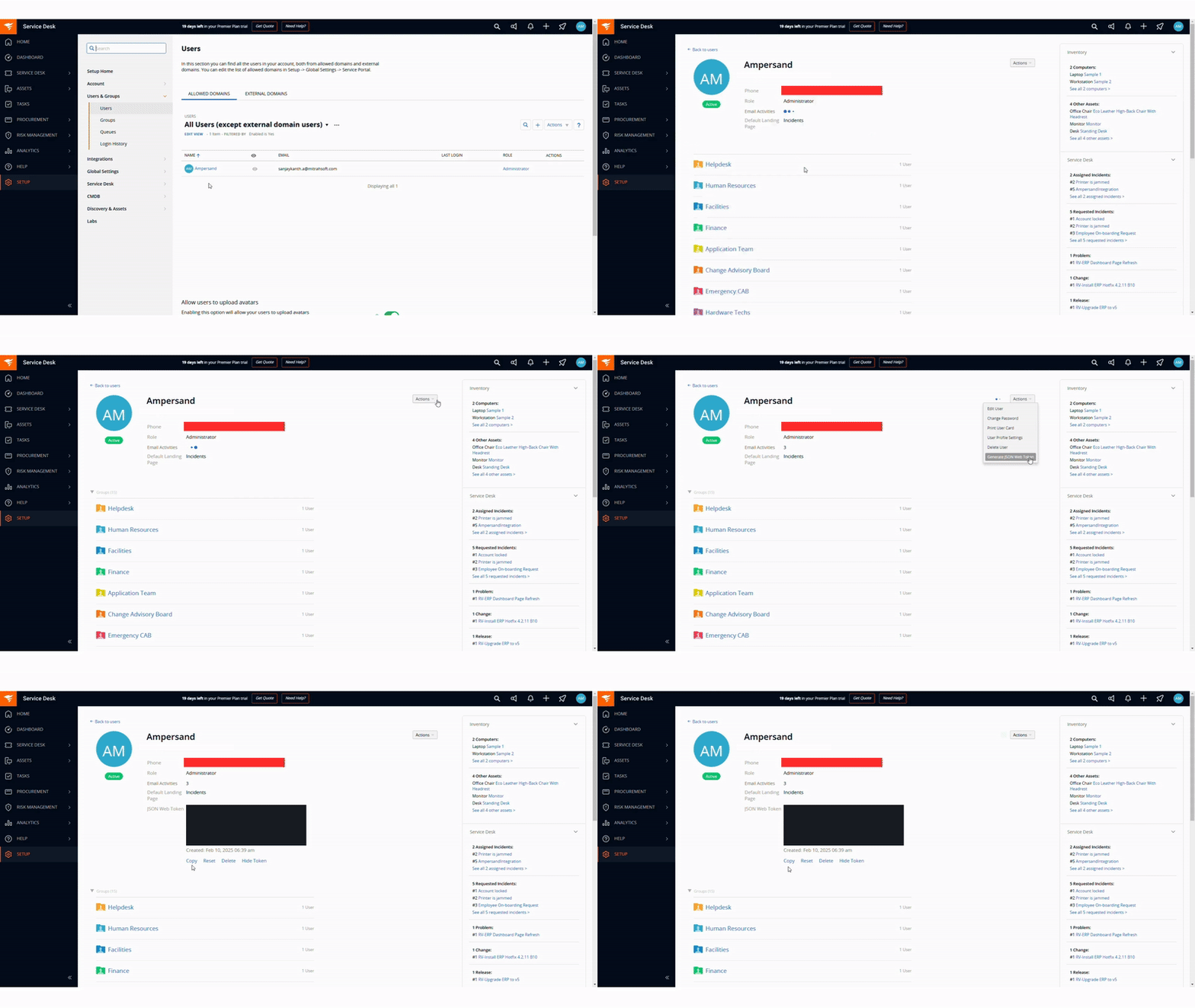
Creating an API key for SolarWinds Service Desk
- Log in to your SolarWinds Service Desk account.
- Navigate to Setup > Users & Groups > Users and locate your User Detail Page (not your User Profile Card).
- From the User detail page, click Actions and select Generate JSON Web Token from the dropdown menu. (SWSD administrator rights required.)
- Under JSON Web Token, click Copy to save the token for use.