

What’s Supported
Supported Actions
This connector supports:- Read Actions, including full historical backfill and incremental read.
- Write Actions, including create and update operations.
- Proxy Actions, using the base URL
https://webexapis.com.
Supported Objects
The Webex connector supports the following objects from the API:- people (Read, Write)
- groups (Read, Write)
- roles (Read only)
- events (Read only)
- organizations (Read only)
- reports (Read only)
- meetings (Read, Write)
Before you get started
To integrate Webex with Ampersand, you will need a Cisco Webex Account. Once your account is created, you’ll need to create an integration in Webex and obtain the following credentials from your integration:- Client ID
- Client Secret
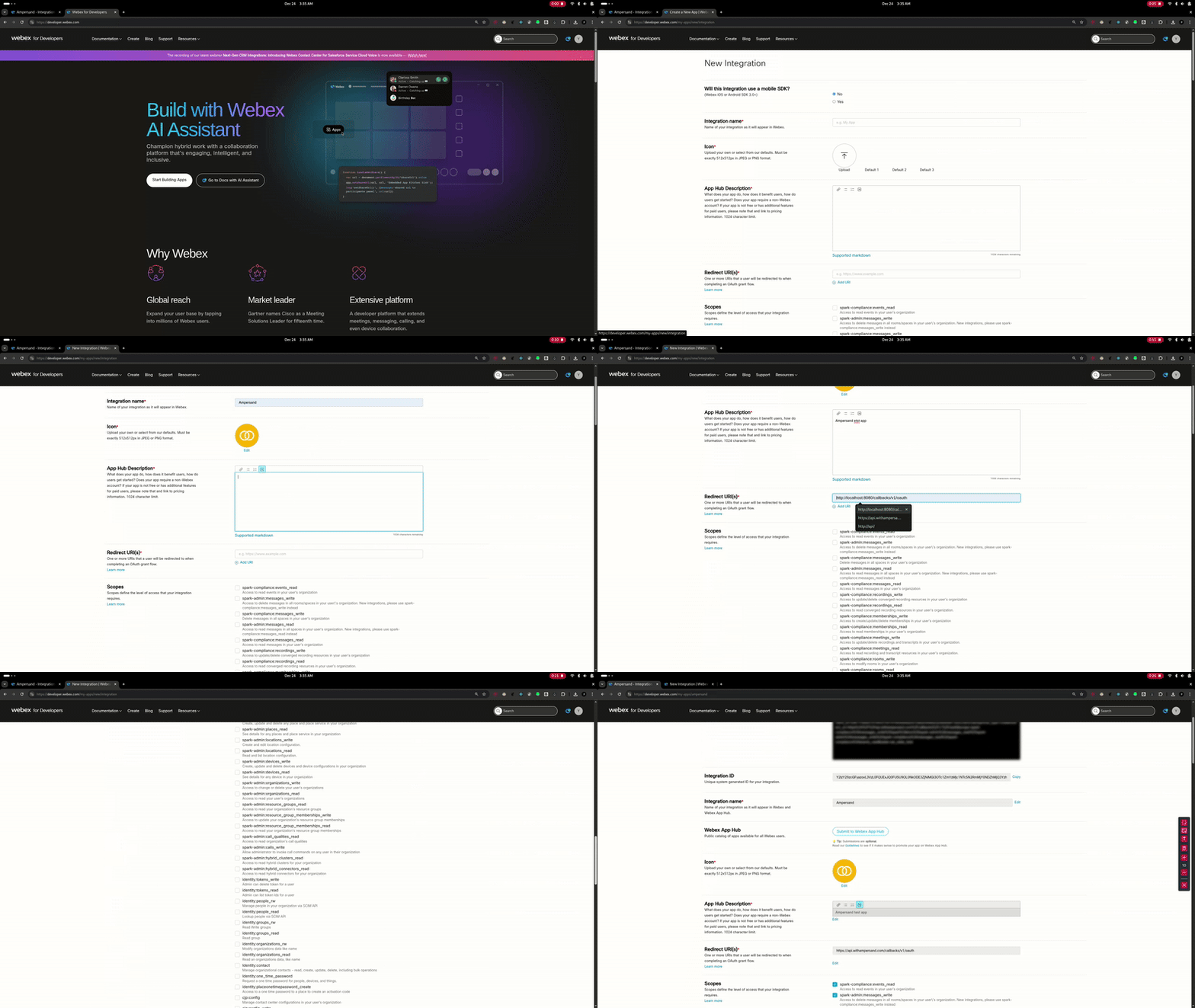
Creating a Webex Integration
The Admin API is a superset of user-level APIs. Some objects (such as events,
organizations, and reports) require organization-level admin scopes, while
others (such as meetings) can be accessed with user-level scopes. Refer to the
Webex API documentation to determine which
account type and scopes are required for your use case.
- Log in to your Webex Developer Portal account.
- Click My Apps in the top navigation.
- Click Create a New App.
- Select Integration as the app type.
- Enter your App Name.
- Enter a Description for your integration.
-
Enter Ampersand’s Redirect URI:
https://api.withampersand.com/callbacks/v1/oauth. - Under Scopes, select the necessary Scopes for your integration.
- Click Add Integration.
Add Your Webex App Info to Ampersand
- Log in to your Ampersand Dashboard.
- Select the project where you want to create a Webex integration.

- Select Provider apps.
- Select Webex from the Provider list.
- Enter the previously obtained Client ID in the Client ID field and the Client Secret in the Client Secret field.
- Click Save changes.
Using the connector
To start integrating with Webex:- Create a manifest file.
- Deploy it using the amp CLI.
- If you’re using Read Actions, create a destination.
- Embed the InstallIntegration UI component. This UI component will prompt the customer for OAuth authorization.
-
Start using the connector!
- If your integration has Read Actions, you’ll start getting webhook messages.
- If your integration has Write Actions, you can start making API calls to our Write API.
- If your integration has Proxy Actions, you can start making Proxy API calls.