> ## Documentation Index
> Fetch the complete documentation index at: https://docs.withampersand.com/llms.txt
> Use this file to discover all available pages before exploring further.
# Sellsy
## What's Supported
### Supported Actions
This connector supports:
* [Write Actions](/write-actions).
* [Read Actions](/read-actions), including full historic backfill and incremental read.
* [Proxy Actions](/proxy-actions), using the base URL `https://api.sellsy.com`.
### Supported Objects
The Sellsy connector supports reading from and writing to objects such as:
* [calendar-events](https://docs.sellsy.com/api/v2/#operation/search-calendar-events)
* [comments](https://docs.sellsy.com/api/v2/#operation/search-comments)
* [companies](https://docs.sellsy.com/api/v2/#operation/search-companies)
* [contacts](https://docs.sellsy.com/api/v2/#operation/search-contacts)
* [credit-notes](https://docs.sellsy.com/api/v2/#operation/search-credit-notes)
* [custom-activities](https://docs.sellsy.com/api/v2/#operation/post-custom-activities-search)
* [custom-activity-types](https://docs.sellsy.com/api/v2/#operation/get-custom-activity-types)
* [deposit-invoices](https://docs.sellsy.com/api/v2/#operation/search-deposit-invoices)
* [documents/models](https://docs.sellsy.com/api/v2/#operation/search-models)
* [estimates](https://docs.sellsy.com/api/v2/#operation/search-estimates)
* [individuals](https://docs.sellsy.com/api/v2/#operation/search-individuals)
* [invoices](https://docs.sellsy.com/api/v2/#operation/search-invoices)
* [opportunities](https://docs.sellsy.com/api/v2/#operation/search-opportunities)
* [orders](https://docs.sellsy.com/api/v2/#operation/search-orders)
* [phone-calls](https://docs.sellsy.com/api/v2/#operation/search-phone-calls)
* [staffs](https://docs.sellsy.com/api/v2/#operation/search-staffs)
* [subscriptions](https://docs.sellsy.com/api/v2/#operation/search-subscriptions)
* [tasks](https://docs.sellsy.com/api/v2/#operation/search-tasks)
* [webhooks](https://docs.sellsy.com/api/v2/#operation/search-webhooks)
Read-only objects include:
* [notifications](https://docs.sellsy.com/api/v2/#operation/search-notifications)
* [pur-invoice](https://docs.sellsy.com/api/v2/#operation/search-ocr-pur-invoice)
## Before You Get Started
To connect Sellsy with Ampersand, you will need [a Sellsy Account](https://www.sellsy.com/onboarding/quicktrial).
Once your account is created, you'll need to create an app in Sellsy and obtain the following credentials from your app:
* Client ID
* Client Secret
You will then use these credentials to connect your application to Ampersand.
### Create a Sellsy Account
Here's how you can sign up for a Sellsy account:
* Go to the [Sellsy Sign Up page](https://www.sellsy.com/onboarding/quicktrial).
* Sign up using your preferred method.
### Creating a Sellsy App
Follow the steps below to create & configure a Sellsy app.
1. Log in to your [Sellsy](https://login.sellsy.com/login) account.
2. Go to **Menu**, **Settings**, and select **Developer Portal** in your Sellsy account.
3. Click the **API V2 (beta)** tab, then click **Create API Access** and select the **API access type** as *Private*.
4. Enter your application's name as the **Access name**.
5. In the **Redirect URLs** section, enter the Ampersand redirect URL: `https://api.withampersand.com/callbacks/v1/oauth`.
6. Choose the **scopes** that are applicable to your application.
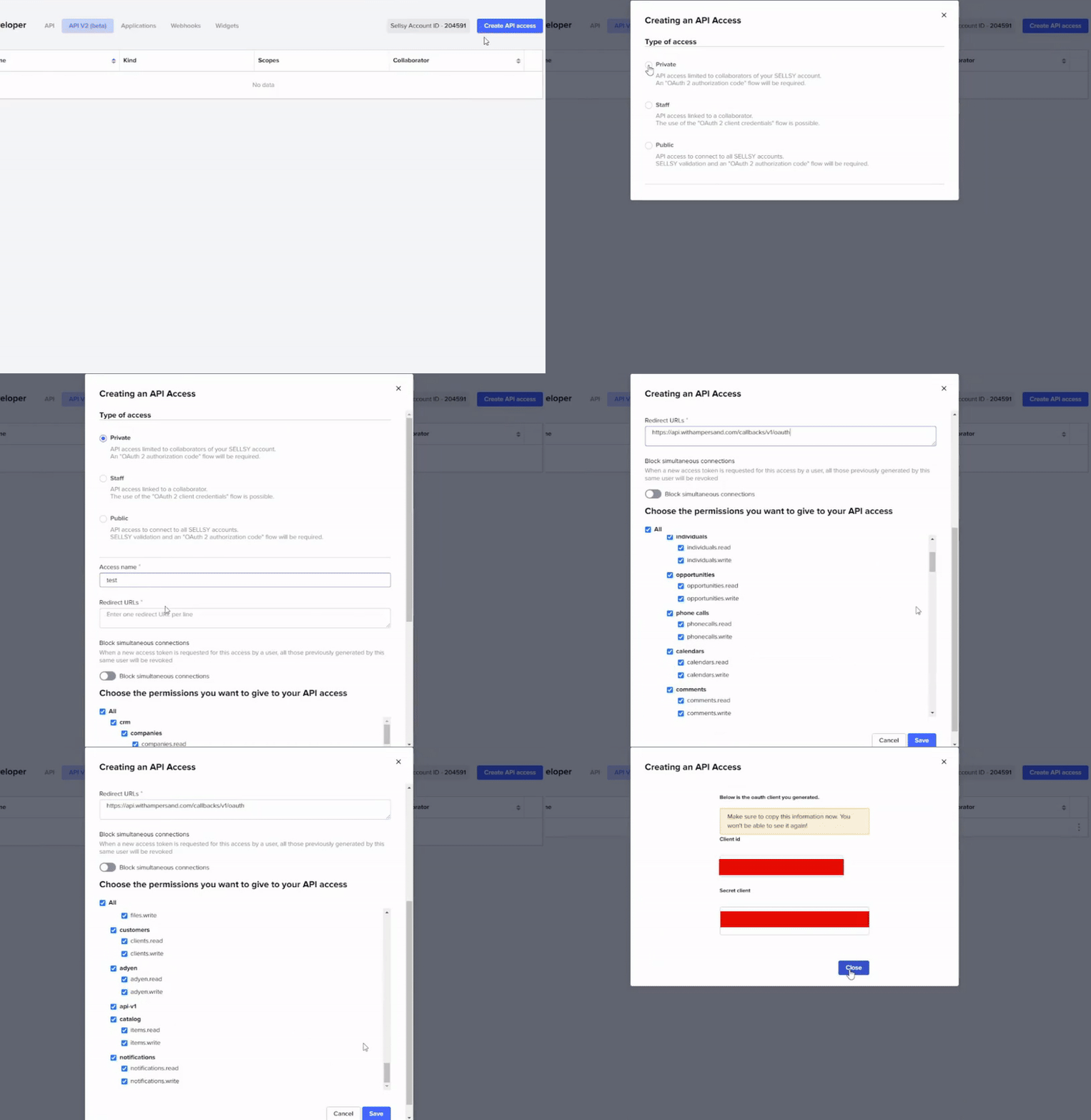 7. Make sure to click **Save**.
## Add Your Sellsy App Info to Ampersand
1. Log in to your [Ampersand Dashboard](https://dashboard.withampersand.com).
2. Select the project you want to create a Sellsy integration in.
7. Make sure to click **Save**.
## Add Your Sellsy App Info to Ampersand
1. Log in to your [Ampersand Dashboard](https://dashboard.withampersand.com).
2. Select the project you want to create a Sellsy integration in.
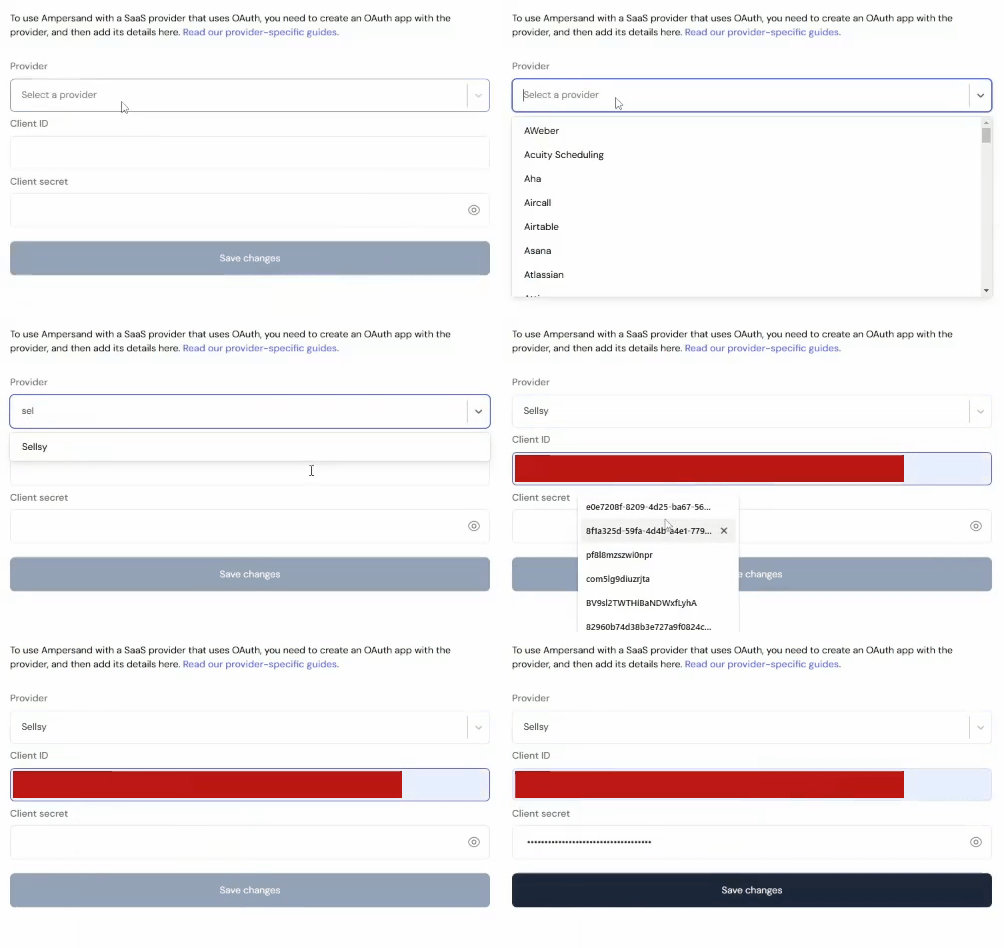
 3. Select **Provider Apps**.
4. Select *Sellsy* from the **Provider** list.
5. Enter the previously obtained *Client ID* in the **Client ID** field and the *Client Secret* in the **Client Secret** field.
3. Select **Provider Apps**.
4. Select *Sellsy* from the **Provider** list.
5. Enter the previously obtained *Client ID* in the **Client ID** field and the *Client Secret* in the **Client Secret** field.