> ## Documentation Index
> Fetch the complete documentation index at: https://docs.withampersand.com/llms.txt
> Use this file to discover all available pages before exploring further.
# Lever
## What's Supported
### Supported Actions
This connector supports:
* [Read Actions](/read-actions), including full historic backfill and incremental read.
* [Write Actions](/write-actions).
* [Proxy Actions](/proxy-actions), using the base URL `https://api.lever.co`.
### Supported Objects
The Lever connector supports reading to the following objects:
* [archive\_reasons](https://hire.lever.co/developer/documentation#archive-reasons)
* [audit\_events](https://hire.lever.co/developer/documentation#audit-events)
* [sources](https://hire.lever.co/developer/documentation#sources)
* [stages](https://hire.lever.co/developer/documentation#stages)
* [tags](https://hire.lever.co/developer/documentation#tags)
* [users](https://hire.lever.co/developer/documentation#users)
* [feedback\_templates](https://hire.lever.co/developer/documentation#feedback-templates)
* [opportunities](https://hire.lever.co/developer/documentation#opportunities)
* [postings](https://hire.lever.co/developer/documentation#postings)
* [form\_templates](https://hire.lever.co/developer/documentation#profile-form-templates)
* [requisitions](https://hire.lever.co/developer/documentation#requisitions)
* [requisition\_fields](https://hire.lever.co/developer/documentation#requisition-fields)
The Lever connector supports writing to the following objects:
* [form\_templates](https://hire.lever.co/developer/documentation#profile-form-templates)
* [requisitions](https://hire.lever.co/developer/documentation#requisitions)
* [requisition\_fields](https://hire.lever.co/developer/documentation#requisition-fields)
* [uploads](https://hire.lever.co/developer/documentation#uploads)
* [users](https://hire.lever.co/developer/documentation#users)
* [feedback\_templates](https://hire.lever.co/developer/documentation#feedback-templates)
* [contacts](https://hire.lever.co/developer/documentation#contacts)
### Example integration
For an example manifest file of an Lever integration, visit our [samples repo on Github](https://github.com/amp-labs/samples/blob/main/lever/amp.yaml).
## Before You Get Started
To connect Lever with Ampersand, you need [a Lever Account](https://www.lever.co/demo/).
Once your account is created, you'll need to contact the support team to enable the OAuth option, and you'll need to create an app in Lever and obtain the following credentials from your app:
* Client ID
* Client Secret
You will then use these credentials to connect your application to Ampersand.
### Creating a Lever App
Follow the steps below to create a Lever app and add the Ampersand redirect URL.
1. Log in to your [Lever](https://hire.lever.co/auth/login) account.
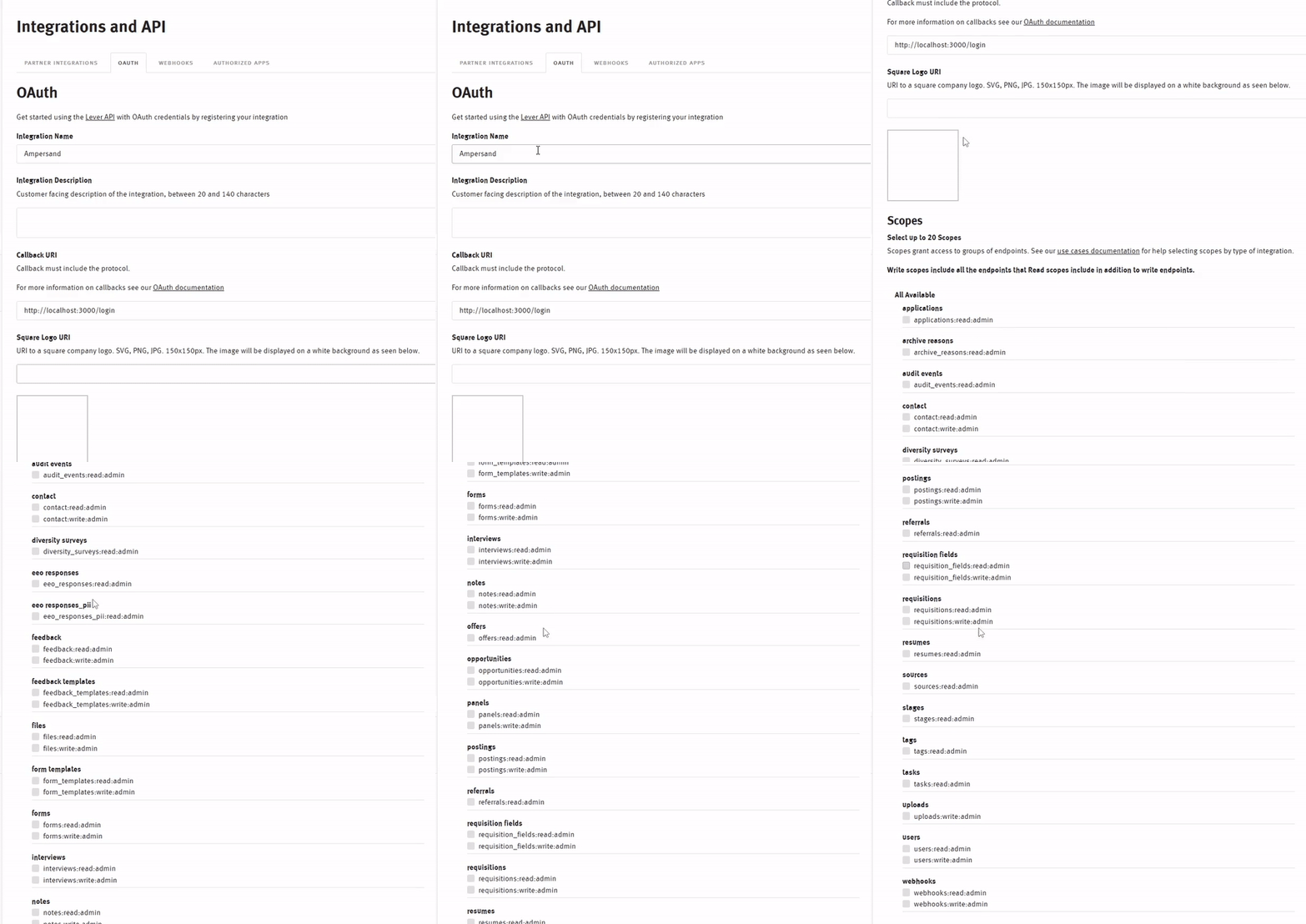
2. Go to **Settings > Integrations and API > OAuth** in your Lever account.
3. Enter the integration name in the **Integration Name** section.
4. In the **Integration Description** section, enter the description for the OAuth application.
5. Enter the Ampersand Callback URI: `https://api.withampersand.com/callbacks/v1/oauth` in the **Callback URI** section.
6. Provide the URL for the **Square logo URI**.
7. Enable the required **scopes**. For each module, enable both read and write access. A maximum of 20 scopes can be selected.
8. Click the **Submit**.
 ## Add Your Lever App Info to Ampersand
1. Log in to your [Ampersand Dashboard](https://dashboard.withampersand.com).
2. Select the project where you want to create a Lever integration.
## Add Your Lever App Info to Ampersand
1. Log in to your [Ampersand Dashboard](https://dashboard.withampersand.com).
2. Select the project where you want to create a Lever integration.
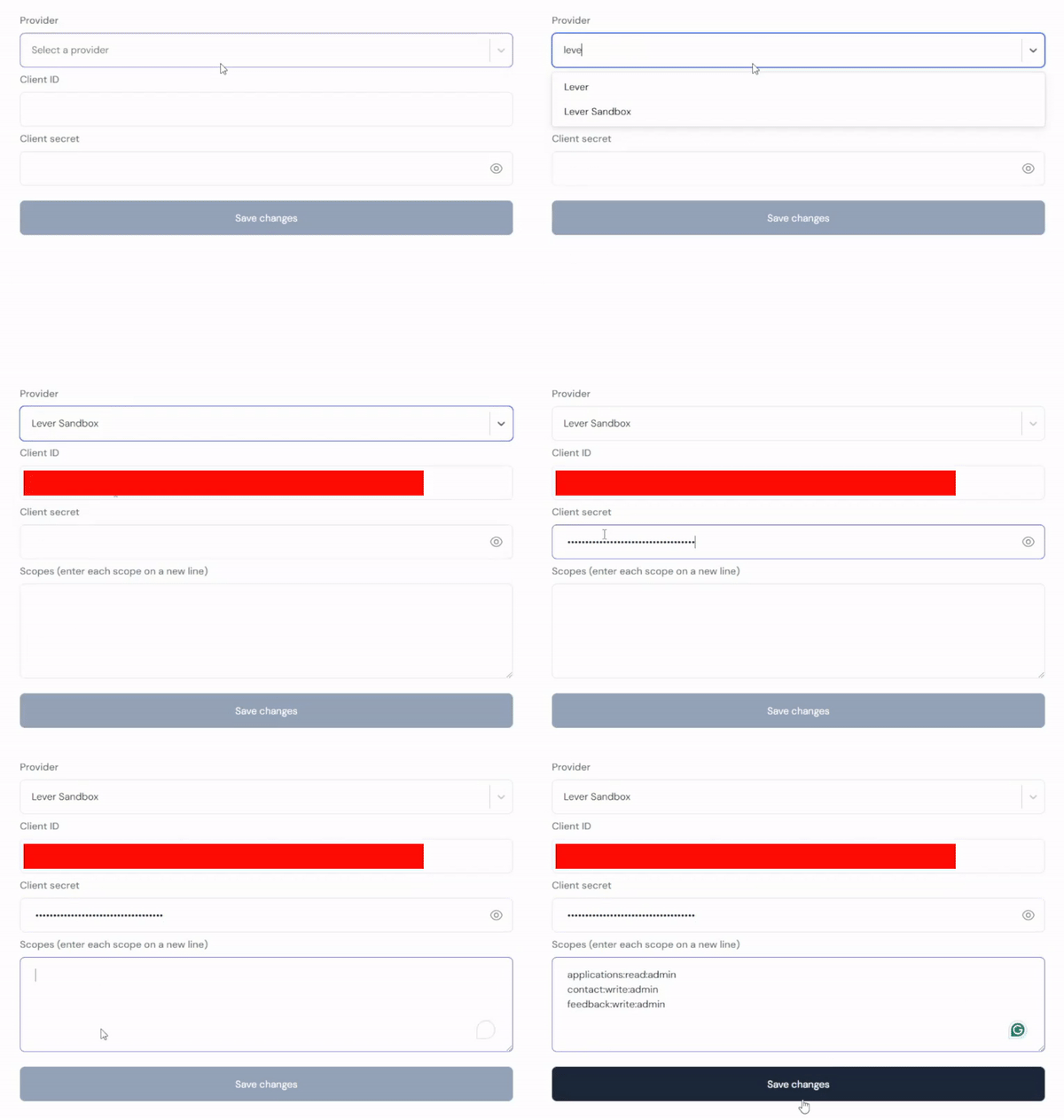
 3. Select **Provider Apps**.
4. Select Lever from the **Provider** list.
5. Enter the previously obtained Client ID in the **Client ID** field and the Client Secret in the **Client Secret** field.
3. Select **Provider Apps**.
4. Select Lever from the **Provider** list.
5. Enter the previously obtained Client ID in the **Client ID** field and the Client Secret in the **Client Secret** field.
 To start integrating with Lever:
* Create a manifest file using the [example](https://github.com/amp-labs/samples/blob/main/lever/amp.yaml).
* Deploy it using the [amp CLI](/cli/overview).
* If you are using Read Actions, create a [destination](/destinations).
* Embed the [InstallIntegration](/embeddable-ui-components#install-integration) UI component.
* Start using the connector!
* If your integration has [Read Actions](/read-actions), you'll start getting webhook messages.
* If your integration has [Write Actions](/write-actions), you can start making API calls to our Write API.
* If your integration has [Proxy Actions](/proxy-actions), you can start making Proxy API calls.
To start integrating with Lever:
* Create a manifest file using the [example](https://github.com/amp-labs/samples/blob/main/lever/amp.yaml).
* Deploy it using the [amp CLI](/cli/overview).
* If you are using Read Actions, create a [destination](/destinations).
* Embed the [InstallIntegration](/embeddable-ui-components#install-integration) UI component.
* Start using the connector!
* If your integration has [Read Actions](/read-actions), you'll start getting webhook messages.
* If your integration has [Write Actions](/write-actions), you can start making API calls to our Write API.
* If your integration has [Proxy Actions](/proxy-actions), you can start making Proxy API calls.