> ## Documentation Index
> Fetch the complete documentation index at: https://docs.withampersand.com/llms.txt
> Use this file to discover all available pages before exploring further.
# Keap
## What's supported
### Supported actions
This connector supports:
* [Read Actions](/read-actions), including full historic backfill and incremental read for contacts.
* [Write Actions](/write-actions).
* [Proxy Actions](/proxy-actions), using the base URL `https://api.infusionsoft.com`.
The Keap connector supports writing to and reading from the following objects:
* [automationCategory](https://developer.keap.com/docs/restv2/#tag/AutomationCategory/operation/listCategoriesUsingGET)
* [automations](https://developer.keap.com/docs/restv2/#tag/Automation/operation/listAutomationsUsingGET)
* [campaigns](https://developer.keap.com/docs/restv2/#tag/Campaign/operation/listCampaignsUsingGET_1)
* [companies](https://developer.keap.com/docs/restv2/#tag/Company/operation/listCompaniesUsingGET_1)
* [contacts/links/types](https://developer.keap.com/docs/restv2/#tag/Contact/operation/listContactLinkTypesUsingGET)
* [contacts](https://developer.keap.com/docs/restv2/#tag/Contact/operation/listContactsUsingGET_1) (with incremental read)
* [tags/categories](https://developer.keap.com/docs/restv2/#tag/Tags/operation/listTagCategoriesUsingGET)
* [tags](https://developer.keap.com/docs/restv2/#tag/Tags/operation/listTagsUsingGET_1)
* [tasks](https://developer.keap.com/docs/restv2/#tag/Task/operation/listTasksUsingGET_1)
The Keap connector only supports modifying the following objects:
* [affiliates](https://developer.keap.com/docs/restv2/#tag/Affiliate/operation/addAffiliateUsingPOST)
* [emails](https://developer.keap.com/docs/restv2/#tag/Email/operation/createEmailUsingPOST_1)
* [paymentMethodConfigs](https://developer.keap.com/docs/restv2/#tag/Payment-Method-Configs/operation/createPaymentMethodConfigUsingPOST)
* [subscriptions](https://developer.keap.com/docs/restv2/#tag/Subscriptions/operation/createSubscriptionV2UsingPOST)
Custom fields are returned just like any other field on objects that support them.
## Before you get started
To integrate Keap with Ampersand, you will need a [Keap Developer Account](https://developer.infusionsoft.com/).
Once your account is created, you'll need to create an app in Keap and obtain the following credentials from your app:
* App ID
* Secret
You will then use these credentials to connect your application to Ampersand.
### Create a Keap account
Here's how you can sign up for a Keap account:
* Go to the [Keap Developer Portal](https://developer.infusionsoft.com/).
* Sign up using your preferred method and complete any necessary verification.
### Creating a Keap app
Follow the steps below to create a Keap app and add the Ampersand redirect URL.
1. Log in to your [Keap Developer Portal](https://developer.infusionsoft.com/).
2. Click **Apps** from your account drop-down menu.
3. Enter the following app details:
* **App Name**: The name of your app.
* **App Description**: A brief description of your app and its purpose.
4. Select **Enable** button for the given Keap API.
5. Click **Save**.
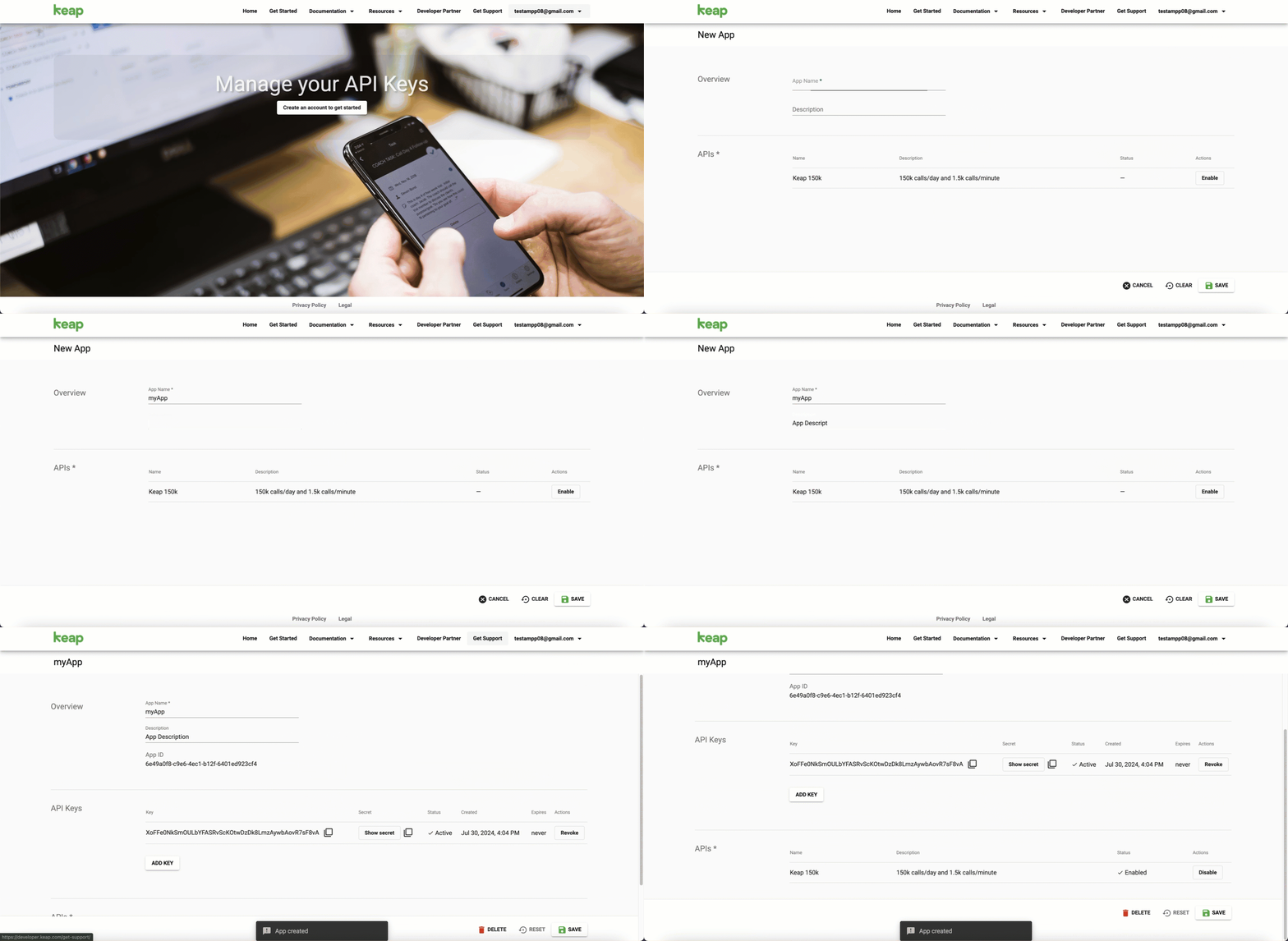 You will find the **App ID** and **Secret** in the app details. Note these credentials, as you will need them to connect your app to Ampersand.
## Add your Keap app info to Ampersand
1. Log in to your [Ampersand Dashboard](https://dashboard.withampersand.com).
2. Select the project where you want to create a Keap integration.
You will find the **App ID** and **Secret** in the app details. Note these credentials, as you will need them to connect your app to Ampersand.
## Add your Keap app info to Ampersand
1. Log in to your [Ampersand Dashboard](https://dashboard.withampersand.com).
2. Select the project where you want to create a Keap integration.
 3. Select **Provider Apps**.
4. Select *Keap* from the **Provider** list.
5. Enter the previously obtained **App ID** in the **Client ID** field and **Secret** in the **Client Secret** field.
3. Select **Provider Apps**.
4. Select *Keap* from the **Provider** list.
5. Enter the previously obtained **App ID** in the **Client ID** field and **Secret** in the **Client Secret** field.
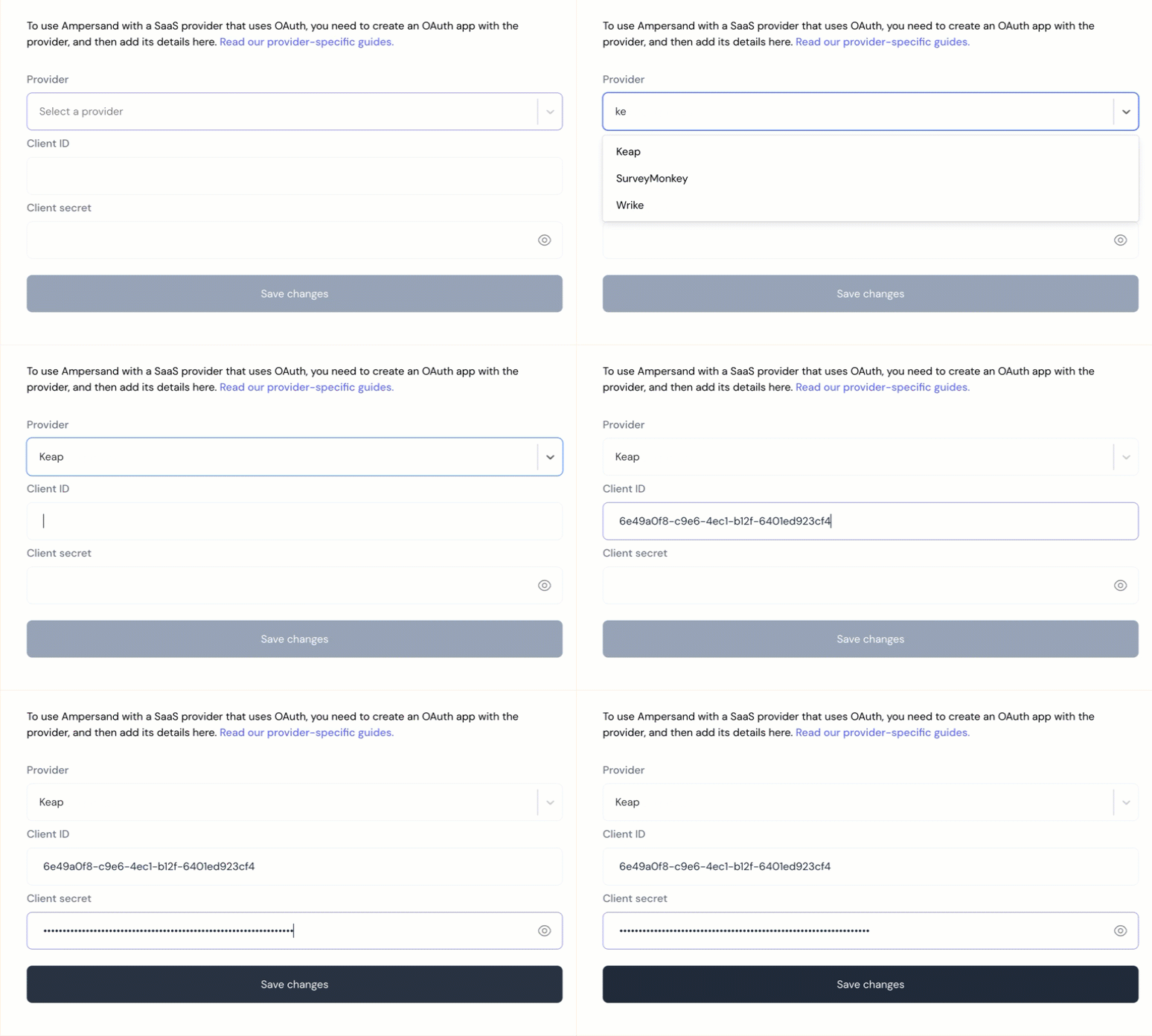 6. Click **Save Changes**.