> ## Documentation Index
> Fetch the complete documentation index at: https://docs.withampersand.com/llms.txt
> Use this file to discover all available pages before exploring further.
# Intercom
## What's Supported
### Supported Actions
The Intercom connector supports:
* [Read Actions](/read-actions), including full historic backfill. Please note that incremental read is supported only for `conversations`, `contacts`, `activity_logs` and `tickets` currently. For all other objects, a full read of the Intercom instance will be done per scheduled read.
* [Write Actions](/write-actions).
* [Proxy Actions](/proxy-actions), using the base URL `https://api.intercom.io`.
### Supported Objects
The Intercom connector supports writing to and reading from the following objects:
* [Activity Logs](https://developers.intercom.com/docs/references/rest-api/api.intercom.io/models/activity_log) (incremental read)
* [Admins](https://developers.intercom.com/docs/references/rest-api/api.intercom.io/admins/admin)
* [Articles](https://developers.intercom.com/docs/references/rest-api/api.intercom.io/articles/article)
* [Collections](https://developers.intercom.com/docs/references/rest-api/api.intercom.io/help-center/collection)
* [Companies](https://developers.intercom.com/docs/references/rest-api/api.intercom.io/companies/company)
* [Contacts](https://developers.intercom.com/docs/references/rest-api/api.intercom.io/contacts/contact) (incremental read)
* [Conversations](https://developers.intercom.com/docs/references/rest-api/api.intercom.io/conversations/conversation) (incremental read)
* [Data Attributes](https://developers.intercom.com/docs/references/rest-api/api.intercom.io/data-attributes/data_attribute)
* [Events](https://developers.intercom.com/docs/references/rest-api/api.intercom.io/models/data_event_summary)
* [Help Centers](https://developers.intercom.com/docs/references/rest-api/api.intercom.io/help-center/help_center)
* [News Items](https://developers.intercom.com/docs/references/rest-api/api.intercom.io/news/news_item)
* [Newsfeeds](https://developers.intercom.com/docs/references/rest-api/api.intercom.io/news/newsfeed)
* [Segments](https://developers.intercom.com/docs/references/rest-api/api.intercom.io/segments/segment)
* [Subscription Types](https://developers.intercom.com/docs/references/rest-api/api.intercom.io/subscription-types/subscription_type)
* [Tags](https://developers.intercom.com/docs/references/rest-api/api.intercom.io/tags/tag)
* [Teams](https://developers.intercom.com/docs/references/rest-api/api.intercom.io/teams/team)
* [Ticket Types](https://developers.intercom.com/docs/references/rest-api/api.intercom.io/tickets/ticket_type)
* [Tickets](https://developers.intercom.com/docs/references/rest-api/api.intercom.io/tickets/ticket) (incremental read)
### Example Integration
For an example manifest file of a Intercom integration, visit our [samples repo on Github](https://github.com/amp-labs/samples/blob/main/intercom/amp.yaml).
## Before You Get Started
To integrate Intercom with Ampersand, you need to [Create an Intercom Account](#create-an-intercom-account) and obtain the following credentials from an Intercom App:
* Client ID
* Client Secret
### Create an Intercom Account
You need an **Intercom** account to connect with Ampersand. If you do not have an Intercom account, here's how you can sign up:
* Go to the [Intercom Developer site](https://developers.intercom.com/building-apps/docs/getting-started) and sign up for a free developer account.
## Creating an Intercom App
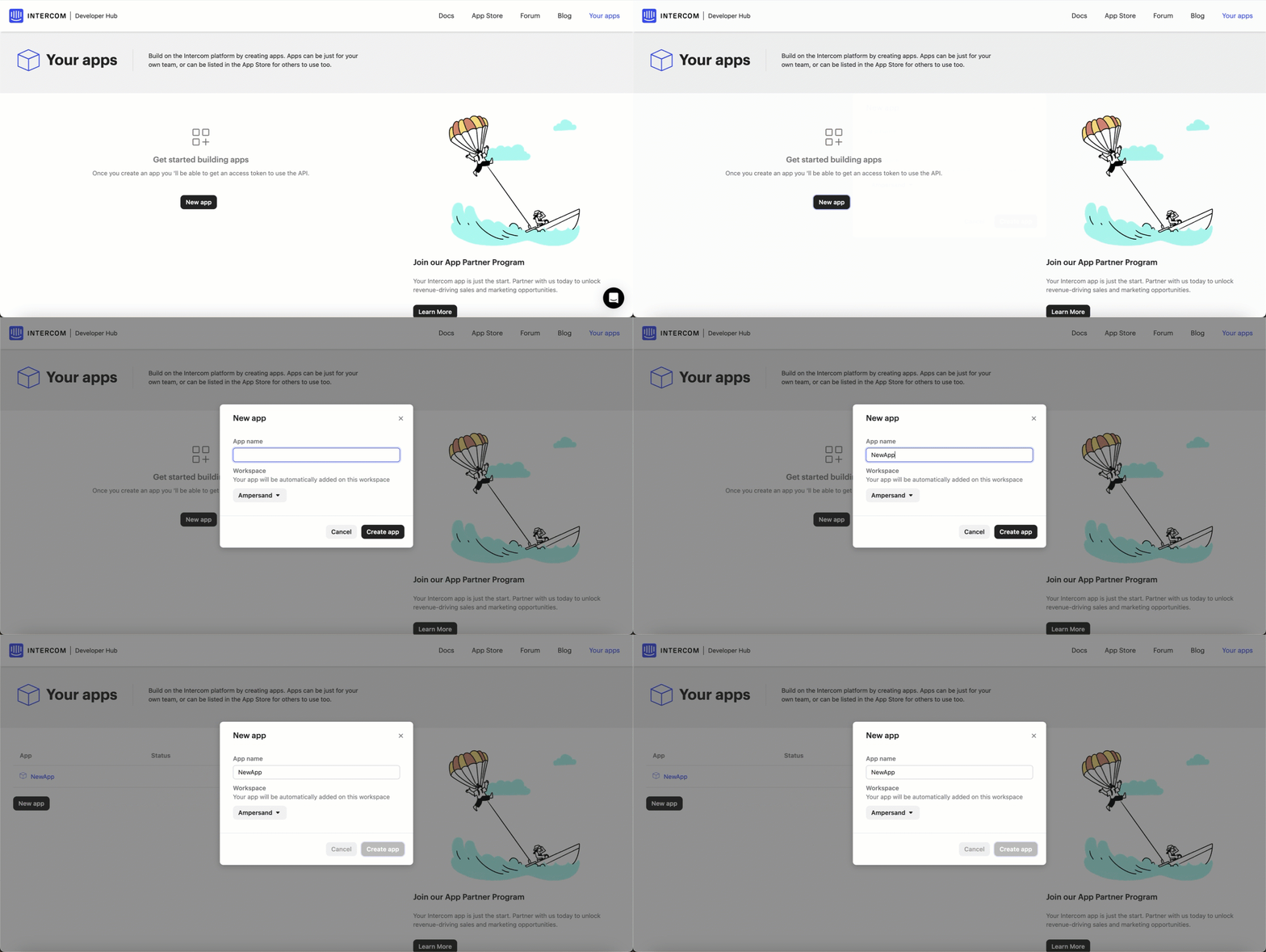
Once your Intercom Developer account is ready, you need to create an Intercom application. Learn more about creating an Intercom application [here](https://developers.intercom.com/building-apps/docs/setting-up-your-app-on-intercom).
1. Log in to Your [Intercom Developer Dashboard](https://app.intercom.io/a/apps/_YOUR_APP_ID_/developer).
2. Click **New App** and follow the prompts to create your app.
3. Click **Create App**.
 ### Adding Ampersand Redirect URL to Intercom App
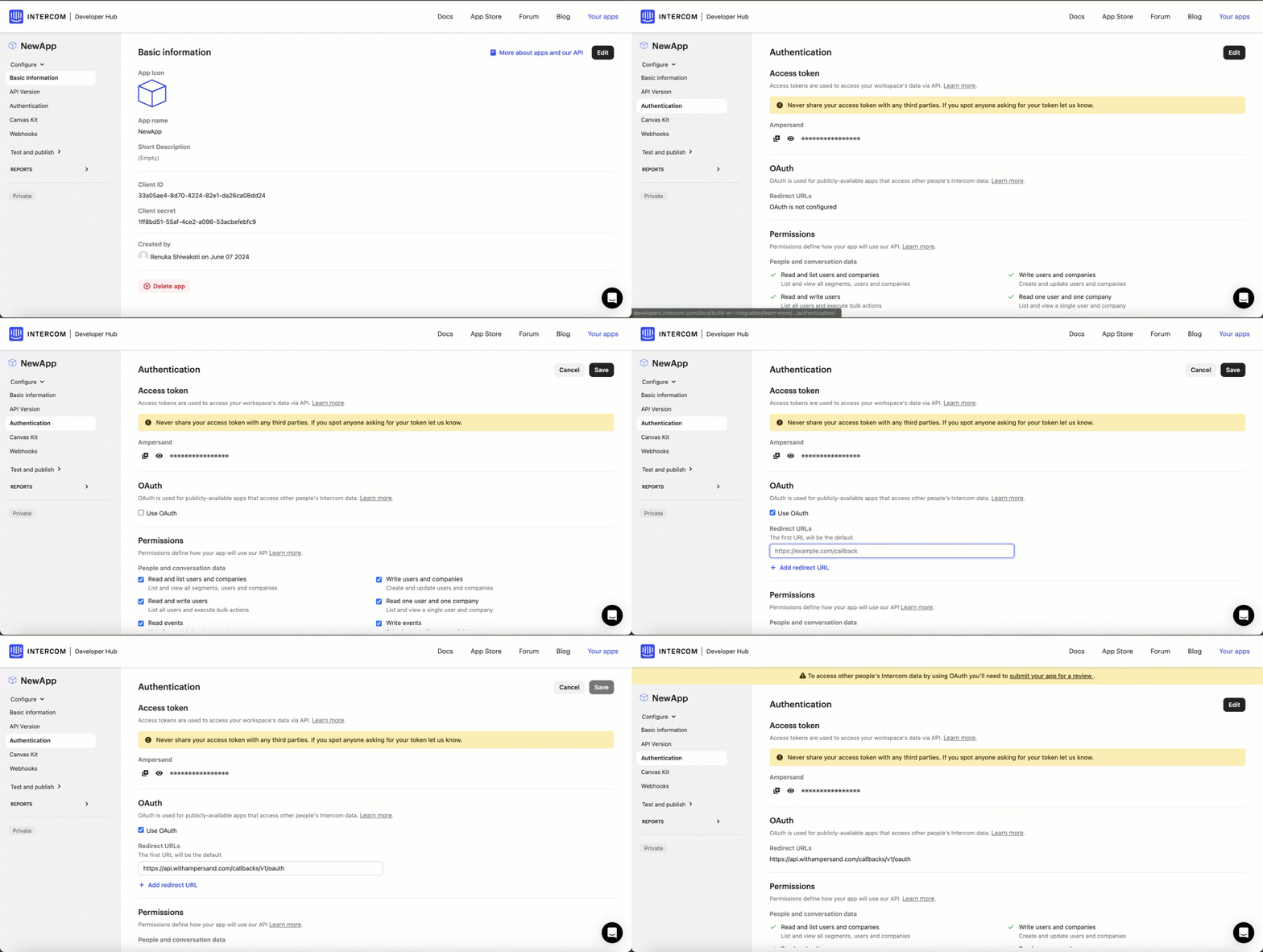
Ampersand uses a redirect URL to integrate with your Intercom app.
Follow the steps below to add the Ampersand URL to Intercom:
1. Go to your [Intercom developer dashboard](https://developers.intercom.com/) and select your application.
2. Navigate to `Configure > Authentication` and click **Edit**.
3. Enable the **Use OAuth** option.
4. In the **Redirect URL** section, click **Add URL** and add the Ampersand redirect URL: `https://api.withampersand.com/callbacks/v1/oauth`.
### Adding Ampersand Redirect URL to Intercom App
Ampersand uses a redirect URL to integrate with your Intercom app.
Follow the steps below to add the Ampersand URL to Intercom:
1. Go to your [Intercom developer dashboard](https://developers.intercom.com/) and select your application.
2. Navigate to `Configure > Authentication` and click **Edit**.
3. Enable the **Use OAuth** option.
4. In the **Redirect URL** section, click **Add URL** and add the Ampersand redirect URL: `https://api.withampersand.com/callbacks/v1/oauth`.
### Accessing Client ID and Client Secret
Once your app is created, Intercom provides your *Client ID* and *Client Secret* which will is used to add your Intercom App to Ampersand.
Here's how you can obtain the credentials you'll need:
1. Go to your [Intercom developer dashboard](https://developers.intercom.com/) and select your application.
2. You will find your *Client ID* and *Client Secret* under the **Basic Information** section.
You can now add your Intercom App Details to Ampersand.
## Add Intercom App Details in Ampersand
1. Log in to your [Ampersand Dashboard](https://dashboard.withampersand.com).
2. Select the project where you want to add the Intercom App.

3. Select **Provider apps**.
4. Select *Intercom* from the **Provider** list.
5. Enter the previously obtained *Client ID* in the **Client ID** field and the *Client Secret* in the **Client Secret** field.
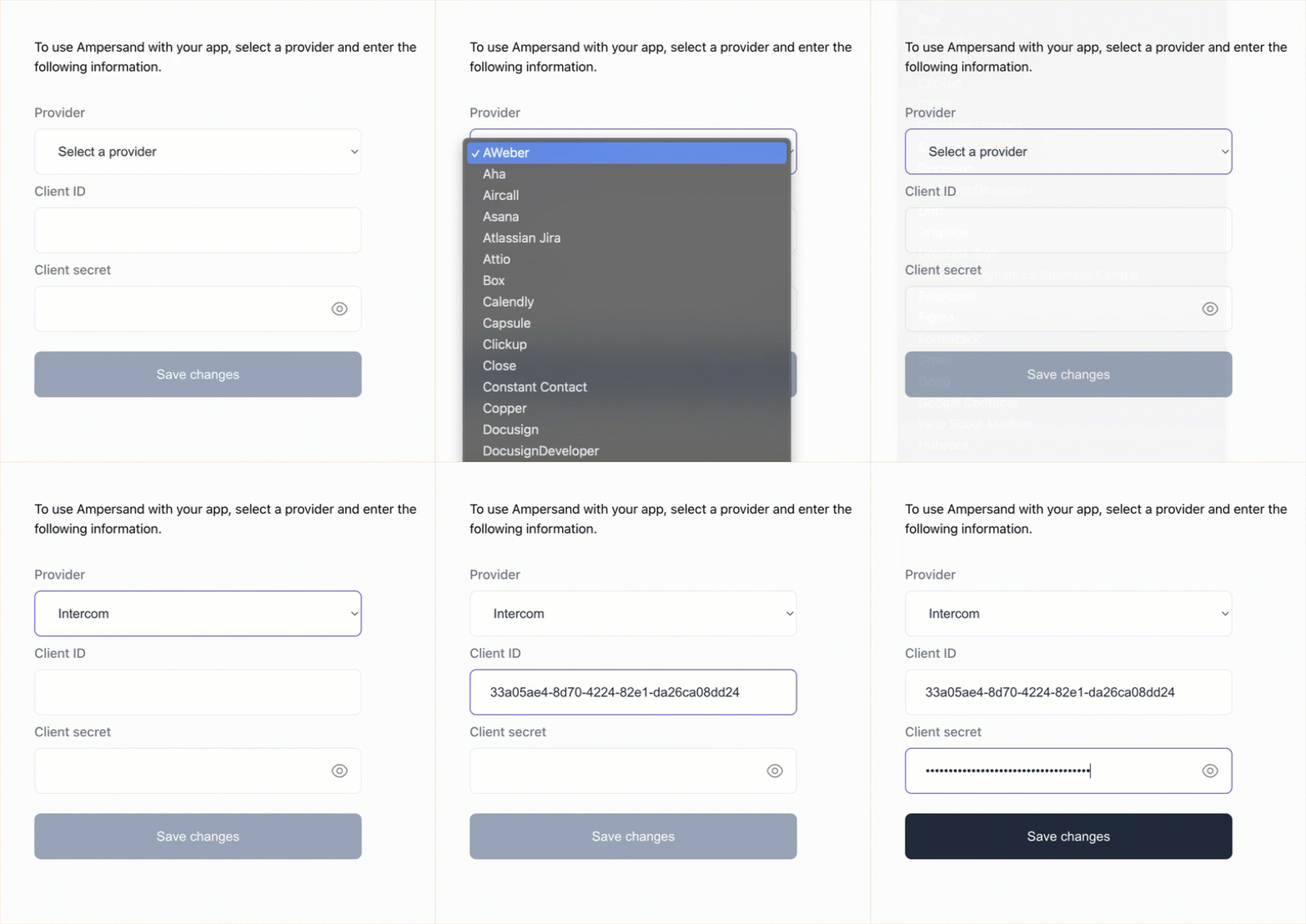 6. Click **Save Changes**.
## Using the connector
To start integrating with Intercom:
* Create a manifest file like the [example](https://github.com/amp-labs/samples/blob/main/intercom/amp.yaml).
* Deploy it using the [amp CLI](/cli/overview).
* If you are using Read Actions, create a [destination](/destinations).
* Embed the [InstallIntegration](/embeddable-ui-components#install-integration) UI component.
* Start using the connector!
* If your integration has [Read Actions](/read-actions), you'll start getting webhook messages.
* If your integration has [Write Actions](/write-actions), you can start making API calls to our Write API.
* If your integration has [Proxy Actions](/proxy-actions), you can start making Proxy API calls.
6. Click **Save Changes**.
## Using the connector
To start integrating with Intercom:
* Create a manifest file like the [example](https://github.com/amp-labs/samples/blob/main/intercom/amp.yaml).
* Deploy it using the [amp CLI](/cli/overview).
* If you are using Read Actions, create a [destination](/destinations).
* Embed the [InstallIntegration](/embeddable-ui-components#install-integration) UI component.
* Start using the connector!
* If your integration has [Read Actions](/read-actions), you'll start getting webhook messages.
* If your integration has [Write Actions](/write-actions), you can start making API calls to our Write API.
* If your integration has [Proxy Actions](/proxy-actions), you can start making Proxy API calls.