> ## Documentation Index
> Fetch the complete documentation index at: https://docs.withampersand.com/llms.txt
> Use this file to discover all available pages before exploring further.
# GoTo
The GoTo connector supports GoTo products which have APIs with the root URL `api.getgo.com`, these include:
* GoToWebinar
* GoToMeeting
## What's Supported
### Supported Actions
This connector supports:
* [Proxy Actions](/proxy-actions), using the base URL `https://api.getgo.com`.
## Before You Get Started
To integrate GoTo with Ampersand, you need to [Create a GoTo Account](https://developer.goto.com/signup/) and obtain the following credentials from your GoTo App:
* Client ID
* Client Secret
You will then use this credential to connect your application to Ampersand.
### Create a GoTo Account
Here's how you can sign up for an GoTo account:
1. Go to the [GoTo SignUp page](https://developer.goto.com/signup/).
2. Fill in the necessary details and register your account.
### Creating an OAuth app in GoTo
Once your GoTo account is ready, you need to create an OAuth application to connect with Ampersand. Follow the steps below to create the OAuth app:
1. Log in to Your [GoTo Account](https://identity.goto.com/login).
2. Go to [Developers](https://developer.logmeininc.com/clients).
3. Click on **Create a new client**
4. Go to the **OAuth Apps** tab.
5. Click the **Create App** button.
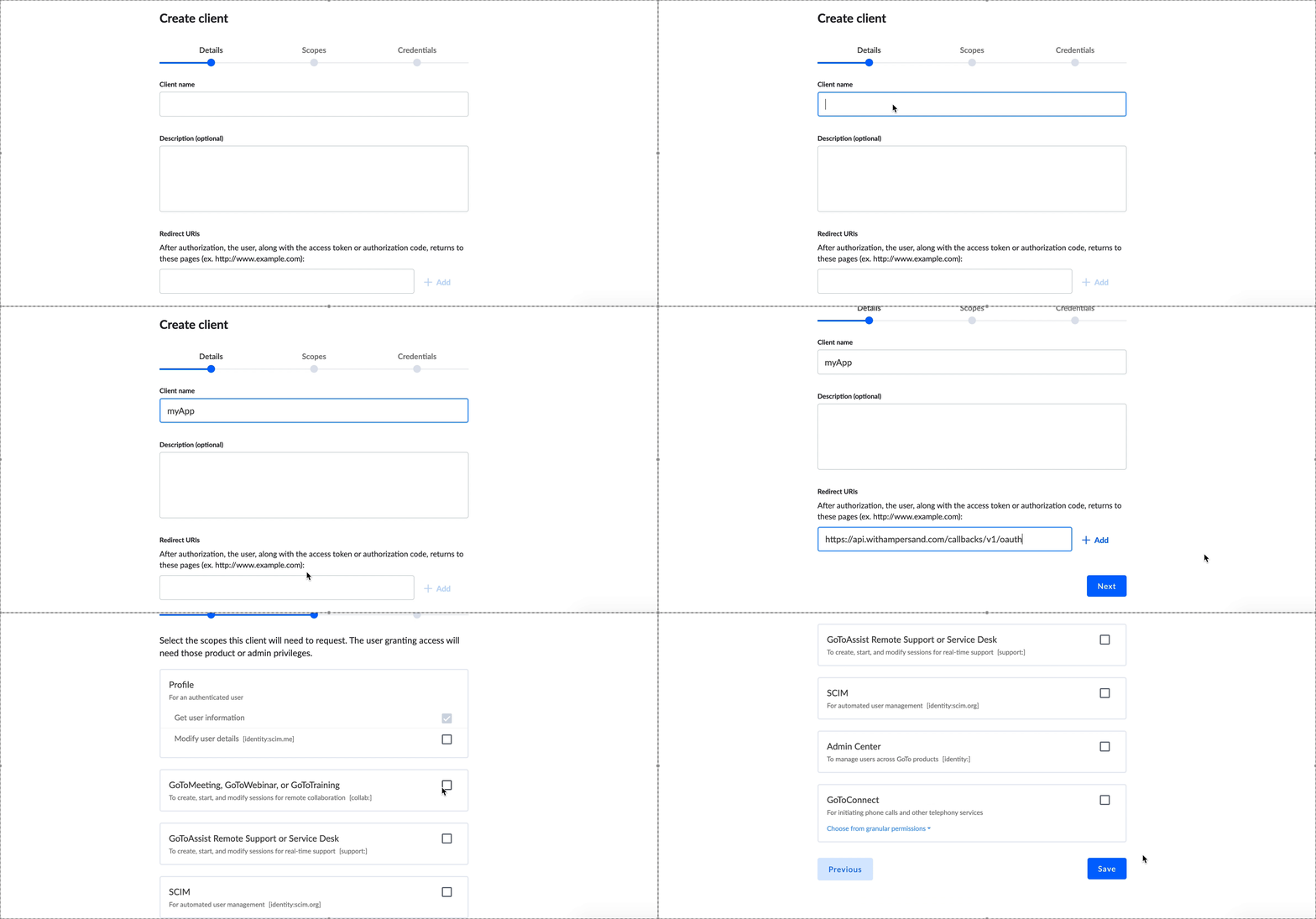
6. Enter the following details in the **Create OAuth App** form:
1. **App Name**: The name of the OAuth app.
2. **App Description**: Description for the OAuth app.
3. **Redirect URL**: Enter the Ampersand redirect URL: `https://api.withampersand.com/callbacks/v1/oauth`
7. Click **Next**.
8. Select the applicable permissions.
9. Click **Save**.
You'll find the **Client ID** and **Client Secret** keys in your Oauth app details. These credentials are required for connecting your app to Ampersand, so be sure to note them carefully.
 ## Add GoTo App Details in Ampersand
1. Log in to your [Ampersand Dashboard](https://dashboard.withampersand.com).
2. Select the project where you want to add the GoTo App.
## Add GoTo App Details in Ampersand
1. Log in to your [Ampersand Dashboard](https://dashboard.withampersand.com).
2. Select the project where you want to add the GoTo App.
 3. Navigate to the **Provider Apps** section.
4. Select **GoTo** from the Provider list.
5. Enter the previously obtained **Client ID** and **Client Secret** in their respective fields.
3. Navigate to the **Provider Apps** section.
4. Select **GoTo** from the Provider list.
5. Enter the previously obtained **Client ID** and **Client Secret** in their respective fields.
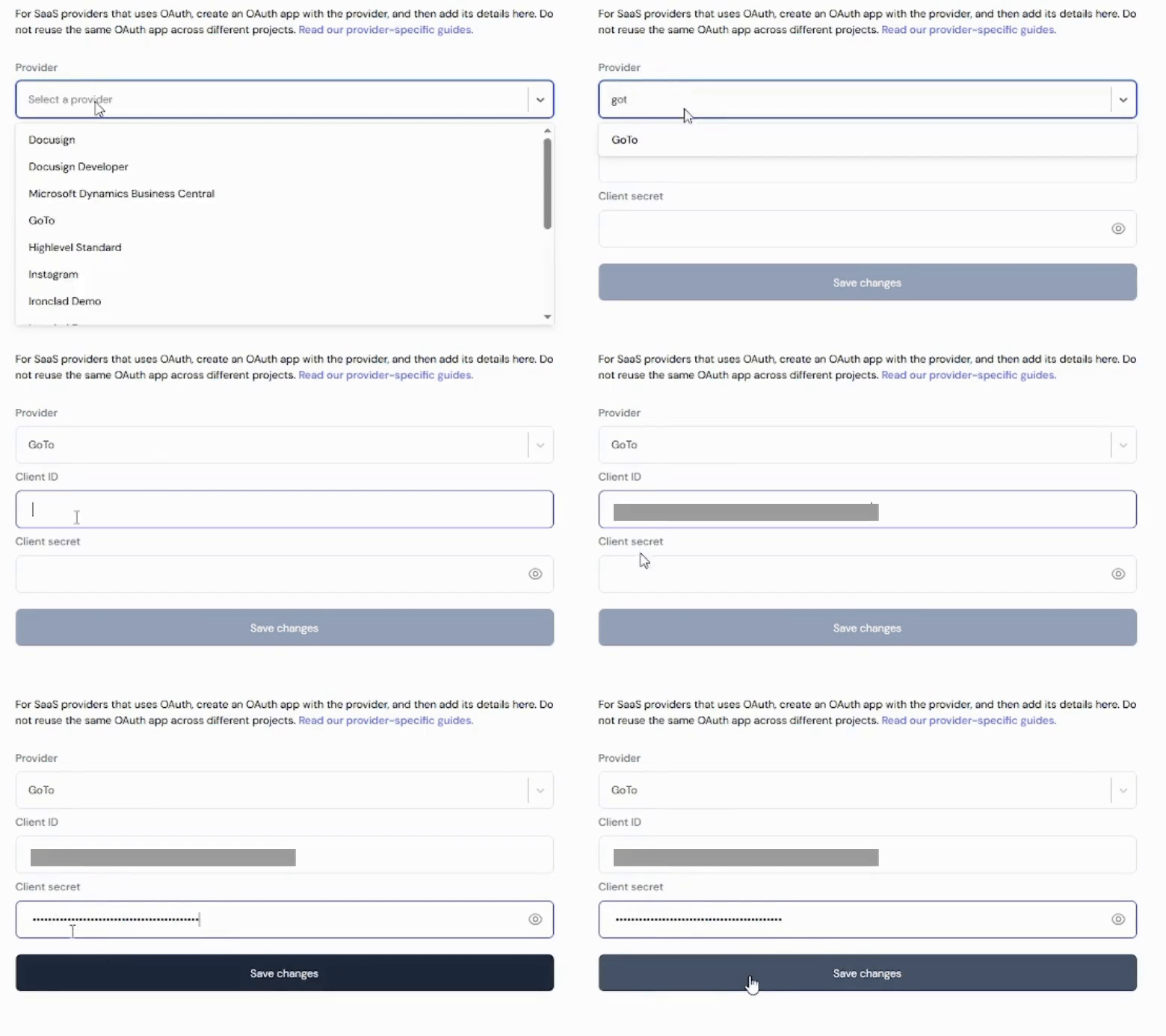 6. Click **Save Changes**.