> ## Documentation Index
> Fetch the complete documentation index at: https://docs.withampersand.com/llms.txt
> Use this file to discover all available pages before exploring further.
# Dynamics 365 Business Central
## What's Supported
### Supported Actions
This connector supports:
* [Write Actions](/write-actions).
* [Read Actions](/read-actions), including full historic backfill and incremental read.
* [Proxy Actions](/proxy-actions), using the base URL `https://api.businesscentral.dynamics.com`.
### Supported Objects
The Dynamics 365 Business Central connector supports reading from and writing to a wide range of objects. Notable examples include:
* [accounts](https://learn.microsoft.com/en-us/dynamics365/business-central/dev-itpro/api-reference/v2.0/resources/dynamics_account#properties)
* [attachments](https://learn.microsoft.com/en-us/dynamics365/business-central/dev-itpro/api-reference/v2.0/resources/dynamics_attachment#properties)
* [balanceSheets](https://learn.microsoft.com/en-us/dynamics365/business-central/dev-itpro/api-reference/v2.0/resources/dynamics_balancesheet#properties)
* [companies](https://learn.microsoft.com/en-us/dynamics365/business-central/dev-itpro/api-reference/v2.0/resources/dynamics_company#properties)
* [dimensions](https://learn.microsoft.com/en-us/dynamics365/business-central/dev-itpro/api-reference/v2.0/resources/dynamics_dimension#properties)
* [employees](https://learn.microsoft.com/en-us/dynamics365/business-central/dev-itpro/api-reference/v2.0/resources/dynamics_employee#properties)
* [itemCategories](https://learn.microsoft.com/en-us/dynamics365/business-central/dev-itpro/api-reference/v2.0/resources/dynamics_itemcategory#properties)
* [journals](https://learn.microsoft.com/en-us/dynamics365/business-central/dev-itpro/api-reference/v2.0/resources/dynamics_journal#properties)
* [locations](https://learn.microsoft.com/en-us/dynamics365/business-central/dev-itpro/api-reference/v2.0/resources/dynamics_location#properties)
* [paymentMethods](https://learn.microsoft.com/en-us/dynamics365/business-central/dev-itpro/api-reference/v2.0/resources/dynamics_paymentmethod#properties)
* [projects](https://learn.microsoft.com/en-us/dynamics365/business-central/dev-itpro/api-reference/v2.0/resources/dynamics_project#properties)
* [purchaseInvoices](https://learn.microsoft.com/en-us/dynamics365/business-central/dev-itpro/api-reference/v2.0/resources/dynamics_purchaseinvoice#properties)
* [purchaseReceipts](https://learn.microsoft.com/en-us/dynamics365/business-central/dev-itpro/api-reference/v2.0/resources/dynamics_purchasereceipt#properties)
* [salesInvoices](https://learn.microsoft.com/en-us/dynamics365/business-central/dev-itpro/api-reference/v2.0/resources/dynamics_salesinvoice#properties)
* [salesOrders](https://learn.microsoft.com/en-us/dynamics365/business-central/dev-itpro/api-reference/v2.0/resources/dynamics_salesorder#properties)
* [salesQuotes](https://learn.microsoft.com/en-us/dynamics365/business-central/dev-itpro/api-reference/v2.0/resources/dynamics_salesquote#properties)
* [shipmentMethods](https://learn.microsoft.com/en-us/dynamics365/business-central/dev-itpro/api-reference/v2.0/resources/dynamics_shipmentmethod#properties)
* [taxGroups](https://learn.microsoft.com/en-us/dynamics365/business-central/dev-itpro/api-reference/v2.0/resources/dynamics_taxgroup#properties)
* [vendors](https://learn.microsoft.com/en-us/dynamics365/business-central/dev-itpro/api-reference/v2.0/resources/dynamics_vendor#properties)
Note: Letter casing for object names is not case-sensitive. For example, `balanceSheets`, `BalanceSheets`, and `balancesheets` are treated the same.
## Before You Get Started
To connect **Microsoft Dynamics 365 Business Central** with **Ampersand**, you will need an active [Microsoft Dynamics 365 Business Central Account](https://dynamics.microsoft.com/en-us/crm/).
Once your account is set up, you'll need to register an application in the **Microsoft Entra** developer portal. After registering your app, you will need to configure it and obtain the following credentials:
* **Application (client) ID**
* **Client Secret**
You will then use these credentials to connect Dynamics 365 CRM to Ampersand.
### Create a Microsoft Dynamics 365 Business Central Account
Here's how you can sign up for a Microsoft Dynamics 365 Business Central account:
* Go to the [Microsoft Dynamics 365 Business Central website](https://www.microsoft.com/en-us/dynamics-365/products/business-central) and sign up for a new account or start a free trial.
* If you don't have a **Microsoft Entra** (formerly Azure Active Directory) tenant, follow the instructions in [Set up Microsoft Entra ID access for your Developer Site](https://learn.microsoft.com/en-us/entra/identity-platform/quickstart-create-new-tenant) to associate your Microsoft 365 subscription with an Azure subscription.
### Register a Microsoft Dynamics 365 Business Central App
Follow the steps below to register a **Microsoft Dynamics 365 Business Central** app:
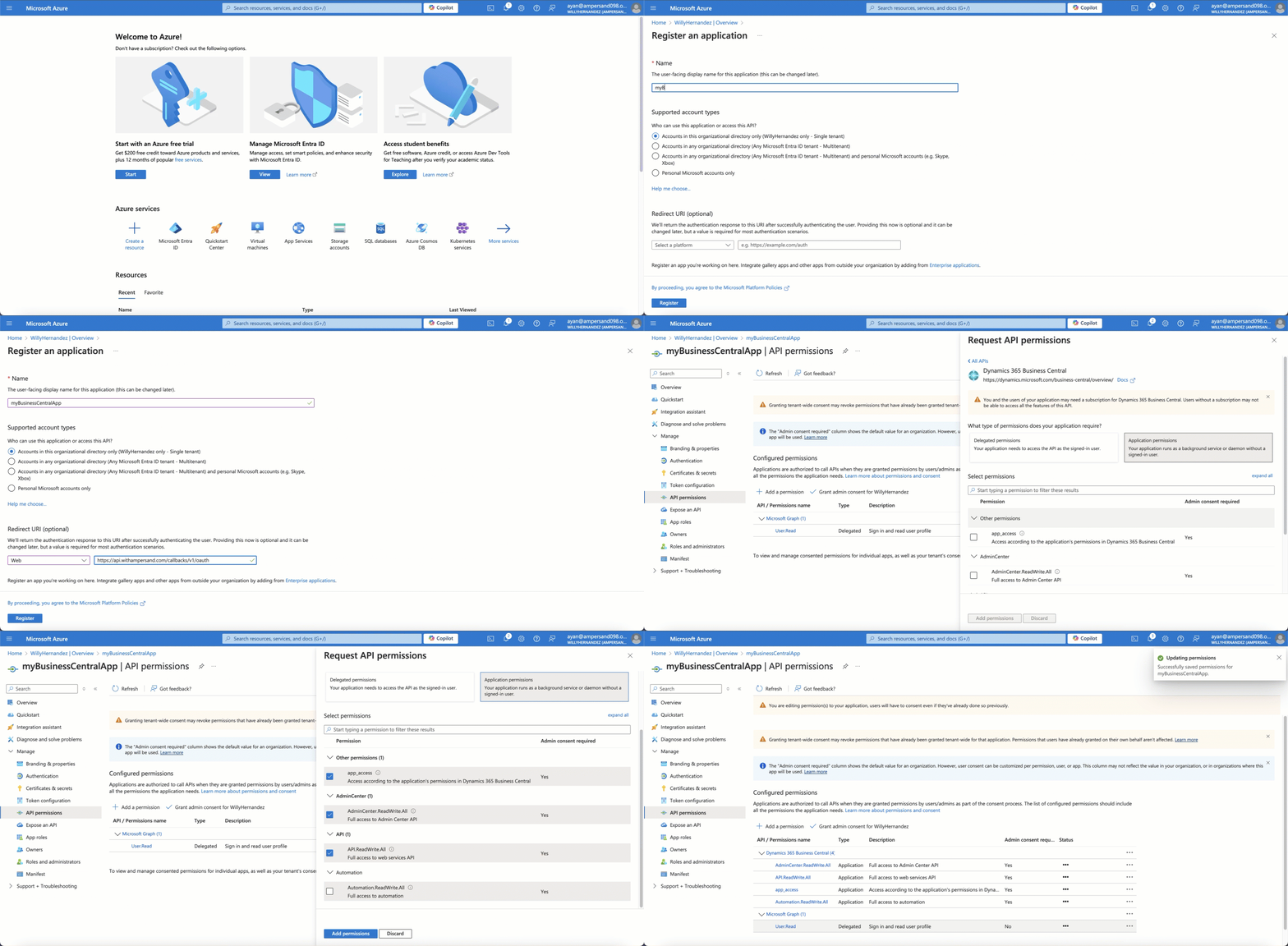
1. Go to the [Microsoft Azure portal](https://portal.azure.com/#home) and sign in with an administrator account from your Microsoft 365 subscription.
2. On the Home page, under **Azure services**, select **Microsoft Entra ID**.
3. In the left navigation pane, select **App registrations**.
4. Click **+ New registration**.
5. Enter Application Details:
* **Name**: Enter a meaningful name for the application.
* **Supported account types**: Select **Accounts in any or this organizational directory**.
6. In the **Redirect URIs** section, enter the **Ampersand** redirect URL: `https://api.withampersand.com/callbacks/v1/oauth`.
7. In the left navigation panel, select **API permissions** > **Add a permission**.
8. Under the **APIs my organization uses** tab, select **Microsoft Dynamics 365 Business Central**.
9. Select the applicable permissions.
 ### Obtain Client ID and Client Secret
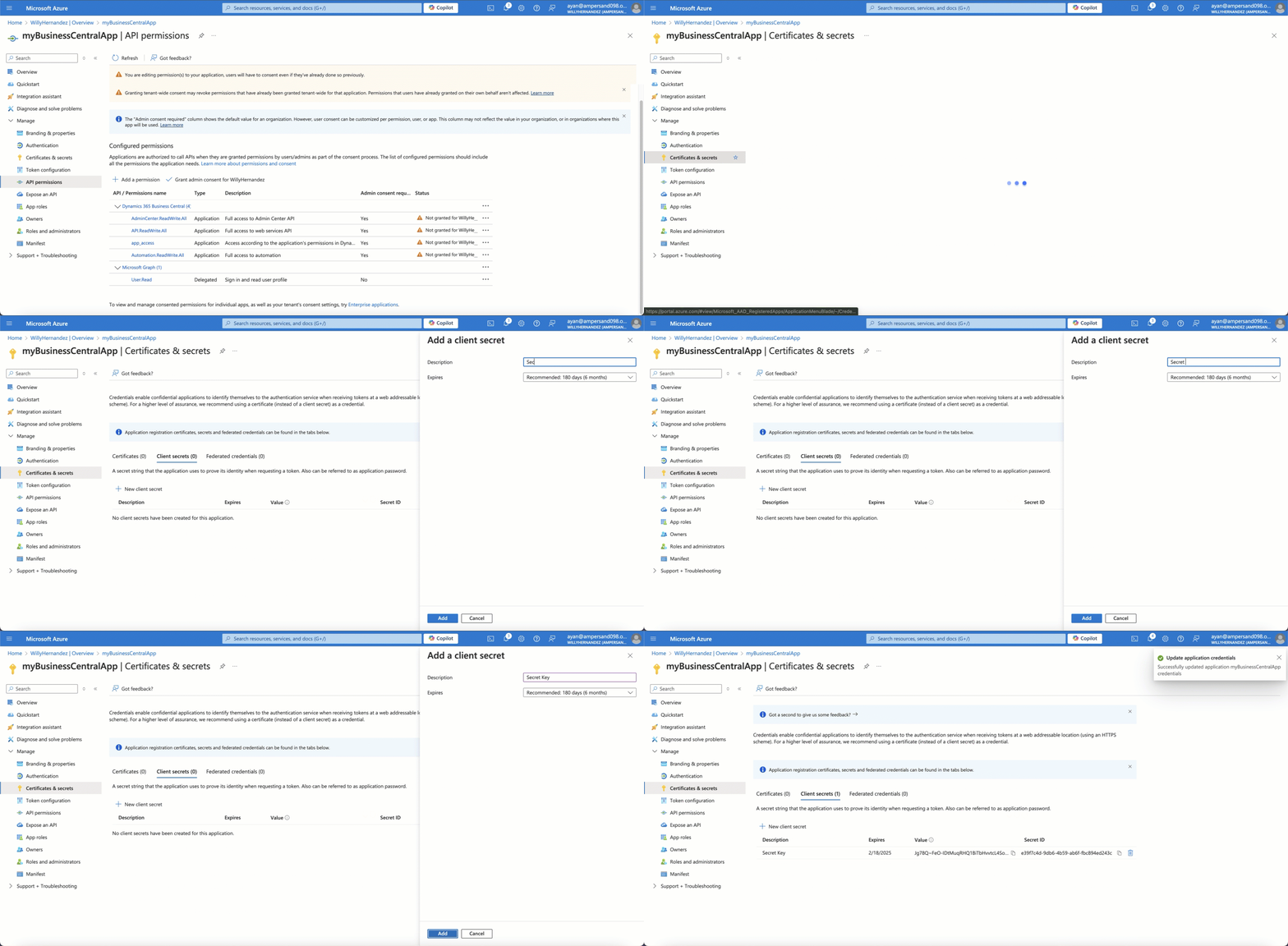
1. On the **Overview** page, you'll find the **Application (client) ID**. Copy it.
2. In the left navigation pane, select **Certificates & secrets**.
3. Click **+ New client secret**, provide a description and expiration period, then click **Add**. Copy the client secret value.
### Obtain Client ID and Client Secret
1. On the **Overview** page, you'll find the **Application (client) ID**. Copy it.
2. In the left navigation pane, select **Certificates & secrets**.
3. Click **+ New client secret**, provide a description and expiration period, then click **Add**. Copy the client secret value.
 ## Add Your Dynamics 365 CRM App Info to Ampersand
1. Log in to your [Ampersand Dashboard](https://dashboard.withampersand.com).
2. Select the project where you want to create a Dynamics 365 CRM integration.
## Add Your Dynamics 365 CRM App Info to Ampersand
1. Log in to your [Ampersand Dashboard](https://dashboard.withampersand.com).
2. Select the project where you want to create a Dynamics 365 CRM integration.
 3. Select **Provider Apps**.
4. Select **Dynamics 365** from the **Provider** list.
5. Enter the previously obtained **Client ID** in the **Client ID** field and the **Client Secret** in the **Client Secret** field.
3. Select **Provider Apps**.
4. Select **Dynamics 365** from the **Provider** list.
5. Enter the previously obtained **Client ID** in the **Client ID** field and the **Client Secret** in the **Client Secret** field.
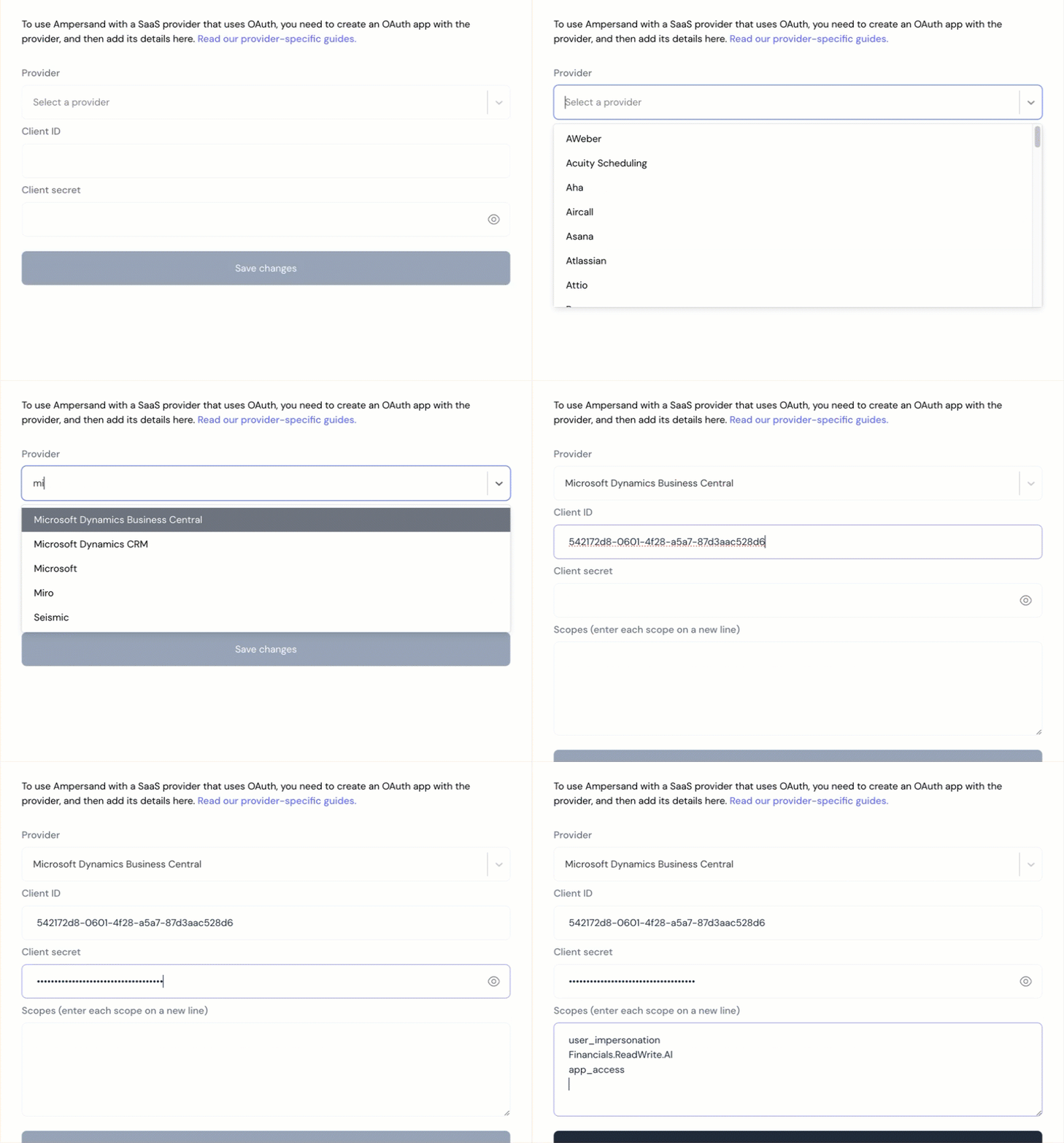 6. In the **Scopes** field, enter the scopes your integration requires.
You must include `offline_access` in the Scopes field. Without it, Ampersand will not receive a refresh token and your customers will need to reauthenticate each time their access token expires.
Dynamics requires certain scopes to have the resource prefixed to the scope, which in this case is the consumer's instance URL. Ampersand will prefix the instance URL for you, so you only need to provide the scope name.
For example, if you provide `.default` as the scope name and your customer's Dynamics instance URL is `https://tenant.api.dynamics.com`, then Ampersand will transform this scope to be `https://tenant.api.dynamics.com/.default`.
7. Click **Save Changes**.
6. In the **Scopes** field, enter the scopes your integration requires.
You must include `offline_access` in the Scopes field. Without it, Ampersand will not receive a refresh token and your customers will need to reauthenticate each time their access token expires.
Dynamics requires certain scopes to have the resource prefixed to the scope, which in this case is the consumer's instance URL. Ampersand will prefix the instance URL for you, so you only need to provide the scope name.
For example, if you provide `.default` as the scope name and your customer's Dynamics instance URL is `https://tenant.api.dynamics.com`, then Ampersand will transform this scope to be `https://tenant.api.dynamics.com/.default`.
7. Click **Save Changes**.