> ## Documentation Index
> Fetch the complete documentation index at: https://docs.withampersand.com/llms.txt
> Use this file to discover all available pages before exploring further.
# Drip
## What's Supported
### Supported Actions
This connector supports:
* [Proxy Actions](/proxy-actions), using the base URL `https://api.getdrip.com`.
## Before You Get Started
To connect Drip with Ampersand, you need [a Drip Account](https://www.drip.com/signup).
Once your account is created, you'll need to contact the support team to enable OAuth, and you'll also need to create an app in Drip to obtain the following credentials from your app:
* Client ID
* Client Secret
You will then use these credentials to connect your application to Ampersand.
### Create a Drip Account
Here's how you can sign up for a Drip account:
* Go to the [Drip Sign Up page](https://www.drip.com/signup).
* Sign up using your preferred method.
### Creating a Drip App
Follow the steps below to create a Drip app and add the Ampersand redirect URL.
1. Log in to your [Drip](https://login.getdrip.com) account.
2. Go to **Settings > User Settings > OAuth Applications** in your Drip account.
3. Enter the application name in the **Application Name** section.
4. Click the **Create Application**.
5. In the **Callback URIs** section, add the Ampersand Redirect URI: [https://api.withampersand.com/callbacks/v1/oauth](https://api.withampersand.com/callbacks/v1/oauth).
6. Multiple URLs can be entered in the **Callback URI** field by separating each URL with a space.
7. Click **Save**. Next, you will need to **Activate** the app.
[Drip App Creation](/images/provider-guides/drip_OAuth.gif)
## Add Your Drip App Info to Ampersand
1. Log in to your [Ampersand Dashboard](https://dashboard.withampersand.com).
2. Select the project where you want to create a Drip integration.
 3. Select **Provider Apps**.
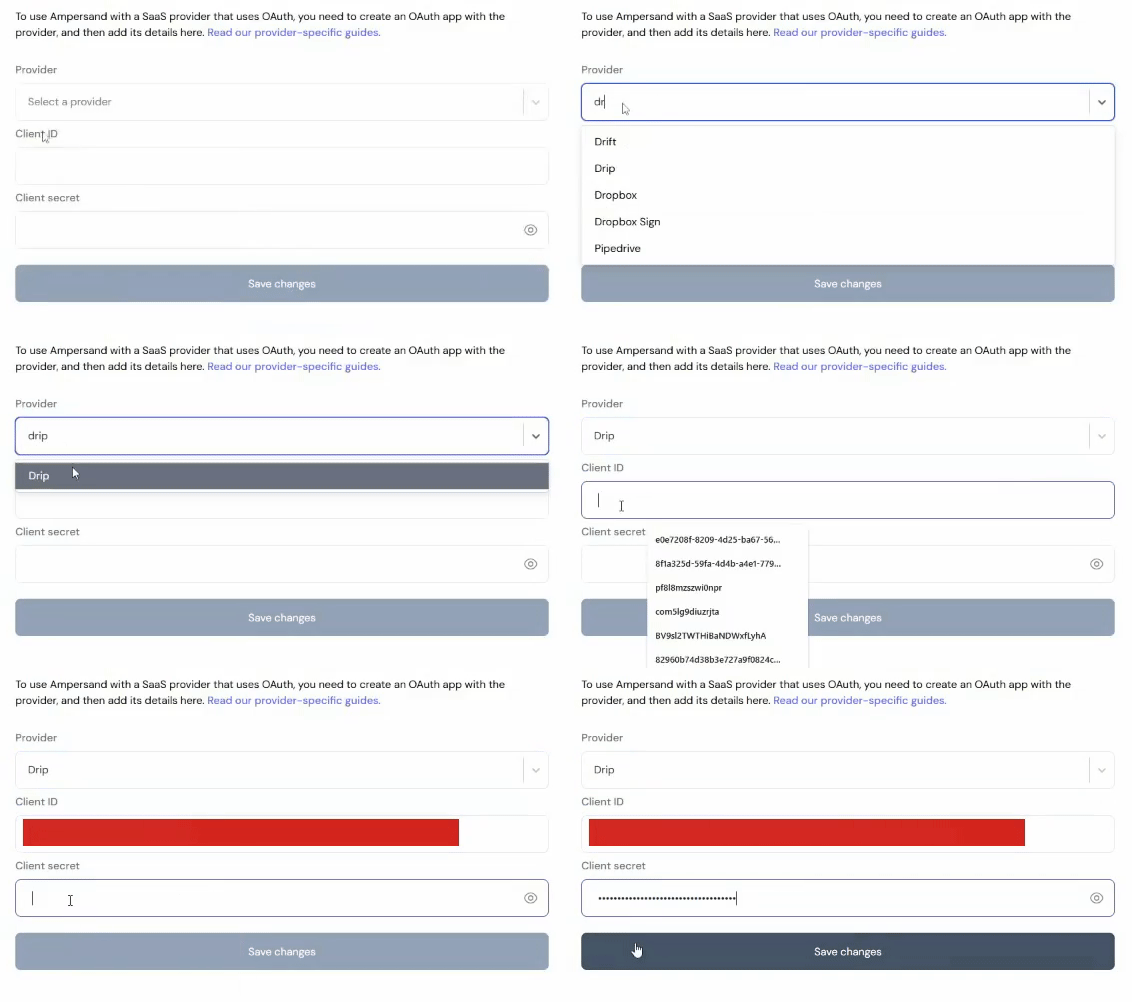
4. Select *Drip* from the **Provider** list.
5. Enter the previously obtained *Client ID* in the **Client ID** field and the *Client Secret* in the **Client Secret** field.
3. Select **Provider Apps**.
4. Select *Drip* from the **Provider** list.
5. Enter the previously obtained *Client ID* in the **Client ID** field and the *Client Secret* in the **Client Secret** field.
 This documentation is built and hosted on [Mintlify](https://mintlify.com), a developer documentation platform.