> ## Documentation Index
> Fetch the complete documentation index at: https://docs.withampersand.com/llms.txt
> Use this file to discover all available pages before exploring further.
# Docusign
## What's Supported
### Supported Actions
This connector supports:
* [Proxy Actions](/proxy-actions), using the base URL `https://{{.server}}.docusign.net`.
## Before You Get Started
To integrate with DocuSign, you will need a [DocuSign Developer Account](https://developers.docusign.com/). This account allows you to create and test your app in an isolated environment. Once your account is created, you'll need to create an app in DocuSign, configure the necessary settings, and obtain the following credentials from your app:
* Integration Key (Client ID)
* Secret Key
* Scopes
### Create a DocuSign Developer Account
Here's how you can sign up for a DocuSign Developer account:
* Go to the [DocuSign Developer Center](https://developers.docusign.com/).
* Click on **Developer Account** at the top of the page, then choose **Create Account**.
* Sign up using your preferred method.
### Creating a DocuSign App
Follow the steps below to create a DocuSign app and obtain the necessary keys.
1. Log in to your [DocuSign Developer](https://account-d.docusign.com/oauth/auth?response_type=code\&redirect_uri=https%3A%2F%2Fdevelopers.docusign.com%2Fauth%2Fdocusign-demo%2Fcallback\&scope=manage_app_keys%20signature%20openid%20cors%20click.manage%20click.send%20organization_read%20group_read%20permission_read%20user_read%20user_write%20account_read%20domain_read%20identity_provider_read%20user_data_redact%20dtr.rooms.read%20dtr.rooms.write%20dtr.documents.read%20dtr.documents.write%20dtr.profile.read%20dtr.profile.write%20dtr.company.read%20dtr.company.write%20room_forms%20notary_write%20notary_read%20spring_read%20spring_write%20webforms_read%20webforms_instance_read%20webforms_instance_write%20aow_manage\&state=https%3A%2F%2Fdevelopers.docusign.com%2F\&client_id=f0f27f0e-857d-4a71-a4da-32cecae3a978) account.
2. Click on your profile icon, and select **Apps and Keys**.
3. Navigate to **Apps and Keys** under **My Apps**.
4. Click **Add App and Integration Key**.
5. Enter **App Name** and click **Create**.
6. Uncheck the **Require Proof Key for Code Exchange (PKCE) Extension for Supported Authorization Flows** checkbox.
7. Click **Add Secret Key**.
> 🗒️ Please note down your **Integration Key** and **Secret Key** as you will need these keys to connect your DocuSign app with Ampersand.
8. In the **Additional Settings** section, click **Add URI** and enter the Ampersand Redirect URI: `https://api.withampersand.com/callbacks/v1/oauth`.
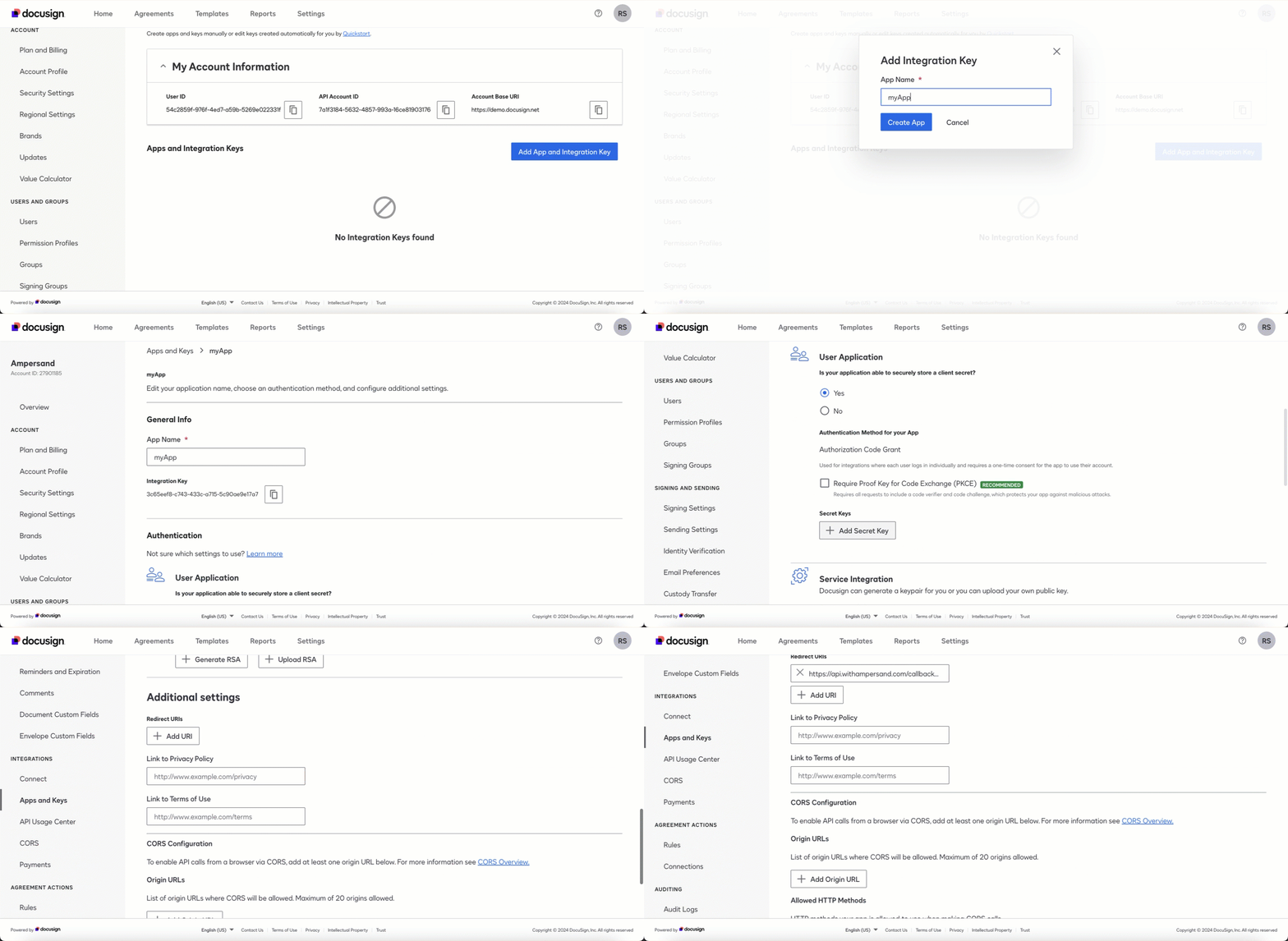 9. Click **Save**.
## Connecting Your Docusign Developer App to Ampersand
Follow the steps below to connect you Docusign Developer App to Ampersand:
1. Log in to your [Ampersand Dashboard](https://dashboard.withampersand.com).
2. Select the project where you want to create an Docusign integration.
9. Click **Save**.
## Connecting Your Docusign Developer App to Ampersand
Follow the steps below to connect you Docusign Developer App to Ampersand:
1. Log in to your [Ampersand Dashboard](https://dashboard.withampersand.com).
2. Select the project where you want to create an Docusign integration.
 3. Select **Provider apps**.
4. Select *Docusign Developer* from the **Provider** list.
5. Enter the previously obtained *Integration Key* in the **Client ID** field and the *Client Secret* in the **Client Secret** field.
3. Select **Provider apps**.
4. Select *Docusign Developer* from the **Provider** list.
5. Enter the previously obtained *Integration Key* in the **Client ID** field and the *Client Secret* in the **Client Secret** field.
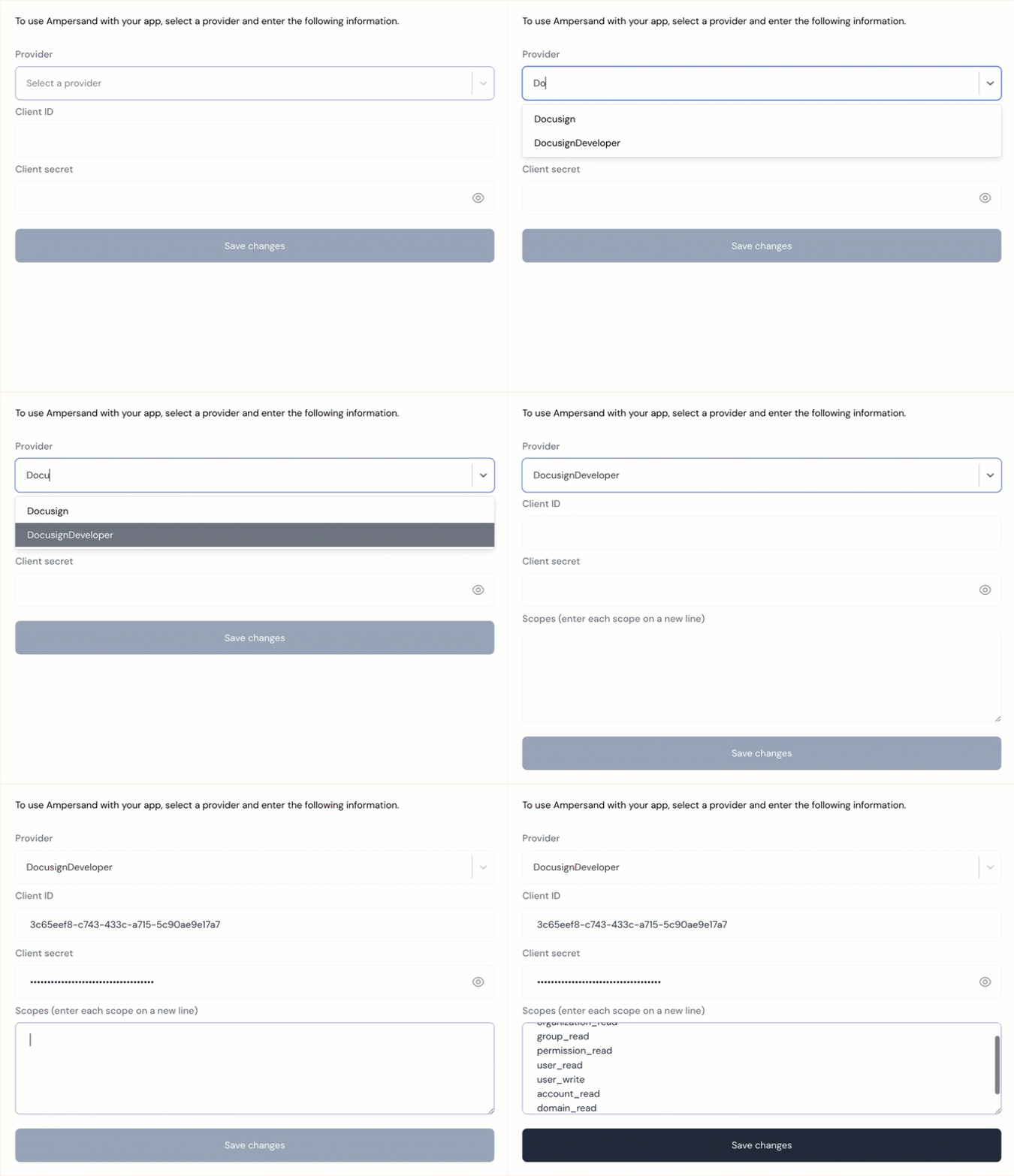 6. Enter the scopes for your app. Go to [Scopes](https://developers.docusign.com/platform/auth/reference/scopes/) for more details on the authentication scopes.
7. Click **Save changes**.
## Connecting Your Docusign Production App to Ampersand
When you're ready to launch your app in a production environment, you need to promote your integration key from your developer account to a production DocuSign account. Refer to the [Go Live](https://developers.docusign.com/docs/esign-rest-api/go-live/) documentation to learn how to launch your app in the production environment.
With this, you'll be able to successfully create, test, and promote your DocuSign app to a production environment.
Once you application is promoted to a production environment, follow the steps below to connect your Docusign Production App to Ampersand:
1. Log in to your [Ampersand Dashboard](https://dashboard.withampersand.com).
2. Select the project where you want to create an Docusign integration.
3. Select **Provider apps**.
4. Select *Docusign* from the **Provider** list.
5. Enter the previously obtained *Integration Key* in the **Client ID** field and the *Client Secret* in the **Client Secret** field.
6. Enter the scopes for your app. Go to [Scopes](https://developers.docusign.com/platform/auth/reference/scopes/) for more details on the authentication scopes.
7. Click **Save changes**.
## Connecting Your Docusign Production App to Ampersand
When you're ready to launch your app in a production environment, you need to promote your integration key from your developer account to a production DocuSign account. Refer to the [Go Live](https://developers.docusign.com/docs/esign-rest-api/go-live/) documentation to learn how to launch your app in the production environment.
With this, you'll be able to successfully create, test, and promote your DocuSign app to a production environment.
Once you application is promoted to a production environment, follow the steps below to connect your Docusign Production App to Ampersand:
1. Log in to your [Ampersand Dashboard](https://dashboard.withampersand.com).
2. Select the project where you want to create an Docusign integration.
3. Select **Provider apps**.
4. Select *Docusign* from the **Provider** list.
5. Enter the previously obtained *Integration Key* in the **Client ID** field and the *Client Secret* in the **Client Secret** field.
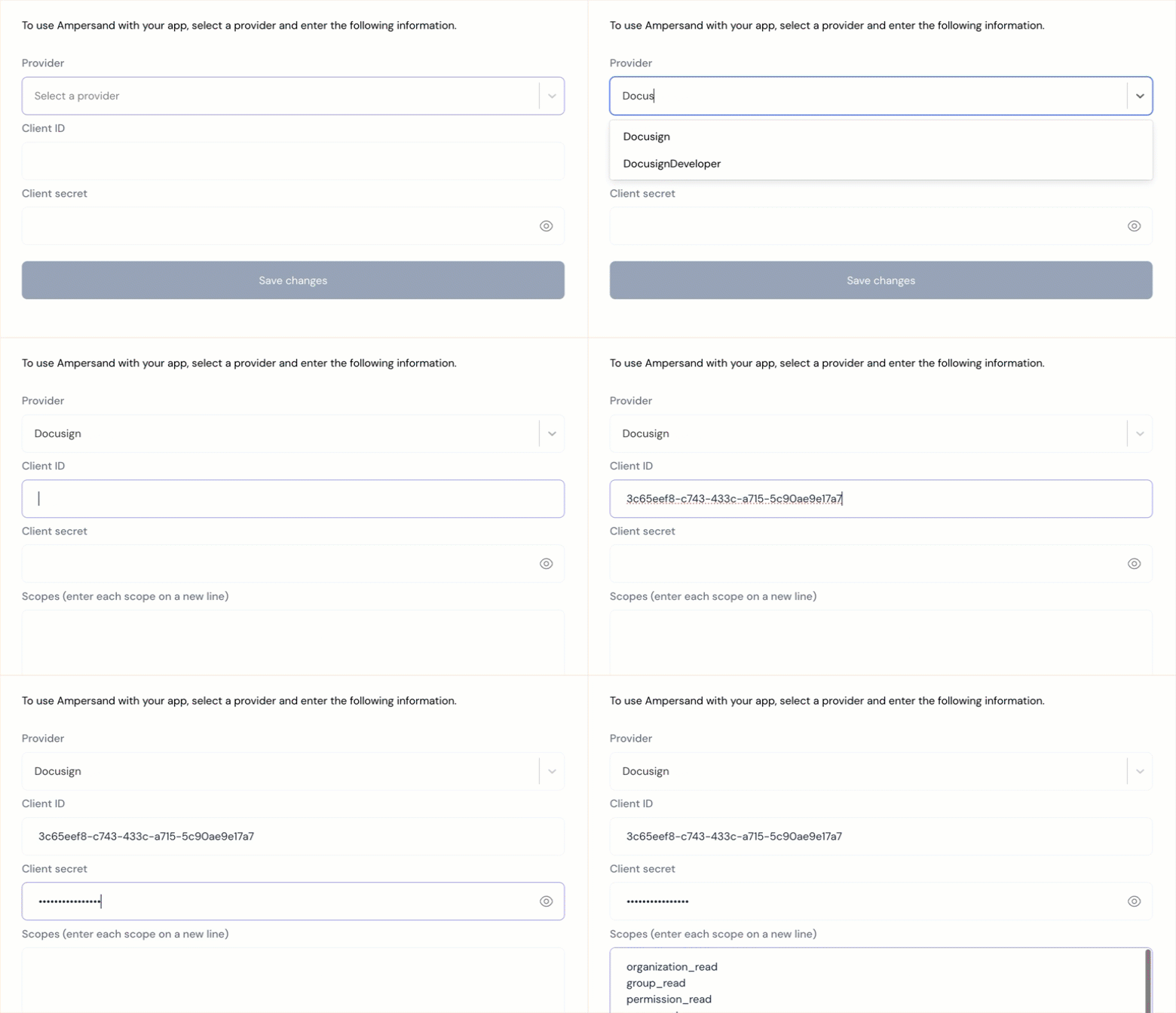 6. Enter the scopes for your app. Go to [Scopes](https://developers.docusign.com/platform/auth/reference/scopes/) for more details on the authentication scopes.
7. Click **Save changes**.
6. Enter the scopes for your app. Go to [Scopes](https://developers.docusign.com/platform/auth/reference/scopes/) for more details on the authentication scopes.
7. Click **Save changes**.