> ## Documentation Index
> Fetch the complete documentation index at: https://docs.withampersand.com/llms.txt
> Use this file to discover all available pages before exploring further.
# Close
## What's Supported
### Supported Actions
This connector supports:
* [Read Actions](/read-actions), including full historic backfill. Please note that incremental read support is available in **Leads**, **Contacts** and **Opportunities** objects only.
* [Write Actions](/write-actions).
* [Proxy Actions](/proxy-actions), using the base URL `https://api.close.com/api`.
### Supported Objects
The Close connector supports reading from the following objects:
* [Leads](https://developer.close.com/resources/leads/#list-leads)
* [Contacts](https://developer.close.com/resources/contacts/#list-contacts)
* [Activities](https://developer.close.com/resources/activities/#list-or-filter-all-activity-types)
* [Opportunities](https://developer.close.com/resources/opportunities/#list-or-filter-opportunities)
* [Tasks](https://developer.close.com/resources/tasks/#list-or-filter-tasks)
* [Users](https://developer.close.com/resources/users/)
* [Roles](https://developer.close.com/resources/roles/#list-all-the-roles-defined-for-your-organization)
* [Pipelines](https://developer.close.com/resources/pipelines/#list-pipelines-for-your-organization)
* [Groups](https://developer.close.com/resources/groups/#list-groups-for-your-organization)
* [Email Templates](https://developer.close.com/resources/email-templates/#list-email-templates)
* [SMS Templates](https://developer.close.com/resources/sms-templates/#list-sms-templates)
* [Connected Accounts](https://developer.close.com/resources/connected-accounts/#list-all-the-connected-accounts-you-can-use-in-your-organization)
* [Send As](https://developer.close.com/resources/send-as/#list-all-send-as-associations-by-allowing-or-allowed-user)
* [Sequences](https://developer.close.com/resources/sequences/#list-sequences)
* [Dialer](https://developer.close.com/resources/dialer/#list-or-filter-all-dialer-sessions)
* [Smart Views](https://developer.close.com/resources/smart-views/#list-smart-views)
* [Integration Links](https://developer.close.com/resources/integration-links/#get-all-integration-links-for-your-organization)
* [Phone numbers](https://developer.close.com/resources/phone-numbers/#list-or-search-for-phone-numbers)
* [Comment Thread](https://developer.close.com/resources/comments/#fetch-multiple-comment-threads)
* [Webhook Subscriptions](https://developer.close.com/resources/webhook-subscriptions/#list-webhook-subscriptions)
* [User Scheduling Links](https://developer.close.com/resources/scheduling-links/user-scheduling-links/#list-user-scheduling-links)
* [Shared Scheduling Links](https://developer.close.com/resources/scheduling-links/shared-scheduling-links/#list-shared-scheduling-links)
* [Custom Activity Types](https://developer.close.com/resources/custom-activities/custom-activity-types/#list-custom-activity-types)
* [Custom Object Types](https://developer.close.com/resources/custom-objects/custom-object-types/#list-custom-object-types)
The Close connector supports writing to the following objects:
* [Leads](https://developer.close.com/resources/leads/#create-a-new-lead)
* [contacts](https://developer.close.com/resources/contacts/#create-a-new-contact)
* [accounts](https://apolloio.github.io/apollo-api-docs/?shell#accounts-api)
* [Opportunities](https://developer.close.com/resources/opportunities/#create-an-opportunity)
* [Tasks](https://developer.close.com/resources/tasks/#create-a-task)
* [Membership](https://developer.close.com/resources/memberships/#create-or-activate-a-membership-for-the-given-email)
* [Roles](https://developer.close.com/resources/roles/#create-a-new-role)
* [Pipelines](https://developer.close.com/resources/pipelines/#create-a-pipeline)
* [Groups](https://developer.close.com/resources/groups/#create-a-group)
* [Email Templates](https://developer.close.com/resources/email-templates/#create-an-email-template)
* [SMS Templates](https://developer.close.com/resources/sms-templates/#create-an-sms-template)
* [Send As Association](https://developer.close.com/resources/send-as/#create-a-send-as-association)
* [Sequences](https://developer.close.com/resources/sequences/#create-a-sequence)
* [Contact Smart View](https://developer.close.com/resources/smart-views/#create-a-contact-smart-view)
* [Integration Link](https://developer.close.com/resources/integration-links/#create-an-integration-link)
* [Comment](https://developer.close.com/resources/comments/#create-a-comment)
* [Webhook](https://developer.close.com/resources/webhook-subscriptions/#create-new-webhook-subscription)
* [User Scheduling link](https://developer.close.com/resources/scheduling-links/user-scheduling-links/#create-a-user-scheduling-link)
* [Shared Schedulinng Link](https://developer.close.com/resources/scheduling-links/shared-scheduling-links/#create-a-shared-scheduling-link)
* [Custom Activity Type](https://developer.close.com/resources/custom-activities/custom-activity-types/#create-new-custom-activity-type)
* [Custom Object Type](https://developer.close.com/resources/custom-objects/custom-object-types/#create-new-custom-object-type)
* [Custom Object Instance](https://developer.close.com/resources/custom-objects/custom-object-instances/#create-a-new-custom-object-instance)
### Example integration
For an example manifest file of a CloseCRM integration, visit our [samples repo on Github](https://github.com/amp-labs/samples/blob/main/close/amp.yaml).
## Before You Get Started
To integrate Close with Ampersand, you need to [Create a Close Account](#create-a-close-crm-account) and obtain the following credentials from your Close App:
* Client ID
* Client Secret
You will then use these credentials to connect your application to Ampersand.
### Create a Close Account
You need a **Close** account to connect with Ampersand. If you do not have a Close account, here's how you can sign up:
* Go to the [Close site](https://close.com/) and sign up for a free account.
* Sign up using your preferred method.
### Creating an OAuth app in Close
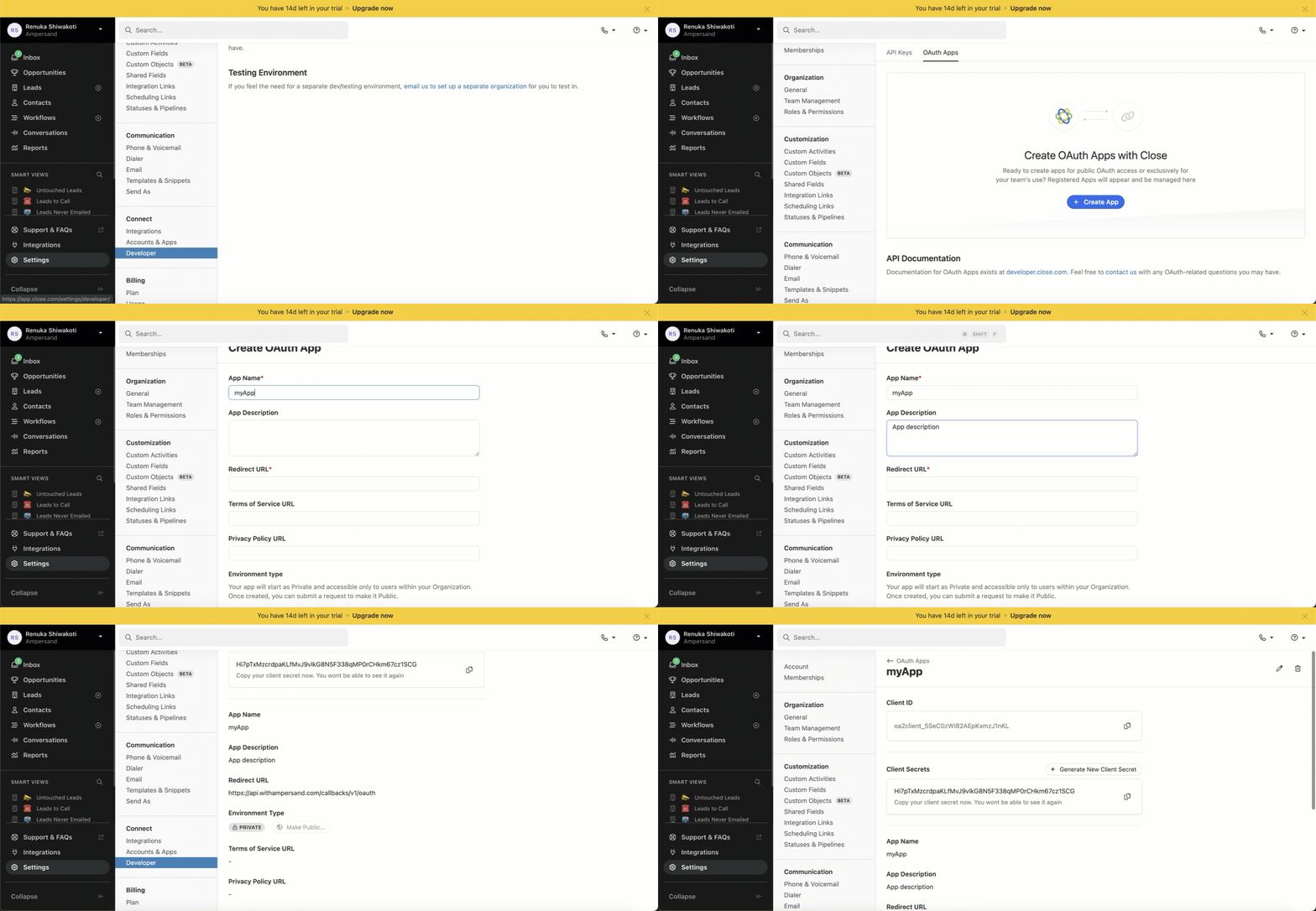
Once your Close account is ready, you need to create an OAuth application to connect with Ampersand. Follow the steps below to create the OAuth app:
1. Log in to Your [Close Account](https://app.close.com/login/).
2. Go to **Settings**.
3. On the *Settings* page, click **Developer** under the **Connect** section.
4. Go to the **OAuth Apps** tab.
5. Click the **Create App** button.
6. Enter the following details in the **Create OAuth App** form:
1. **App Name**: The name of the OAuth app.
2. **App Description**: Description for the OAuth app.
3. **Redirect URL**: Enter the Ampersand redirect URL: `https://api.withampersand.com/callbacks/v1/oauth`
7. Click **Create**.
You'll find the **Client ID** and **Client Secret** keys in your Oauth app details. These credentials are required for connecting your app to Ampersand, so be sure to note them carefully.
 ## Add Close App Details in Ampersand
1. Log in to your [Ampersand Dashboard](https://dashboard.withampersand.com).
2. Select the project where you want to add the Close App.
## Add Close App Details in Ampersand
1. Log in to your [Ampersand Dashboard](https://dashboard.withampersand.com).
2. Select the project where you want to add the Close App.
 3. Navigate to the **Provider Apps** section.
4. Select **Close** from the Provider list.
5. Enter the previously obtained **Client ID** in the **Client ID** field and the **Client Secret** in the **Client Secret** field.
6. Enter the scopes set for your application in **Close**.
3. Navigate to the **Provider Apps** section.
4. Select **Close** from the Provider list.
5. Enter the previously obtained **Client ID** in the **Client ID** field and the **Client Secret** in the **Client Secret** field.
6. Enter the scopes set for your application in **Close**.
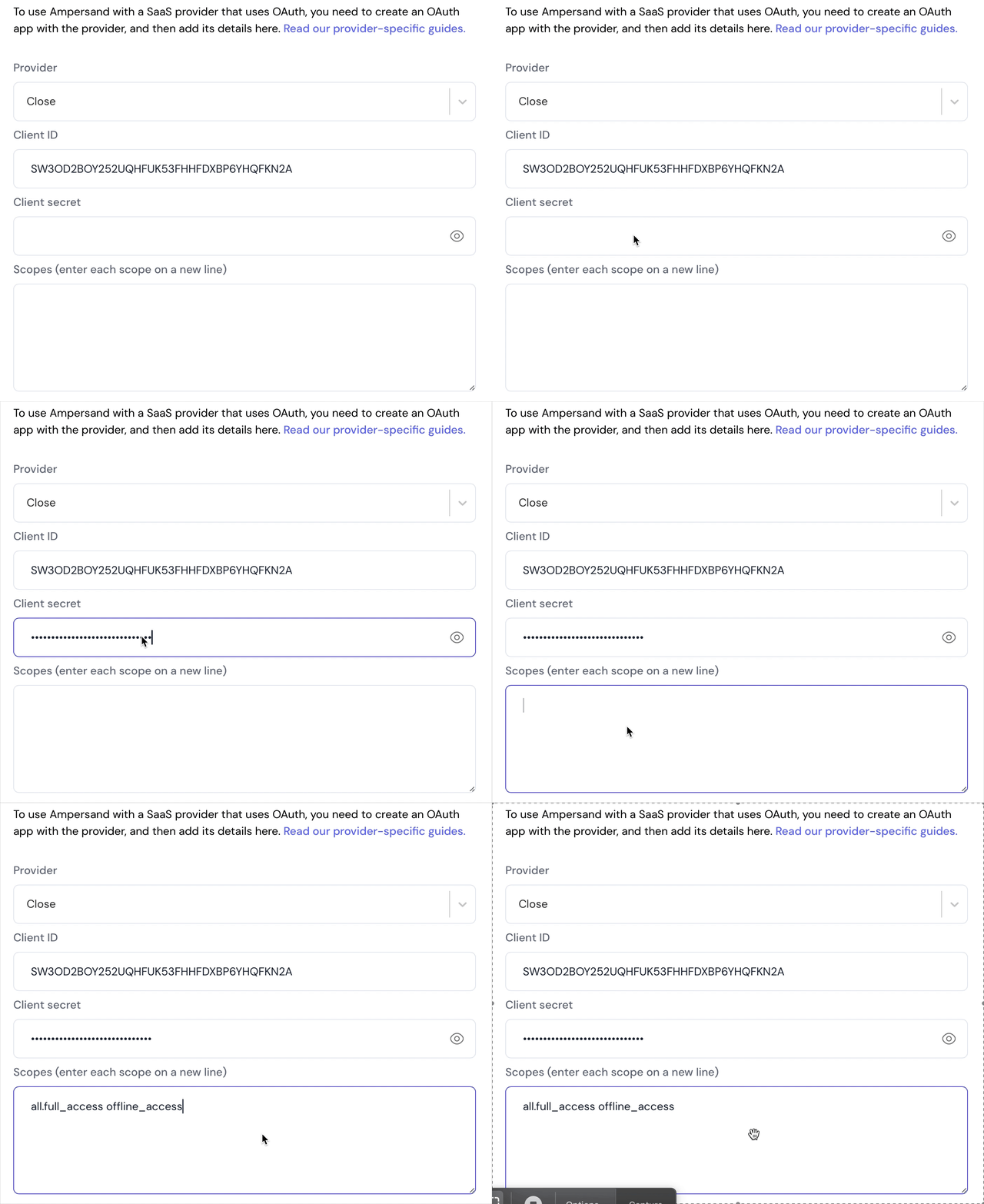 7. Click **Save Changes**.