> ## Documentation Index
> Fetch the complete documentation index at: https://docs.withampersand.com/llms.txt
> Use this file to discover all available pages before exploring further.
# ClickUp
## What's Supported
### Supported Actions
This connector supports:
* [Read Actions](/read-actions), including full historic backfill. Please note that incremental read is not supported, a full read of the ClickUp instance will be done for each scheduled read.
* [Proxy Actions](/proxy-actions), using the base URL `https://api.clickup.com`.
### Supported Objects
The CickUp connector supports reading from the following objects:
* [team](https://developer.clickup.com/reference/getauthorizedteams) (Read only)
## Before you get started
To integrate ClickUp with Ampersand, you will need [a ClickUp Account](https://app.clickup.com/signup).
Once your account is created, you'll need to create an app in ClickUp and obtain the following credentials from your app:
* Client ID
* Client Secret
You will then use these credentials to connect your application to Ampersand.
### Create a ClickUp Account
Here's how you can sign up for a ClickUp account:
* Go to the [ClickUp Sign Up page](https://app.clickup.com/signup) and create an account.
* Sign up using your preferred method.
### Creating a ClickUp App
Follow the steps below to create a ClickUp app and add the Ampersand redirect URL in the app:
1. Log in to your [ClickUp](https://app.clickup.com/settings/apps) account.
2. Click **+Create an App**.
3. Enter your **App Name**.
4. Enter the Ampersand's **Redirect URL**: `https://api.withampersand.com/callbacks/v1/oauth`.
5. Click **Create App**.
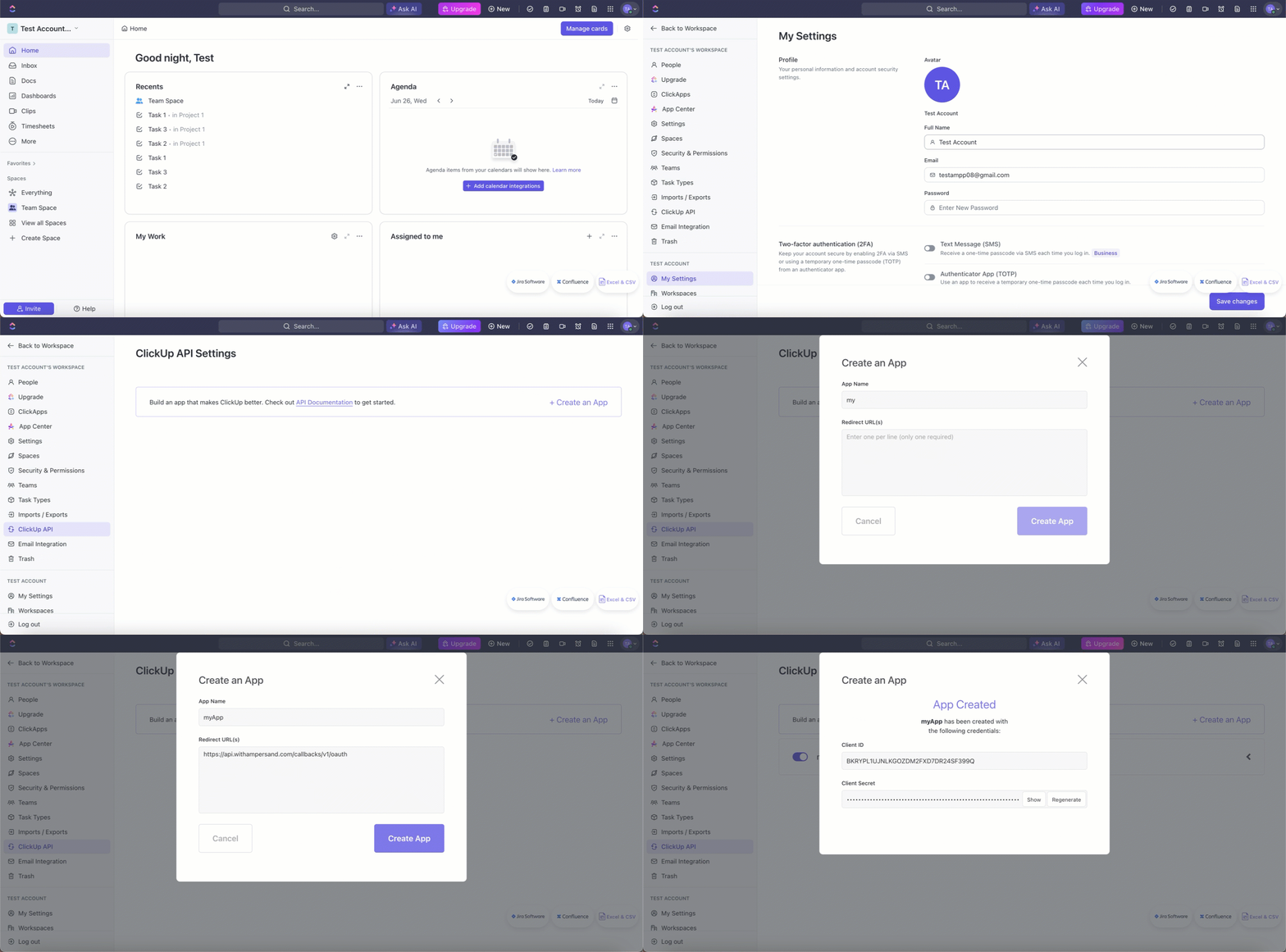 On the next screen, you'll see a **Client ID** and **Client Secret** have been generated.
You'll use these credentials while connecting your app to Ampersand.
## Add Your ClickUp App Info to Ampersand
1. Log in to your [Ampersand Dashboard](https://dashboard.withampersand.com).
2. Select the project where you want to create a ClickUp integration.
On the next screen, you'll see a **Client ID** and **Client Secret** have been generated.
You'll use these credentials while connecting your app to Ampersand.
## Add Your ClickUp App Info to Ampersand
1. Log in to your [Ampersand Dashboard](https://dashboard.withampersand.com).
2. Select the project where you want to create a ClickUp integration.
 3. Select **Provider apps**.
4. Select *ClickUp* from the **Provider** list.
5. Enter the previously obtained *Client ID* in the **Client ID** field and the *Client Secret* in the **Client Secret** field.
3. Select **Provider apps**.
4. Select *ClickUp* from the **Provider** list.
5. Enter the previously obtained *Client ID* in the **Client ID** field and the *Client Secret* in the **Client Secret** field.
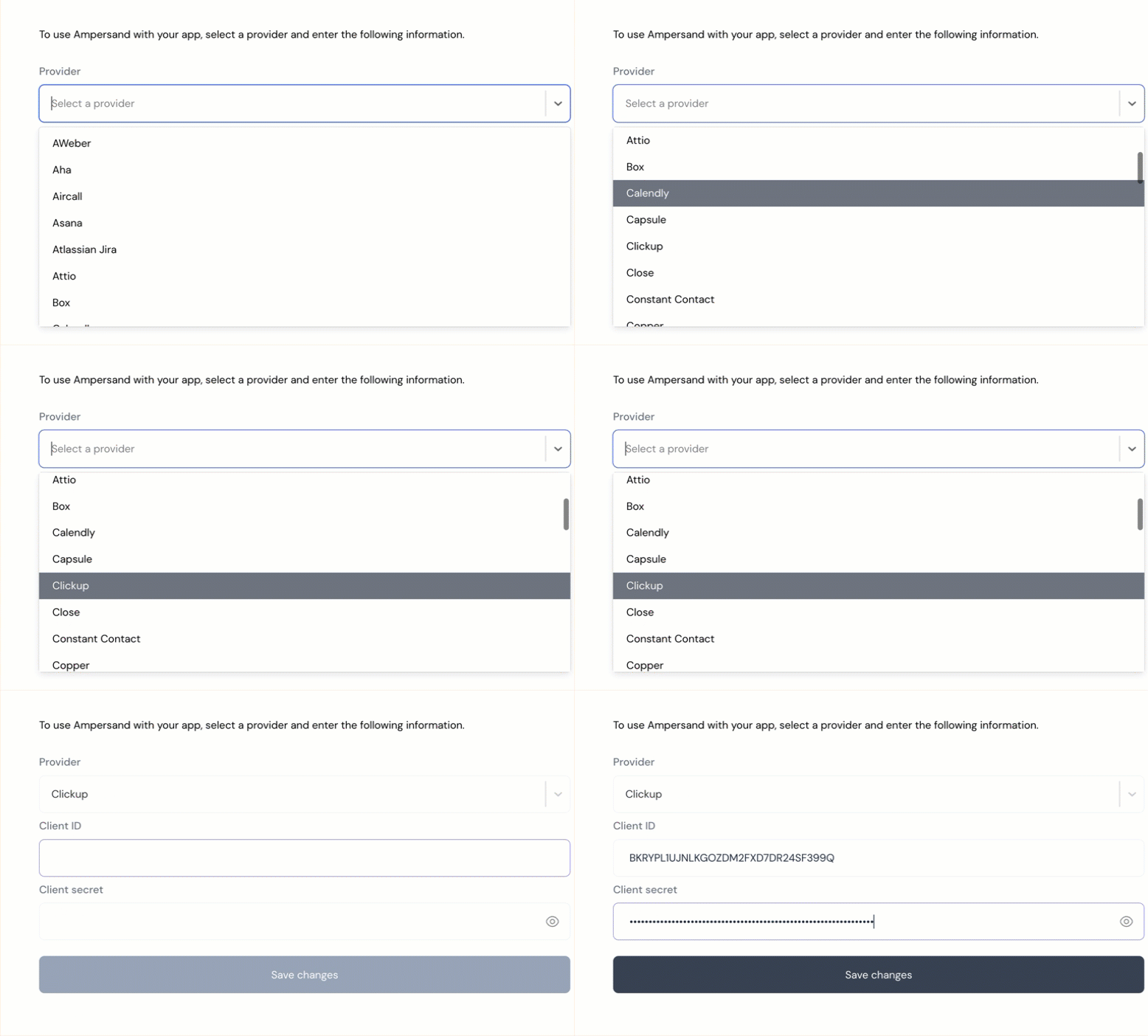 6. Click **Save changes**.
## Using the connector
To start integrating with ClickUp:
* Create a manifest file using the [example](https://github.com/amp-labs/samples/blob/main/clickup/amp.yaml).
* Deploy it using the [amp CLI](/cli/overview).
* If you are using Read Actions, create a [destination](/destinations).
* Embed the [InstallIntegration](/embeddable-ui-components#install-integration) UI component. The UI component will prompt the customer for OAuth authorization.
* Start using the connector!
* If your integration has [Read Actions](/read-actions), you'll start getting webhook messages.
* If your integration has [Proxy Actions](/proxy-actions), you can start making Proxy API calls.
6. Click **Save changes**.
## Using the connector
To start integrating with ClickUp:
* Create a manifest file using the [example](https://github.com/amp-labs/samples/blob/main/clickup/amp.yaml).
* Deploy it using the [amp CLI](/cli/overview).
* If you are using Read Actions, create a [destination](/destinations).
* Embed the [InstallIntegration](/embeddable-ui-components#install-integration) UI component. The UI component will prompt the customer for OAuth authorization.
* Start using the connector!
* If your integration has [Read Actions](/read-actions), you'll start getting webhook messages.
* If your integration has [Proxy Actions](/proxy-actions), you can start making Proxy API calls.