> ## Documentation Index
> Fetch the complete documentation index at: https://docs.withampersand.com/llms.txt
> Use this file to discover all available pages before exploring further.
# Calendly
## What's Supported
### Supported Actions
This connector supports:
* [Read Actions](/read-actions), including full historic backfill and incremental read for `event_types` only.
* [Write Actions](/write-actions).
* [Proxy Actions](/proxy-actions), using the base URL `https://api.calendly.com`.
### Supported Objects
The Calendly connector supports reading from the following objects:
* [activity\_log\_entries](https://developer.calendly.com/api-docs/d37c7f031f339-list-activity-log-entries)
* [user\_availability\_schedules](https://developer.calendly.com/api-docs/8098de44af94c-list-user-availability-schedules)
* [event\_types](https://developer.calendly.com/api-docs/25a4ece03c1bc-list-user-s-event-types)
* [group\_relationships](https://developer.calendly.com/api-docs/4674a12f55f82-list-group-relationships)
* [groups](https://developer.calendly.com/api-docs/6rb6dtdln74sy-list-groups)
* [locations](https://developer.calendly.com/api-docs/fd0b55ed06014-list-user-meeting-locations)
* [organization\_memberships](https://developer.calendly.com/api-docs/eaed2e61a6bc3-list-organization-memberships)
* [outgoing\_communications](https://developer.calendly.com/api-docs/9f56d7339ee2e-list-outgoing-communications)
* [routing\_forms](https://developer.calendly.com/api-docs/9fe7334bec6ad-list-routing-forms)
* [scheduled\_events](https://developer.calendly.com/api-docs/2d5ed9bbd2952-list-events)
The Calendly connector supports writing to the following objects:
* [event\_types](https://developer.calendly.com/api-docs/nuowpx7qfagsc-create-event-type)
* [one\_off\_event\_types](https://developer.calendly.com/api-docs/v1yuxil3cpmxq-create-one-off-event-type)
* [invitees](https://developer.calendly.com/api-docs/p3ghrxrwbl8kqe-create-event-invitee)
* [invitee\_no\_shows](https://developer.calendly.com/api-docs/cebd8c3170790-create-invitee-no-show)
* [scheduling\_links](https://developer.calendly.com/api-docs/4b8195084e287-create-single-use-scheduling-link)
* [shares](https://developer.calendly.com/api-docs/fdcac06abfc8c-create-share)
* [webhook\_subscriptions](https://developer.calendly.com/api-docs/c1ddc06ce1f1b-create-webhook-subscription)
### Example integration
For an example manifest file of a Calendly integration, visit our [samples repo on Github](https://github.com/amp-labs/samples/blob/main/calendly/amp.yaml).
## Before You Get Started
To connect *Calendly* with *Ampersand*, you will need [a Calendly Account](#create-a-calendly-account).
Once your account is created, you'll need to configure an app in Calendly and obtain the following credentials from your app:
* Client ID
* Client Secret
You will use these credentials to connect your application to Ampersand.
### Create a Calendly Account
Here's how you can sign up for a Calendly Developer account:
* Go to the [Calendly Sign Up page](https://login.calendly.com/signin/register).
* Sign up using your preferred method.
### Creating a Calendly App
Follow the steps below to create a Calendly app and add the Ampersand redirect URL in the app:
1. Log in to your [Calendly Developer Dashboard](https://login.calendly.com/).
2. Click **Create new app**.
3. Enter the **App Name**.
4. Enter the Ampersand redirect URL: `https://api.withampersand.com/callbacks/v1/oauth` in the Redirect URI section.
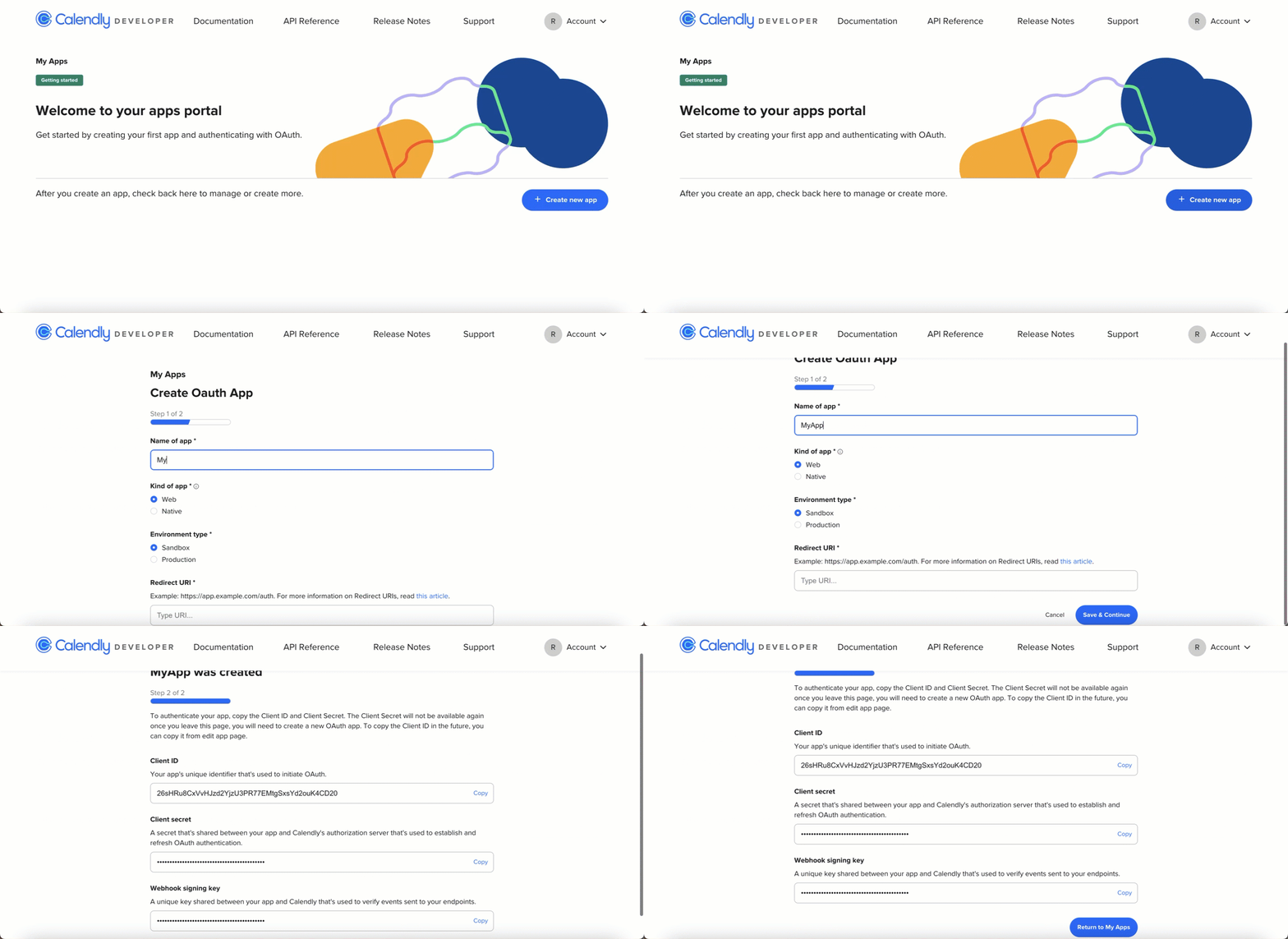 You'll find the **Client ID** and **Client Secret** keys for your app in the following section. Note these credentials as they are necessary for connecting your app to Ampersand.
## Add Your Calendly App info to Ampersand
1. Log in to your [Ampersand Dashboard](https://dashboard.withampersand.com).
2. Select the project where you want to create a Calendly integration.
You'll find the **Client ID** and **Client Secret** keys for your app in the following section. Note these credentials as they are necessary for connecting your app to Ampersand.
## Add Your Calendly App info to Ampersand
1. Log in to your [Ampersand Dashboard](https://dashboard.withampersand.com).
2. Select the project where you want to create a Calendly integration.
 3. Select **Provider apps**.
4. Select *Calendly* from the **Provider** list.
5. Enter the previously obtained *Client ID* in the **Client ID** field and the *Client Secret* in the **Client Secret** field.
3. Select **Provider apps**.
4. Select *Calendly* from the **Provider** list.
5. Enter the previously obtained *Client ID* in the **Client ID** field and the *Client Secret* in the **Client Secret** field.
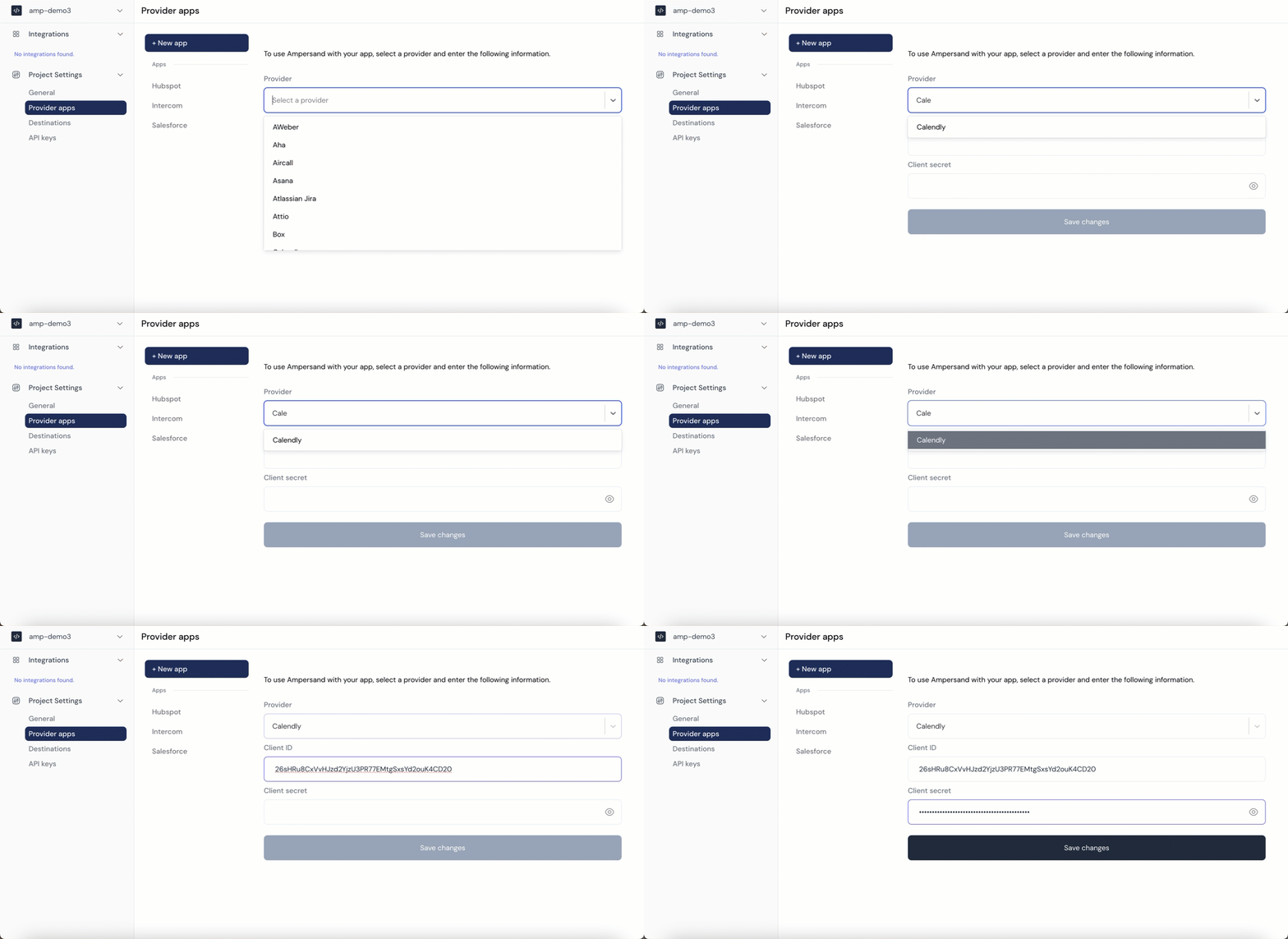 6. Click **Save changes**.