> ## Documentation Index
> Fetch the complete documentation index at: https://docs.withampersand.com/llms.txt
> Use this file to discover all available pages before exploring further.
# Asana
## What's Supported
### Supported Actions
This connector supports:
* [Read Actions](/read-actions), including full historic backfill. Please note that incremental read is not supported, a full read of the Asana instance will be done for each scheduled read.
* [Write Actions](/write-actions).
* [Proxy Actions](/proxy-actions), using the base URL `https://app.asana.com/api`.
### Supported Objects
The Asana connector supports writing to and reading from the following objects:
* [access\_requests](https://developers.asana.com/reference/createaccessrequest) (write only)
* [allocations](https://developers.asana.com/reference/createallocation) (write only)
* [custom\_fields](https://developers.asana.com/reference/createcustomfield) (write only)
* [goals](https://developers.asana.com/reference/creategoal) (write only)
* [memberships](https://developers.asana.com/reference/createmembership) (write only)
* [organization\_exports](https://developers.asana.com/reference/createorganizationexport) (write only)
* [portfolios](https://developers.asana.com/reference/createportfolio) (write only)
* [projects](https://developers.asana.com/reference/getprojects) (read and write)
* [status\_updates](https://developers.asana.com/reference/createstatusforobject) (write only)
* [tags](https://developers.asana.com/reference/gettags) (read and write)
* [tasks](https://developers.asana.com/reference/createtask) (write only)
* [teams](https://developers.asana.com/reference/createteam) (write only)
* [users](https://developers.asana.com/reference/getusers) (read only)
* [webhooks](https://developers.asana.com/reference/createwebhook) (write only)
* [workspaces](https://developers.asana.com/reference/getworkspaces) (read only)
When performing Write actions, the payload should be sent directly in the `record` field, not wrapped inside a `data` object as shown in Asana's API documentation.
## Before You Get Started
To integrate Asana with Ampersand, you will need [an Asana Account](https://asana.com/create-account).
Once your account is created, you'll need to create an app in Asana, configure the Ampersand redirect URI within the app, and obtain the following credentials from you app:
* Client ID
* Client Secret
You will then use these credentials to connect your application to Ampersand.
### Create an Asana Account
Here's how you can sign up for an Asana account:
* Go to the [Asana Sign Up page](https://asana.com/create-account).
* Sign up using your preferred method.
### Creating an Asana App
Follow the steps below to create an Asana app and add
1. Log in to your [Asana](https://app.asana.com/-/login?_gl=1*6sugw2*_gcl_au*MTkwOTM5OTQ5Ny4xNzE0MDIwNjA3*FPAU*MTkwOTM5OTQ5Ny4xNzE0MDIwNjA3*_ga*MzkyNTg3NTguMTcxNDAyMDYwNw..*_ga_J1KDXMCQTH*MTcxOTMyNzI3NS41LjEuMTcxOTMyNzMwNS4zMy4wLjE1MzI1OTc1NTI.*_fplc*STdUUVd6UFZ4Q0ttJTJGNU5sYnhxQXVDeENYcGtVdFZsT1M5MGVROTIxY0RBUWlaU0lObkxKMUpaM0JmZGxQeGpMRkhzb0NqYTNaVHU2RUxOcFFCMnZzVXEzNFg5aVI4N3RYZ0s2eHBnWGwzdEdtTmZBc25xNUY2NzM2MjBvcVElM0QlM0Q.) account.
2. Navigate to the [Asana Developer App Console](https://app.asana.com/0/my-apps).
3. Click **Create New App** to create a new app.
4. Enter **App Name** and select the relevant app requirements .
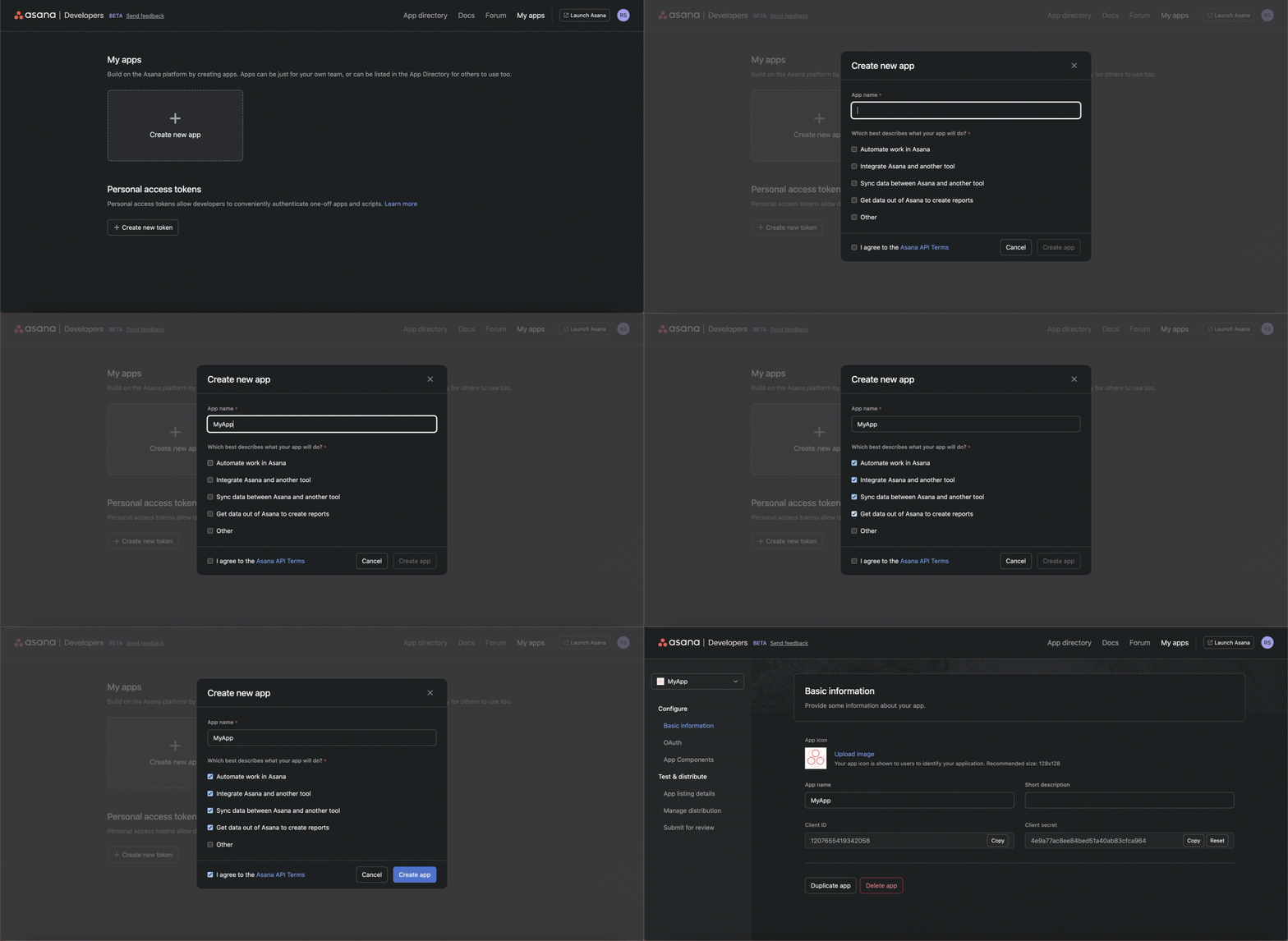
### Adding Ampersand Redirect URL in Your App
1. Nagivate to the **OAuth** section.
2. In the **Redirect URLs** section, click **Add redirect URL**.
3. Enter the Ampersand redirect URL: `https://api.withampersand.com/callbacks/v1/oauth`.
4. Click **Add**.
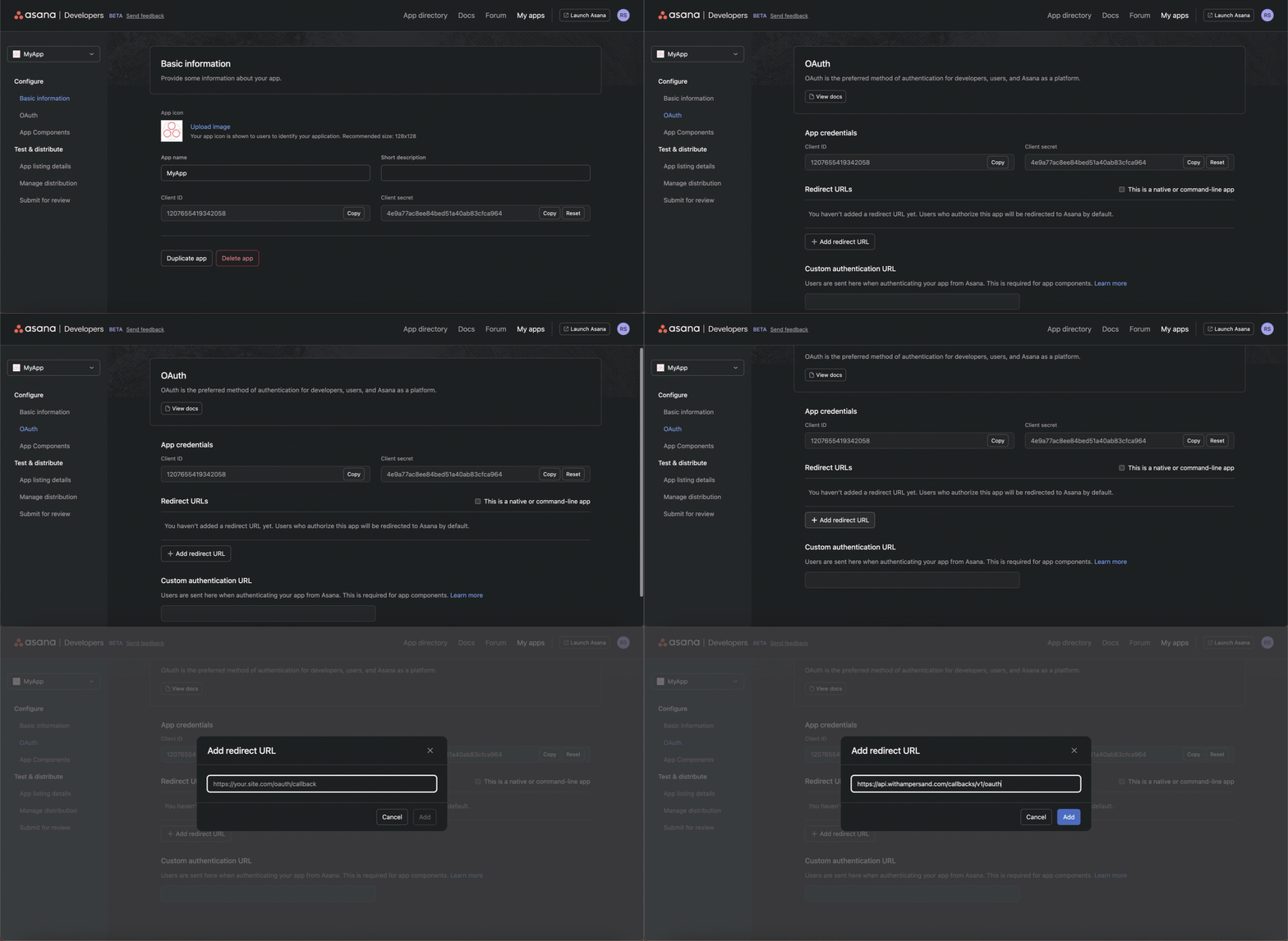 The **Basic information** section displays **Client ID** and **Client Secret** keys for your App. You'll use these credentials to connect your app to [Ampersand](https://docs.withampersand.com/docs/asana#add-your-asana-app-info-to-ampersand) .
## Add Your Asana App info to Ampersand
1. Log in to your [Ampersand Dashboard](https://dashboard.withampersand.com).
2. Select the project where you want to create an Asana integration.
The **Basic information** section displays **Client ID** and **Client Secret** keys for your App. You'll use these credentials to connect your app to [Ampersand](https://docs.withampersand.com/docs/asana#add-your-asana-app-info-to-ampersand) .
## Add Your Asana App info to Ampersand
1. Log in to your [Ampersand Dashboard](https://dashboard.withampersand.com).
2. Select the project where you want to create an Asana integration.
 3. Select **Provider apps**.
4. Select *Asana* from the **Provider** list.
5. Enter the previously obtained *Client ID* in the **Client ID** field and the *Client Secret* in the **Client Secret** field.
3. Select **Provider apps**.
4. Select *Asana* from the **Provider** list.
5. Enter the previously obtained *Client ID* in the **Client ID** field and the *Client Secret* in the **Client Secret** field.
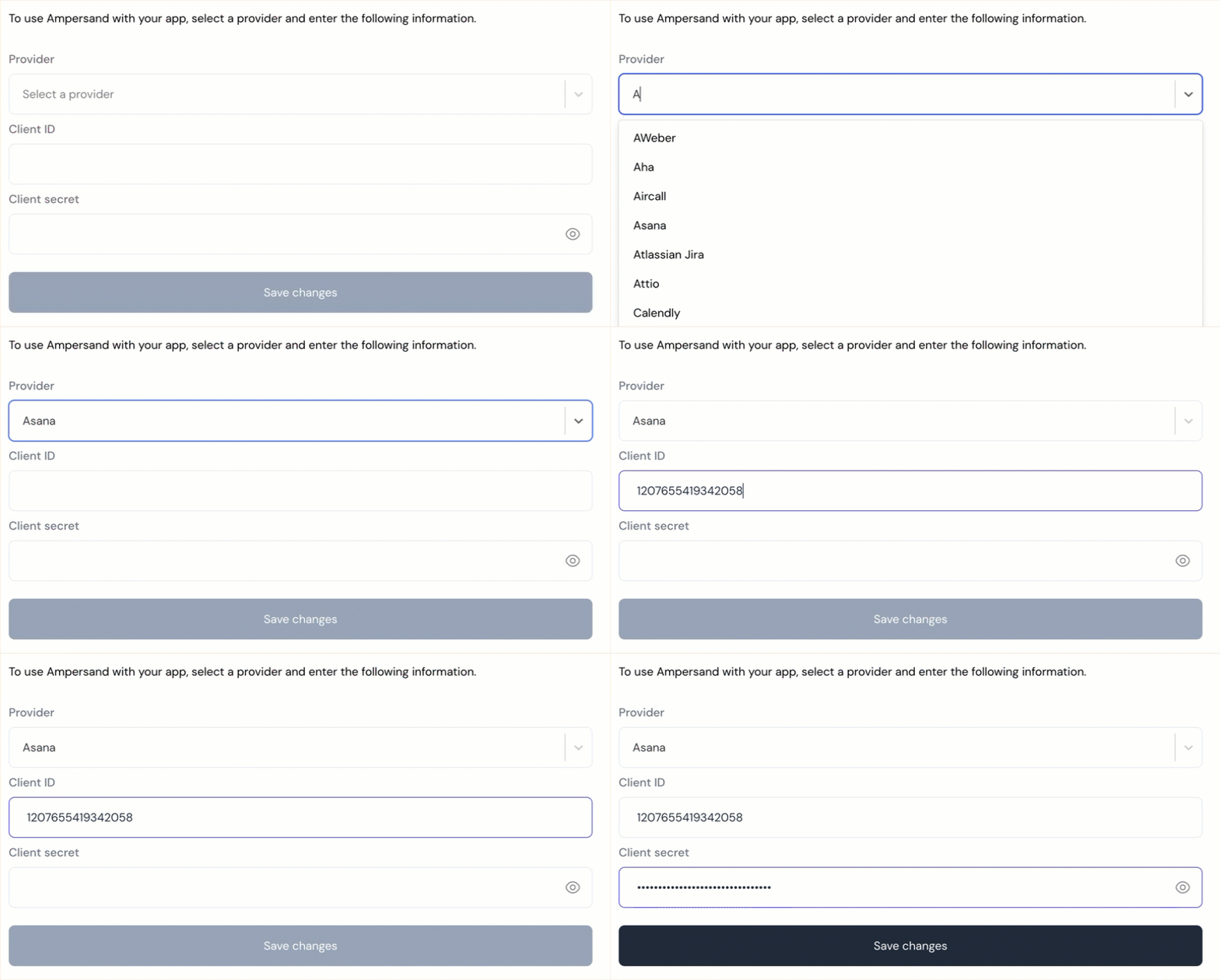 6. Click **Save changes**.