> ## Documentation Index
> Fetch the complete documentation index at: https://docs.withampersand.com/llms.txt
> Use this file to discover all available pages before exploring further.
# Prebuilt UI components
## Project setup
### Prerequisites
* You need a React app to embed the components into. If you don't already have one, you can use the [Ampersand starter project](https://github.com/amp-labs/starter-project).
* The Ampersand UI library requires **React v18+**.
### Install the Ampersand React library
In your repo, use `npm` or `yarn` to install the package:
```
npm install @amp-labs/react
```
or
```
yarn add @amp-labs/react
```
## AmpersandProvider
The `AmpersandProvider` is the foundational component that provides context for all Ampersand functionality, including both headless hooks and prebuilt UI components. It can be placed at any level in your component tree, but it must wrap all Ampersand components and hooks in your application.
The `AmpersandProvider` accepts an `options` object with the following required properties:
* `project`: Your Ampersand project name or ID (found on your [General Settings page](https://dashboard.withampersand.com/projects/_/settings))
* Authentication method: Either `apiKey` or `getToken` (but not both)
```tsx theme={null}
import { AmpersandProvider } from '@amp-labs/react';
import '@amp-labs/react/styles';
const options = {
project: 'PROJECT', // Your Ampersand project name or ID
// Pick one of the following authentication methods:
apiKey: 'API_KEY', // Ampersand API key (simple)
// OR
getToken: async ({consumerRef, groupRef}) => { // JWT Authentication (advanced)
// Custom logic to fetch JWT token from your backend, e.g.
return await getTokenFromMyBackend(consumerRef, groupRef);
},
};
function App() {
return (
{/* All your Ampersand components and hooks go here */}
);
}
```
### Authentication Methods
The `AmpersandProvider` supports two authentication methods through the `options` parameter. Only one method can be used at a time.
#### API key authentication
When you are first developing integrations with Ampersand, API keys are a quick way to get started.
You can create an API key on the [API keys page](https://dashboard.withampersand.com/projects/_/api-keys) of your Ampersand Dashboard. Select "UI Library" for "Where will you use the API key?"
#### JWT authentication
When you are ready to ship your integrations to production, we highly recommend that you move to JWT authentication, as it is more secure than using API keys in the frontend. JWT tokens are time-bound and also enforce that your users only have access to their own integration data.
```tsx theme={null}
const options = {
project: 'PROJECT',
getToken: async ({consumerRef, groupRef}) => {
// Custom logic to fetch JWT token from your backend, e.g.
return await getTokenFromMyBackend(consumerRef, groupRef);
},
};
return (
{/* All your Ampersand components and hooks go here */}
);
```
The `getToken` function should return a promise that resolves to a valid JWT token by making a call to your backend. For detailed information on how to generate JWT tokens, see [JWT Authentication](/api/jwt-auth).
## Components
### Install integration
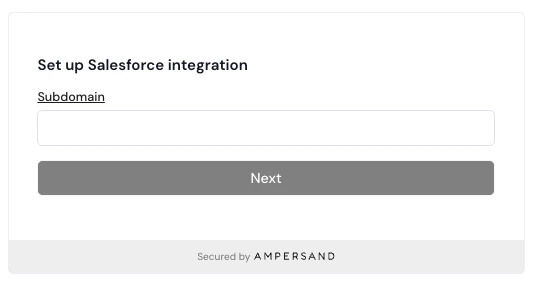
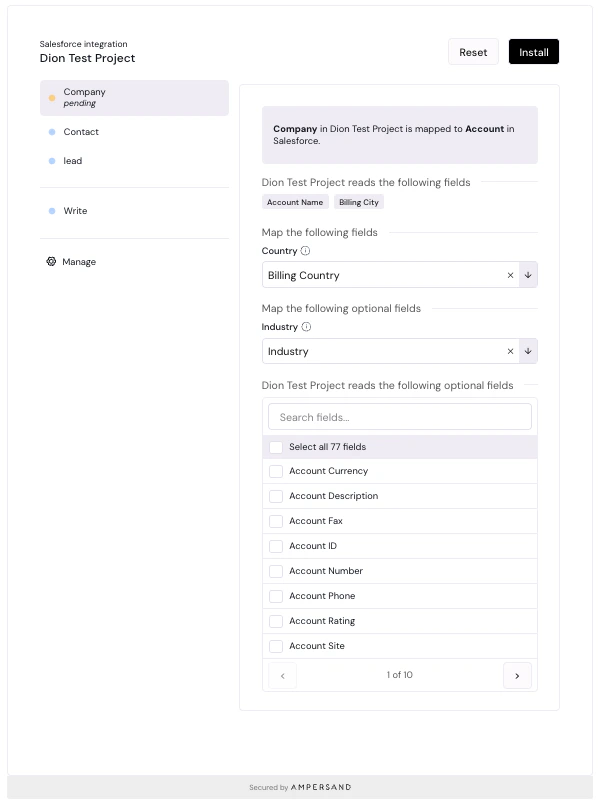
The `InstallIntegration` component prompts your customer for their SaaS credentials, and then guides them through the installation flow for an integration. If they've already installed this integration, then the component will display the current configuration of the integration and allow them to update it.
Please note that each [group](/terminology#group) is able to install the integration once, so if someone else with the same `groupRef` has already installed the integration, then the user will not be able to install the same integration again.
The parameters of the component are:
* **integration** (string): the name of an integration that you've defined in `amp.yaml`.
* **consumerRef** (string): the ID that your app uses to identify this end user.
* **consumerName** (string, optional): the display name for this end user.
* **groupRef** (string): the ID that your app uses to identify a company, team, or workspace. See [group](/terminology#group).
* **groupName** (string, optional): the display name for this group.
* **onInstallSuccess** (function, optional): a callback function that gets invoked after a consumer successfully installs the integration.
* **onUpdateSuccess** (function, optional): a callback function that gets invoked after a consumer successfully updates an existing integration with the new configuration.
* **onUninstallSuccess** (function, optional): a callback function that gets invoked after a consumer successfully uninstalls the integration.
* **fieldMapping** (JSON): a JSON object that specifies the dynamic mapping configuration for this installation. Learn more about dynamic mapping [here](/object-and-field-mapping#dynamic-field-mappings)
Both `onInstallSuccess` and `onUpdateSuccess` should be functions with the following signature: `(installationId: string, config: Config) => void`. `Config` is an exported type from `@amp-labs/react`.
```JSX theme={null}
console.log(`Successfully installed ${installationId}`
+ `with configuration ${JSON.stringify(configObject, null, 2)}`)
}
onUpdateSuccess = {(installationId, configObject) =>
console.log(`Successfully updated ${installationId}`
+ ` with configuration ${JSON.stringify(configObject, null, 2)}`)
}
onUninstallSuccess = {(installationId) =>
console.log(`Successfully uninstalled ${installationId}`)
}
fieldMapping={{
contacts: [
{
mapToName: 'priority',
mapToDisplayName: 'Priority',
prompt: 'Which field do you use to track the priority of a deal?',
},
... // other field mapping options
],
}}
/>
```
 #### Wizard mode (Beta)
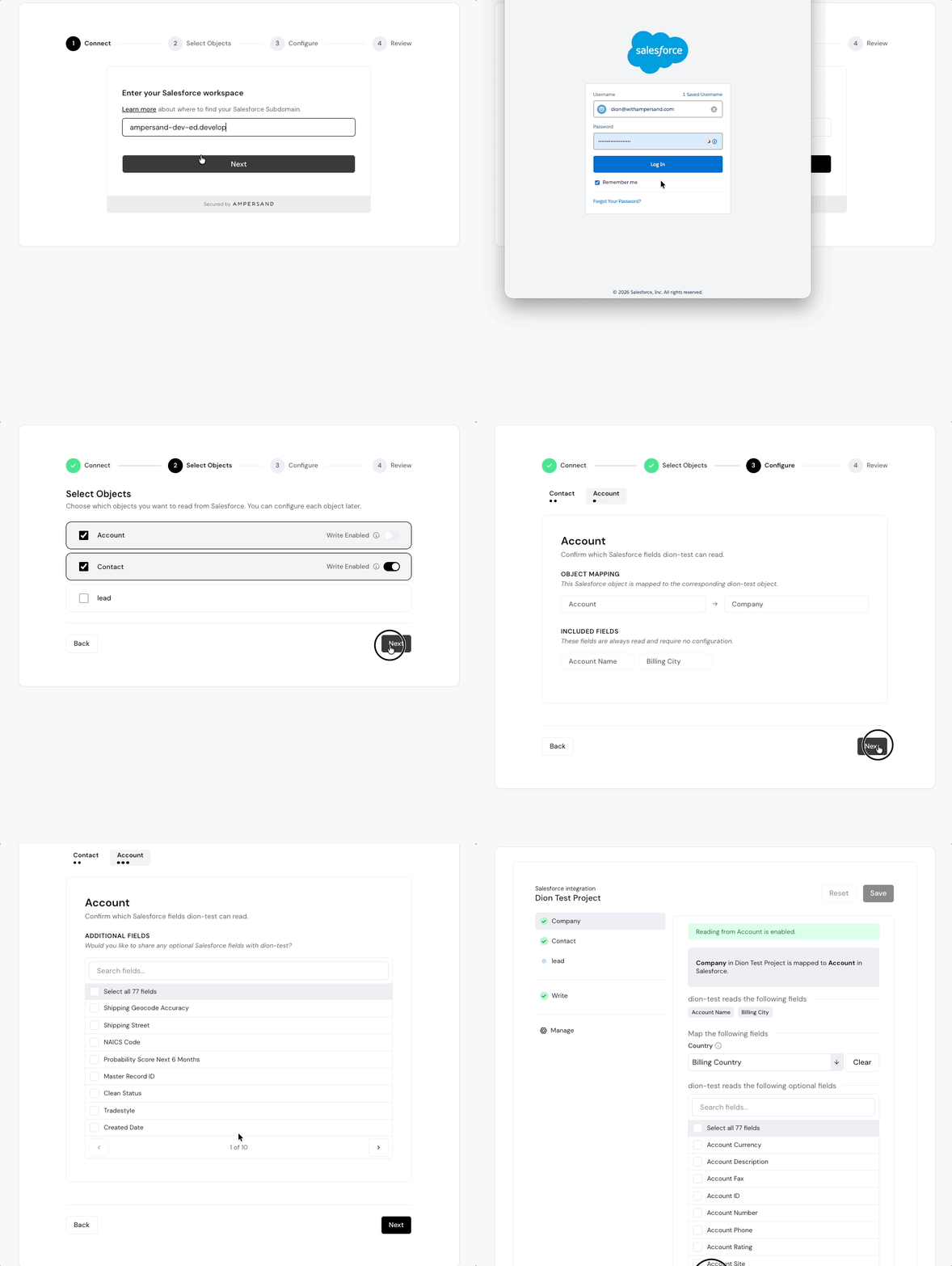
The wizard mode replaces the standard configuration view with a guided, multi-step installation flow during initial set up. It walks your end users through connecting, selecting objects, configuring fields/mappings, and reviewing before creating an installation.
#### Wizard mode (Beta)
The wizard mode replaces the standard configuration view with a guided, multi-step installation flow during initial set up. It walks your end users through connecting, selecting objects, configuring fields/mappings, and reviewing before creating an installation.
 The wizard mode is currently in beta preview. The `variant="wizard"` prop is hidden and does not appear in the public TypeScript declarations as of `@amp-labs/react` v2.13.1. See the supported features table below for details on what is currently available.
To activate wizard mode, pass `variant="wizard"` to the `InstallIntegration` component:
```JSX theme={null}
```
When no installation exists, the wizard renders. If an installation already exists, the standard configuration UI is shown instead.
| Feature | Supported |
| ------------------------------------------------------------------------------------------------ | --------- |
| [Read objects](/read-actions) | Yes |
| [Write objects](/write-actions) | Yes |
| [Required fields](/read-actions#required-fields-and-optional-fields) | Yes |
| [Optional fields](/read-actions#required-fields-and-optional-fields) | Yes |
| [Field mappings](/object-and-field-mapping#field-mapping) | Yes |
| [Object mappings](/object-and-field-mapping#object-mapping) | Yes |
| [Value mappings](/object-and-field-mapping#mapping-values) | No |
| [Field mapping `default`](/object-and-field-mapping#field-mapping-2) | No |
| [Dynamic field mappings](/object-and-field-mapping#dynamic-field-mappings) (`fieldMapping` prop) | No |
### Connect provider
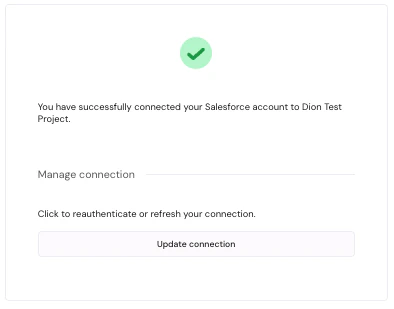
The ConnectProvider component allows your customer to put in their SaaS credential, but does not lead them through the installation flow. After their SaaS credential is persisted by Ampersand, you can then make an API request to the [CreateInstallation](/reference/installation/create-a-new-installation) endpoint.
The parameters of the component are:
* **provider** (string): the name of the SaaS provider, such as "salesforce".
* **consumerRef** (string): the ID that your app uses to identify this end user.
* **consumerName** (string, optional): the display name for this end user.
* **groupRef** (string): the ID that your app uses to identify a company, team, or workspace. See [group](/terminology#group).
* **groupName** (string, optional): the display name for this group.
* **module** (string, optional): the module to use for this connection. Determines which module-specific metadata to collect from providers that have modules defined. Falls back to the provider's default module if not specified, and is ignored if the provider does not have modules. If a connection already exists but is missing metadata required by the specified module, a prefilled metadata form will be shown automatically. Supported in `@amp-labs/react` `v2.12.1+`.
* **redirectUrl** (string, optional): if provided, the page will be redirected to this URL once a consumer successfully connects. This can either be an absolute or relative URL.
* **onConnectSuccess** (function, optional): a callback function that gets invoked after a consumer successfully connects.
* **onDisconnectSuccess** (function, optional): a callback function that gets invoked after a consumer successfully disconnects.
Both `onConnectSuccess` and `onDisconnectSuccess` should be functions with the following signature: `(connection: Connection) => void`. `Connection` is an exported type from `@amp-labs/react`.
```TypeScript theme={null}
console.log(`Successfully created connection ${connection.id}`)
}
onDisconnectSuccess = {connection =>
console.log(`Successfully deleted connection ${connection.id}`)
}
/>
```
The wizard mode is currently in beta preview. The `variant="wizard"` prop is hidden and does not appear in the public TypeScript declarations as of `@amp-labs/react` v2.13.1. See the supported features table below for details on what is currently available.
To activate wizard mode, pass `variant="wizard"` to the `InstallIntegration` component:
```JSX theme={null}
```
When no installation exists, the wizard renders. If an installation already exists, the standard configuration UI is shown instead.
| Feature | Supported |
| ------------------------------------------------------------------------------------------------ | --------- |
| [Read objects](/read-actions) | Yes |
| [Write objects](/write-actions) | Yes |
| [Required fields](/read-actions#required-fields-and-optional-fields) | Yes |
| [Optional fields](/read-actions#required-fields-and-optional-fields) | Yes |
| [Field mappings](/object-and-field-mapping#field-mapping) | Yes |
| [Object mappings](/object-and-field-mapping#object-mapping) | Yes |
| [Value mappings](/object-and-field-mapping#mapping-values) | No |
| [Field mapping `default`](/object-and-field-mapping#field-mapping-2) | No |
| [Dynamic field mappings](/object-and-field-mapping#dynamic-field-mappings) (`fieldMapping` prop) | No |
### Connect provider
The ConnectProvider component allows your customer to put in their SaaS credential, but does not lead them through the installation flow. After their SaaS credential is persisted by Ampersand, you can then make an API request to the [CreateInstallation](/reference/installation/create-a-new-installation) endpoint.
The parameters of the component are:
* **provider** (string): the name of the SaaS provider, such as "salesforce".
* **consumerRef** (string): the ID that your app uses to identify this end user.
* **consumerName** (string, optional): the display name for this end user.
* **groupRef** (string): the ID that your app uses to identify a company, team, or workspace. See [group](/terminology#group).
* **groupName** (string, optional): the display name for this group.
* **module** (string, optional): the module to use for this connection. Determines which module-specific metadata to collect from providers that have modules defined. Falls back to the provider's default module if not specified, and is ignored if the provider does not have modules. If a connection already exists but is missing metadata required by the specified module, a prefilled metadata form will be shown automatically. Supported in `@amp-labs/react` `v2.12.1+`.
* **redirectUrl** (string, optional): if provided, the page will be redirected to this URL once a consumer successfully connects. This can either be an absolute or relative URL.
* **onConnectSuccess** (function, optional): a callback function that gets invoked after a consumer successfully connects.
* **onDisconnectSuccess** (function, optional): a callback function that gets invoked after a consumer successfully disconnects.
Both `onConnectSuccess` and `onDisconnectSuccess` should be functions with the following signature: `(connection: Connection) => void`. `Connection` is an exported type from `@amp-labs/react`.
```TypeScript theme={null}
console.log(`Successfully created connection ${connection.id}`)
}
onDisconnectSuccess = {connection =>
console.log(`Successfully deleted connection ${connection.id}`)
}
/>
```
| Connect | Success |
|---|
|
|
|
*The component prompts for credentials (left), then displays the connected state with an option to reauthenticate or refresh (right).*
## Hooks
### Check if integration is installed
We provide a hook `useIsIntegrationInstalled` to check if an integration has been installed yet for this [group](/terminology#group). It takes the following parameters:
* **integration** (string): the name of an integration that you've defined in `amp.yaml`.
* **groupRef** (string): the ID that your app uses to identify a company, team, or workspace. See [group](/terminology#group).
* **consumerRef** (string, optional): the ID that your app uses to identify this end user. If you are using [JWT authentication](/embeddable-ui-components#jwt-authentication), you must provide this parameter, or ensure that this hook is called inside [InstallationProvider](/headless#context-setup). This parameter is supported in `@amp-labs/react` `v2.10.1+`.
It returns an object with the following fields:
* **isLoaded** (boolean): indicates whether the API call has resolved.
* **isIntegrationInstalled** (boolean): indicates whether the integration has already been installed by somebody in the group.
* **isError** (boolean): indicates whether an error occurred while fetching the integration or installation data.
* **error** (Error | null): contains the error object if an error occurred, otherwise null.
* **config** (Config): the configuration object for the installation (see below for usage examples).
```TypeScript theme={null}
const {
isLoaded,
isIntegrationInstalled,
isError,
error
} = useIsIntegrationInstalled("read-salesforce", groupRef);
// Handle errors
if (isError) {
console.error("Failed to check integration status:", error);
}
```
#### Using with JWT authentication
If you are using [JWT authentication](/embeddable-ui-components#jwt-authentication), you must provide the `consumerRef` parameter, or ensure that this hook is called inside [InstallationProvider](/headless#context-setup).
```TypeScript theme={null}
const {
isLoaded,
isIntegrationInstalled,
} = useIsIntegrationInstalled("read-salesforce", groupRef, consumerRef);
```
### Check if specific objects are installed
Currently, the [InstallIntegration](/embeddable-ui-components#install-integration) component will create an `Installation` as soon as the user saves a single object. This means that when
`useIsIntegrationInstalled` returns true for `isIntegrationInstalled`, not all objects would have been configured and saved yet.
If you need to know when all objects or specific objects are installed, inspect the [Config](/reference/installation/update-an-installation#body-installation-config-content) object.
```TypeScript theme={null}
const {
isLoaded,
isIntegrationInstalled,
config,
} = useIsIntegrationInstalled("read-salesforce", groupRef);
// All 3 read objects are installed
if (isLoaded && isIntegrationInstalled && config.read.objects.length === 3) {
// Do something
}
// check if the Account object is installed
if (isLoaded && isIntegrationInstalled && config.read.objects.filter(o => o.objectName === "Account").length === 1) {
// Do something
}
// All 3 write objects are installed
if (isLoaded && isIntegrationInstalled && config.write.objects === 3) {
// Do something
}
```
## Customize styles
Customized styling is only supported in v2.x.x
To customize the look and feel of Ampersand components, import your own CSS file directly after `@amp-labs/react/styles`.
You can override CSS variables that are exposed in the [variables.css file](https://github.com/amp-labs/react/blob/main/src/styles/variables.css). By convention, CSS variables that are used in the Ampersand components are named with `--amp` as a prefix.
```TypeScript theme={null}
import { AmpersandProvider } from '@amp-labs/react';
import '@amp-labs/react/styles';
import './App.css'; // Optional: your own css override
```
### Example App.css
```css App.css theme={null}
:root {
/* These affect the look and feel of buttons */
--amp-colors-primary: #4360e0;
--amp-default-border-radius: 8px;
/* Override with your own color palette */
--amp-colors-neutral-25: #FEFEFE;
--amp-colors-neutral-50: #FDFCFD;
--amp-colors-neutral-100: #FAFAFC;
--amp-colors-neutral-200: #F6F5F9;
--amp-colors-neutral-300: #F1EFF5;
--amp-colors-neutral-400: #EDEAF2;
--amp-colors-neutral-500: #E8E5EF;
--amp-colors-neutral-600: #918E95;
--amp-colors-neutral-700: #646266;
--amp-colors-neutral-800: #363638;
--amp-colors-neutral-900: #1D1D1D;
}
```
## Dark mode
Dark mode is only supported in v2.1.0+
Ampersand's UI components support dark mode. Ensure that you have the following lines in your application's CSS:
```CSS theme={null}
:root {
color-scheme: light dark;
}
```
When a user sets their system settings to dark mode, then Ampersand's UI components will automatically render in dark mode. We do this by making use of the [light-dark CSS function](https://developer.mozilla.org/en-US/docs/Web/CSS/color_value/light-dark) in our default colors. You can customize the colors by adding an override CSS file. See [Customize styles](#customize-styles).
## Migrating to v2
`@amp-labs/react` v2.x.x no longer requires Chakra as a dependency, and also provides users with the ability to [customize styles](#customize-styles). When upgrading from v1.x.x. to v2.x.x, you must add an additional line after importing the library:
```TypeScript theme={null}
import { AmpersandProvider, InstallIntegration } from '@amp-labs/react';
import '@amp-labs/react/styles'; // Add this line when migrating to v2
import './App.css'; // Optional: your own CSS override
```
## Troubleshooting
### Why did installing or updating fail with a field error?
When a customer creates or updates an installation, Ampersand runs a [sample read](/read-actions#install-time-validation) against the provider before saving. If a selected field isn't visible to the connected user, or a field name doesn't exist on the object, the install is rejected and the component shows the provider's error message. Your customer can fix it in the flow — for example, by granting field access — instead of hitting a broken sync later.
This runs automatically on `@amp-labs/react` **2.13.5 and later**. Older versions show only a generic error, so upgrade for the detailed messages. See [Install-time validation](/read-actions#install-time-validation) for the full behavior.
### Why does styling look so bare?
You likely forgot to import the stylesheet, please add this line once in your application.
```
import '@amp-labs/react/styles';
```