> ## Documentation Index
> Fetch the complete documentation index at: https://docs.withampersand.com/llms.txt
> Use this file to discover all available pages before exploring further.
# Salesforce
This guide helps you set up your Salesforce org to work with an Ampersand-powered integration. The steps differ depending on whether the integration uses an **External Client App** or a **Connected App**. If you're not sure which one you're using, ask the developer who built the integration.
## Before installing a Salesforce integration
### Verify your Salesforce edition supports API access
Salesforce editions offer different levels of API access, which can affect how Salesforce integrations work in Ampersand.
Before setting up your Salesforce integration, confirm whether your Salesforce edition includes API access. Some editions include full API access by default, while others may offer limited access or require additional purchases.
To check if your Salesforce edition supports the necessary API access for this integration, please refer to [Salesforce's official documentation](https://help.salesforce.com/s/articleView?language=en_US\&id=000385436\&type=1) on API access by edition.
If your Salesforce edition does not include the required API access, contact your Salesforce account representative to upgrade your edition.
## Setting up the integration
### Install the package
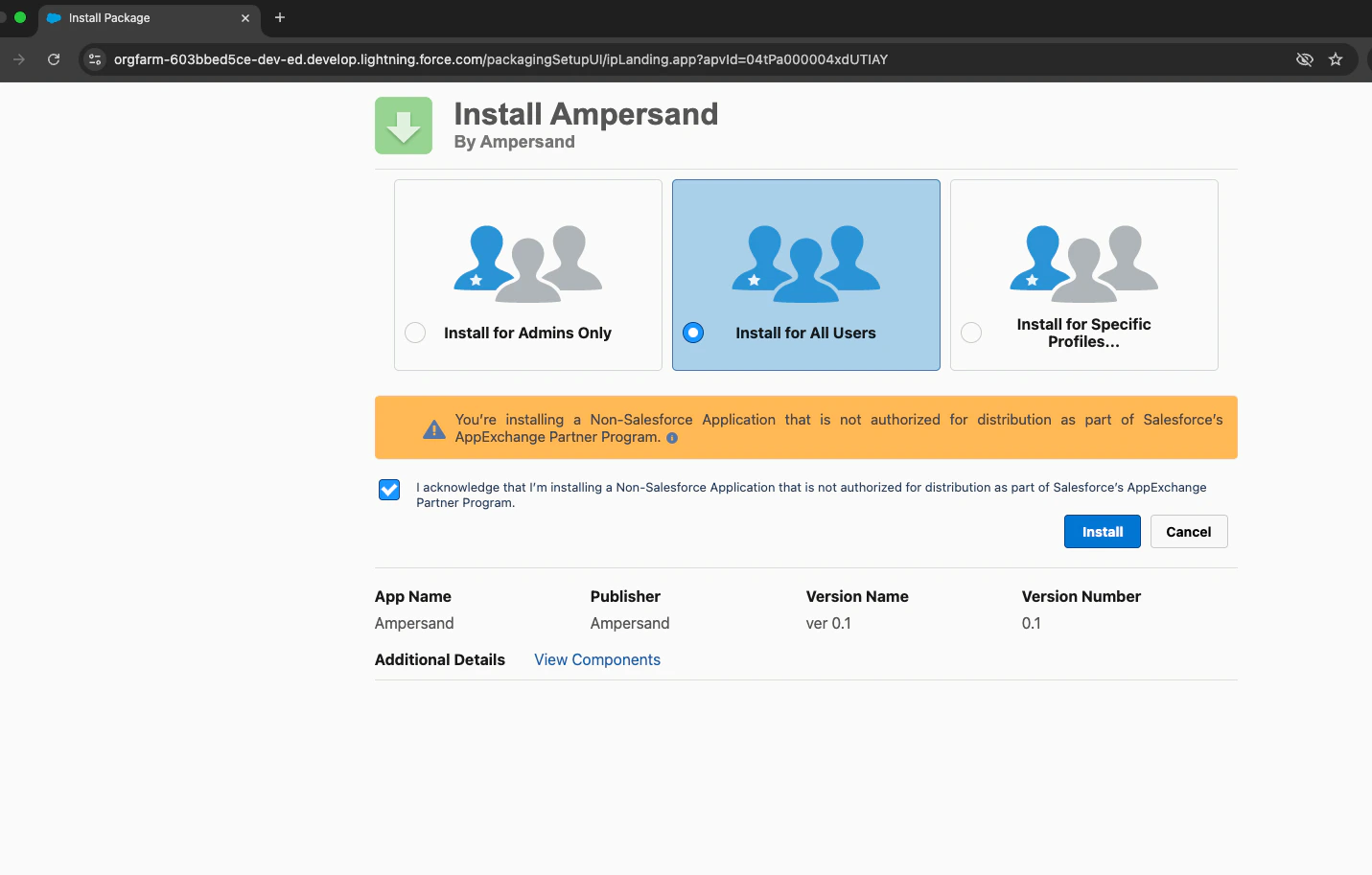
If the integration uses an External Client App, the developer will provide you with a **package install URL**. This URL installs the app into your Salesforce org.
1. Open the package install URL provided by the developer.
2. Log in to your Salesforce org if prompted.
3. Select **Install for All Users**.
4. Check the acknowledgment checkbox.
5. Click **Install**.
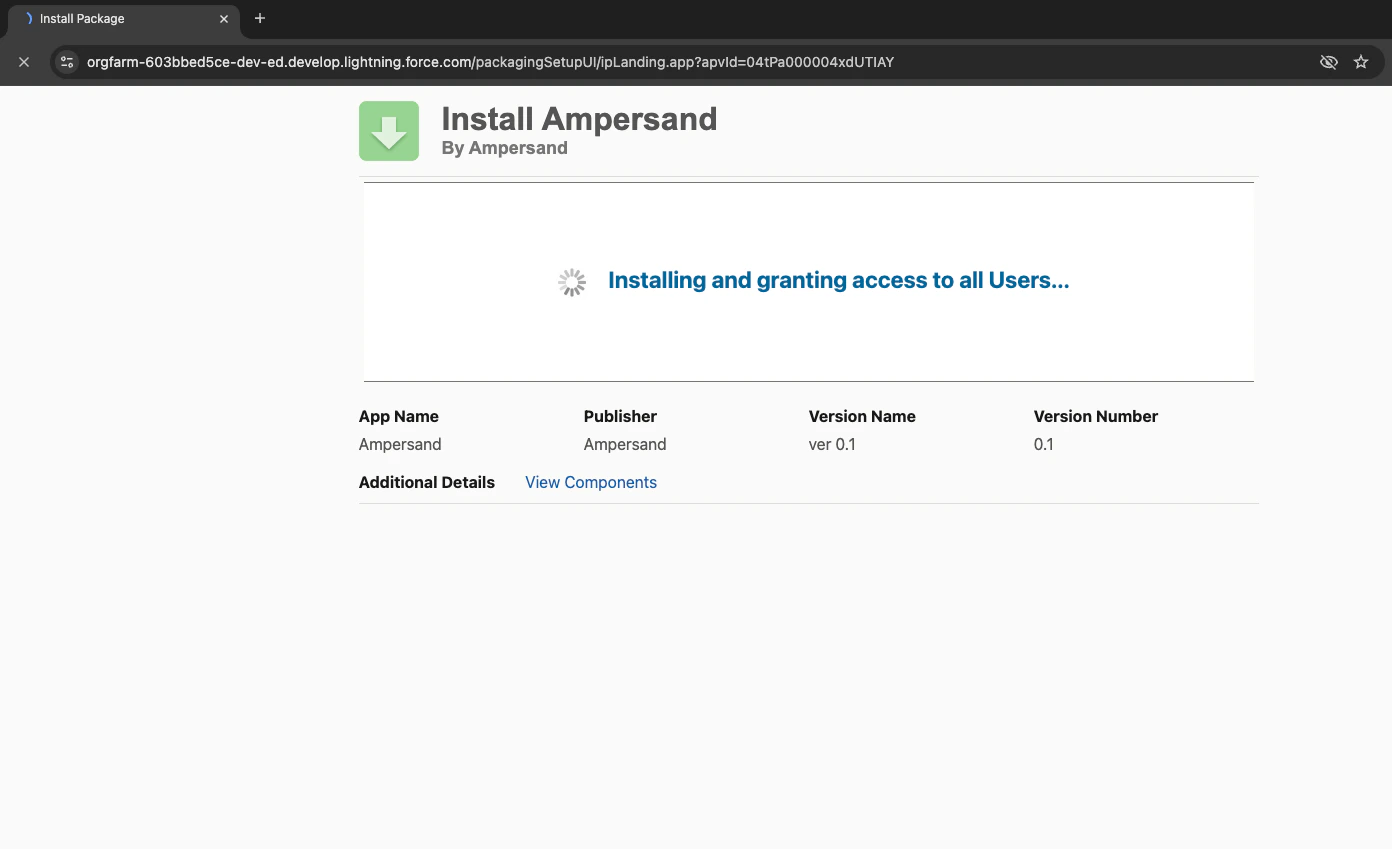
 You will see a progress screen while the installation completes.
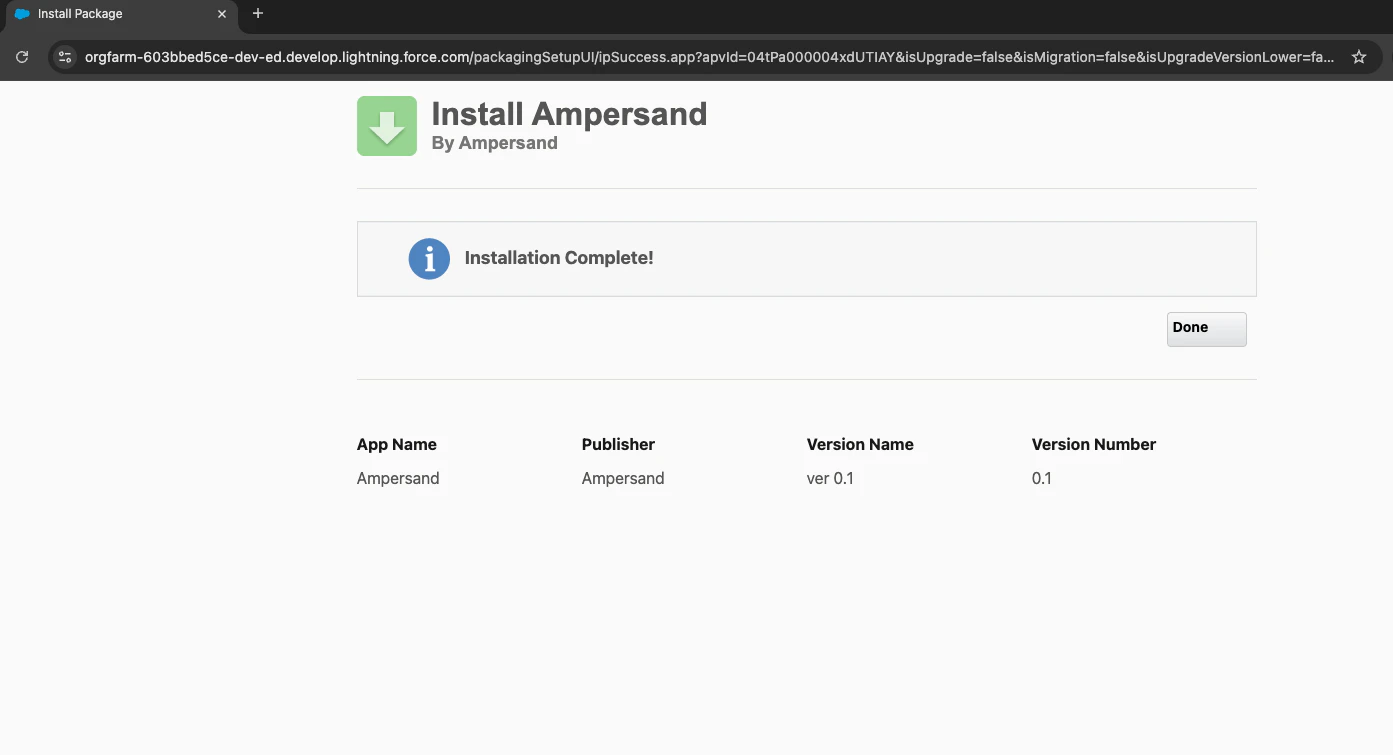
 Once complete, you should see a confirmation screen:
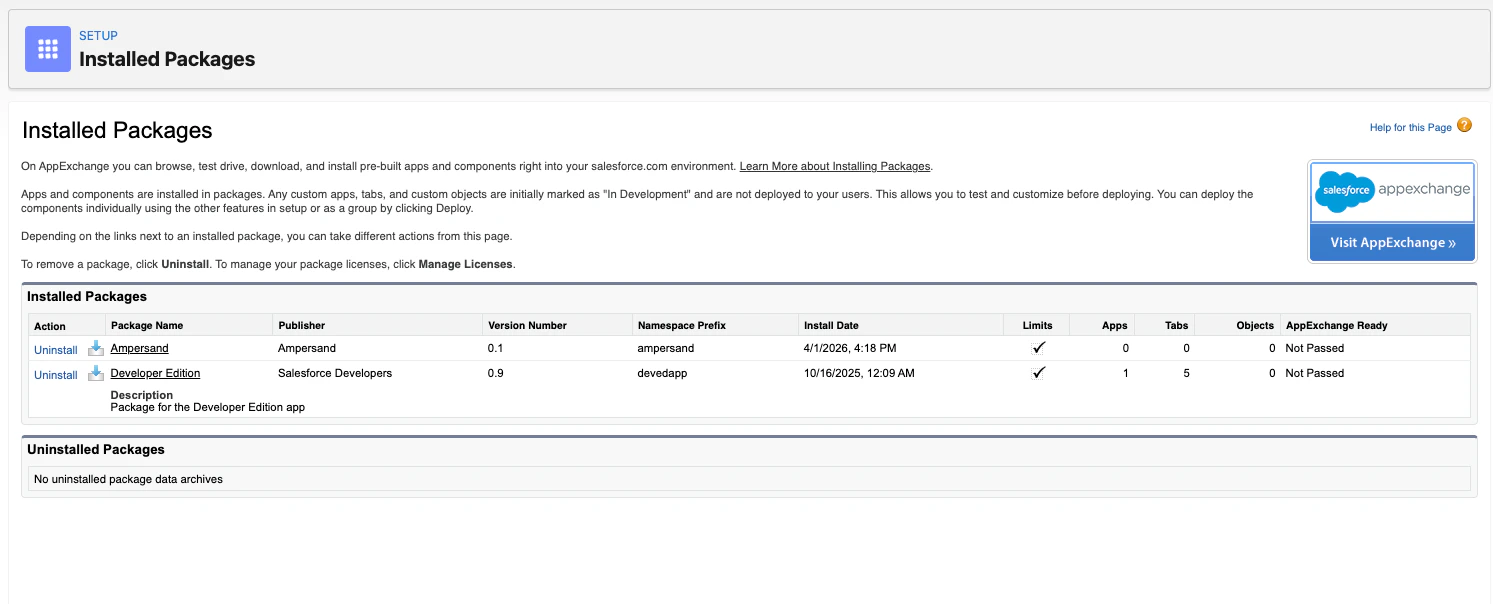
 To verify the package was installed, go to **Setup**, search for **Installed Packages**, and confirm the package appears in the list.
 You must complete this step **before** connecting your Salesforce account through the integration's UI, otherwise the OAuth connection will fail.
### Configure token policy settings
Salesforce access tokens expire after a certain period. To ensure your integration continues working without interruption, you need to set your refresh token policy to **Refresh token is valid until revoked**.
1. Log in to *Salesforce*.
2. Go to **Setup**.
3. In the *Quick Find* box, search for **Connected Apps**.
4. Click on **Manage Connected Apps**.
5. Find and click on the name of the application you are integrating with.
6. Scroll down to the **OAuth Policies** section.
7. Look for **Refresh Token Policy**.
8. Under *IP Relaxation*, select **Relax IP restrictions**.
9. Make sure the refresh token policy is set to **Refresh token is valid until revoked**.
You must complete this step **before** connecting your Salesforce account through the integration's UI, otherwise the OAuth connection will fail.
### Configure token policy settings
Salesforce access tokens expire after a certain period. To ensure your integration continues working without interruption, you need to set your refresh token policy to **Refresh token is valid until revoked**.
1. Log in to *Salesforce*.
2. Go to **Setup**.
3. In the *Quick Find* box, search for **Connected Apps**.
4. Click on **Manage Connected Apps**.
5. Find and click on the name of the application you are integrating with.
6. Scroll down to the **OAuth Policies** section.
7. Look for **Refresh Token Policy**.
8. Under *IP Relaxation*, select **Relax IP restrictions**.
9. Make sure the refresh token policy is set to **Refresh token is valid until revoked**.
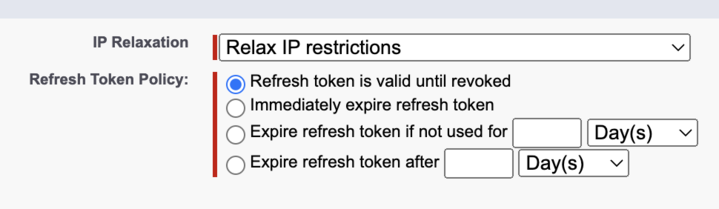 10. Click **Save**.
### Manage app policies
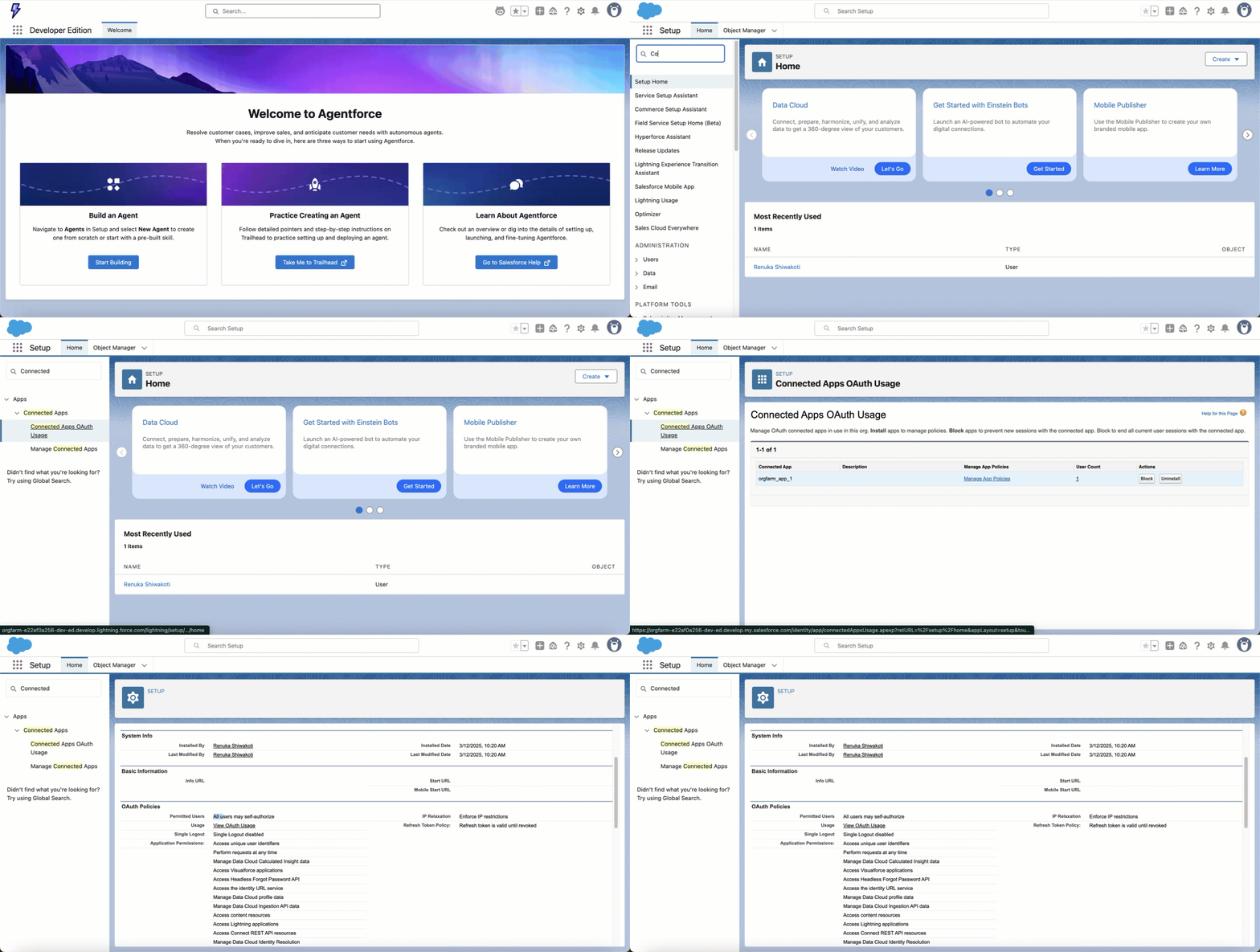
Salesforce allows administrators to restrict which applications can access Salesforce data through APIs. You need to ensure that API access isn't limited to only specific connected apps.
1. Log in to *Salesforce*.
2. Go to **Setup**.
3. In the *Quick Find* box, search for **Connected Apps OAuth Usage**.
4. Under the list of connected apps, find the one for this integration and click **Manage App Policies**.
5. In the *OAuth Policies* section, ensure the **Permitted Users** status is one of:
* *Admin approved users are pre-authorized* — only selected users can access.
* *All users may self-authorize* — all users can access the app.
10. Click **Save**.
### Manage app policies
Salesforce allows administrators to restrict which applications can access Salesforce data through APIs. You need to ensure that API access isn't limited to only specific connected apps.
1. Log in to *Salesforce*.
2. Go to **Setup**.
3. In the *Quick Find* box, search for **Connected Apps OAuth Usage**.
4. Under the list of connected apps, find the one for this integration and click **Manage App Policies**.
5. In the *OAuth Policies* section, ensure the **Permitted Users** status is one of:
* *Admin approved users are pre-authorized* — only selected users can access.
* *All users may self-authorize* — all users can access the app.
 If you need to modify these settings:
1. Click on **Install** next to your connected app.
2. In the **OAuth Usage and Policies** section, set the appropriate permissions level.
3. Click **Save**.
## Ensure sufficient permissions
The credentials provided to the integration can be:
* A [human user](#human-users), such as:
* a System Administrator. Please note that you still need to ensure that the System Admin has the correct object and field level permissions, they may not be granted by default.
* a sales team member with the **Salesforce** User License and the necessary permissions as specified below. This user can either have a standard profile (such as "Standard User") or a custom profile. Please note that the **Salesforce Platform** User License is insufficient.
* A [Salesforce integration user](#salesforce-integration-users). This type of user is specifically for integrations, and does not have access to the Salesforce UI.
### Human users
#### 1. Configure system permissions
In **Setup**, search for **Profiles** in the Quick Find box and open it. Then:
1. Select the profile you'd like to view and edit.
2. Click **Edit** at the top of the page.
If you need to modify these settings:
1. Click on **Install** next to your connected app.
2. In the **OAuth Usage and Policies** section, set the appropriate permissions level.
3. Click **Save**.
## Ensure sufficient permissions
The credentials provided to the integration can be:
* A [human user](#human-users), such as:
* a System Administrator. Please note that you still need to ensure that the System Admin has the correct object and field level permissions, they may not be granted by default.
* a sales team member with the **Salesforce** User License and the necessary permissions as specified below. This user can either have a standard profile (such as "Standard User") or a custom profile. Please note that the **Salesforce Platform** User License is insufficient.
* A [Salesforce integration user](#salesforce-integration-users). This type of user is specifically for integrations, and does not have access to the Salesforce UI.
### Human users
#### 1. Configure system permissions
In **Setup**, search for **Profiles** in the Quick Find box and open it. Then:
1. Select the profile you'd like to view and edit.
2. Click **Edit** at the top of the page.
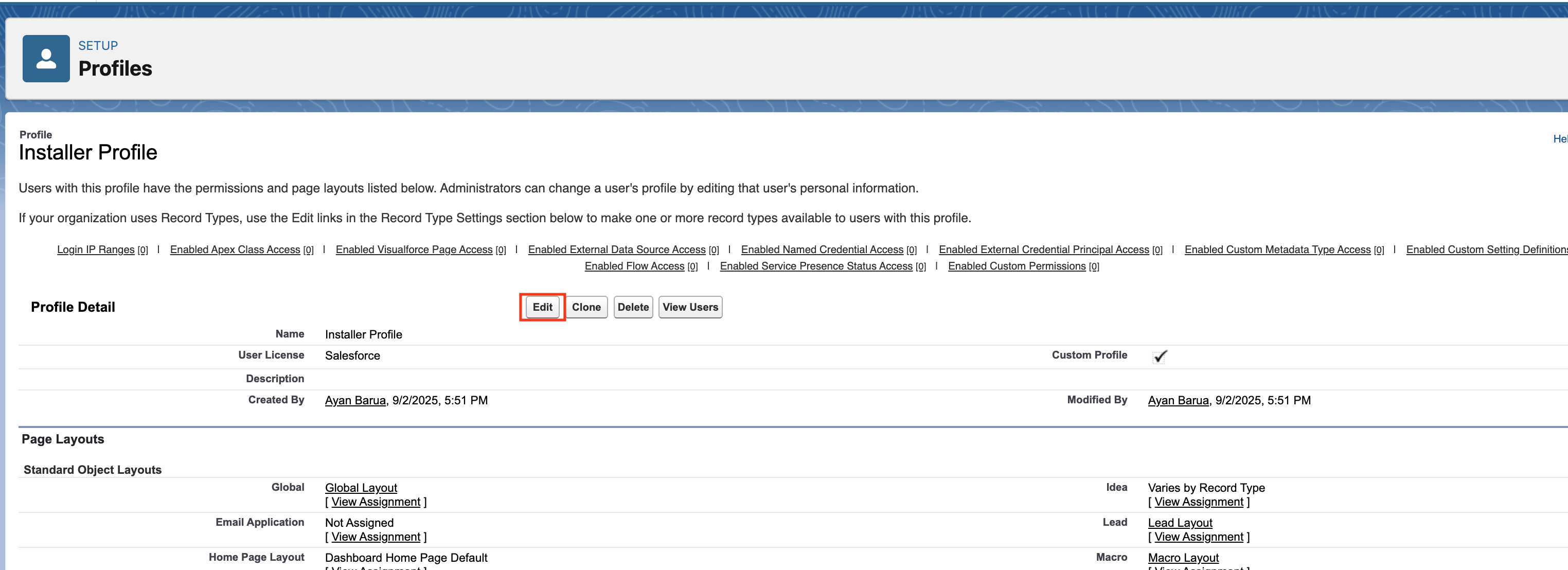 3. Ensure the checkboxes for the necessary [system permissions](#system-permissions-needed) are checked.
4. Click **Save** at the top or bottom of the page.
#### 2a. Field permissions for standard profile
If the user has a standard profile (such as "Standard User"), then follow these instructions:
1. Click the gear icon in the top-right corner and select **Setup**.
2. In the left-hand search bar, type **Object Manager** and open it.
3. Ensure the checkboxes for the necessary [system permissions](#system-permissions-needed) are checked.
4. Click **Save** at the top or bottom of the page.
#### 2a. Field permissions for standard profile
If the user has a standard profile (such as "Standard User"), then follow these instructions:
1. Click the gear icon in the top-right corner and select **Setup**.
2. In the left-hand search bar, type **Object Manager** and open it.
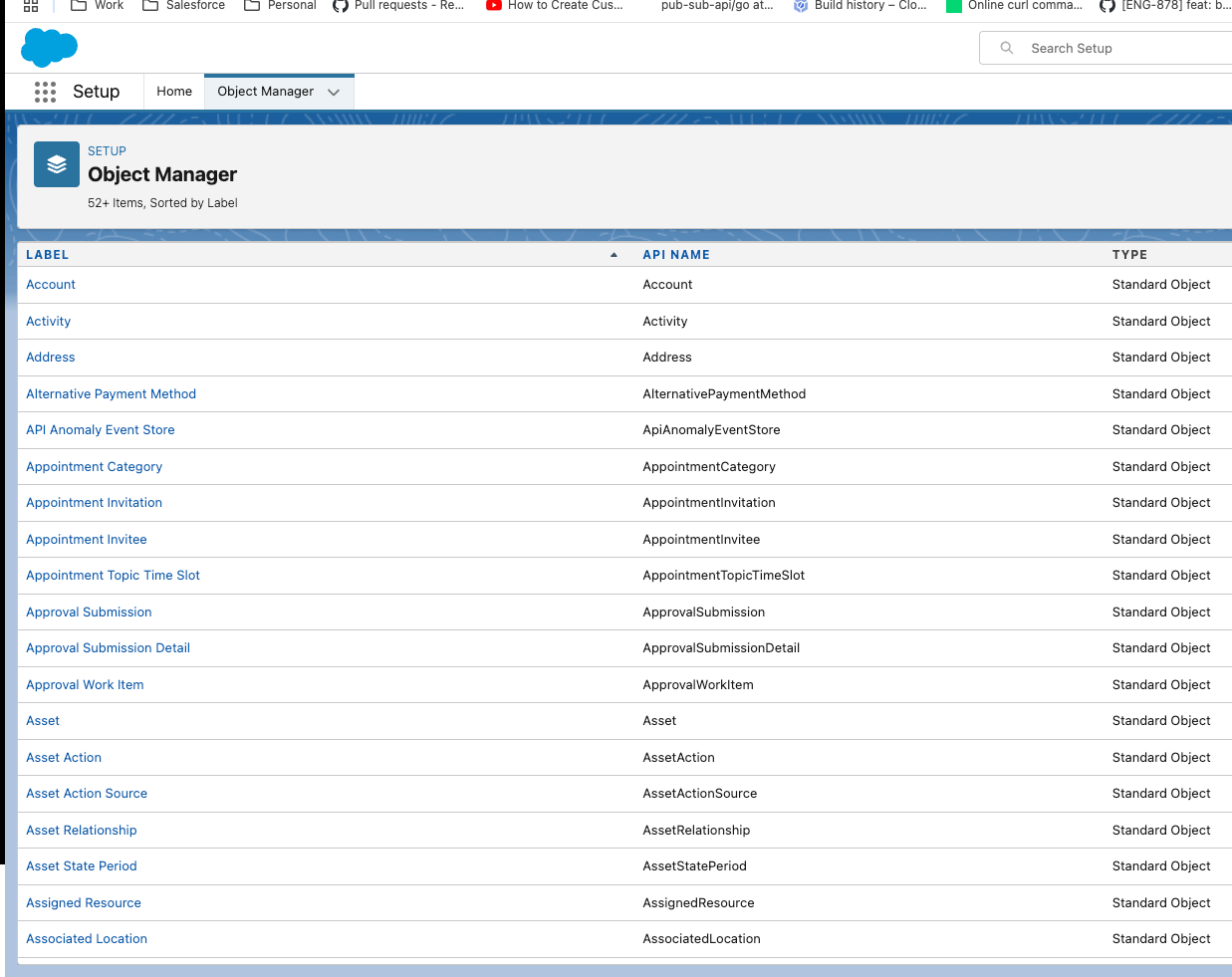 3. Choose the object you need (for example, **Account**), then select **Fields & Relationships** from the left navbar.
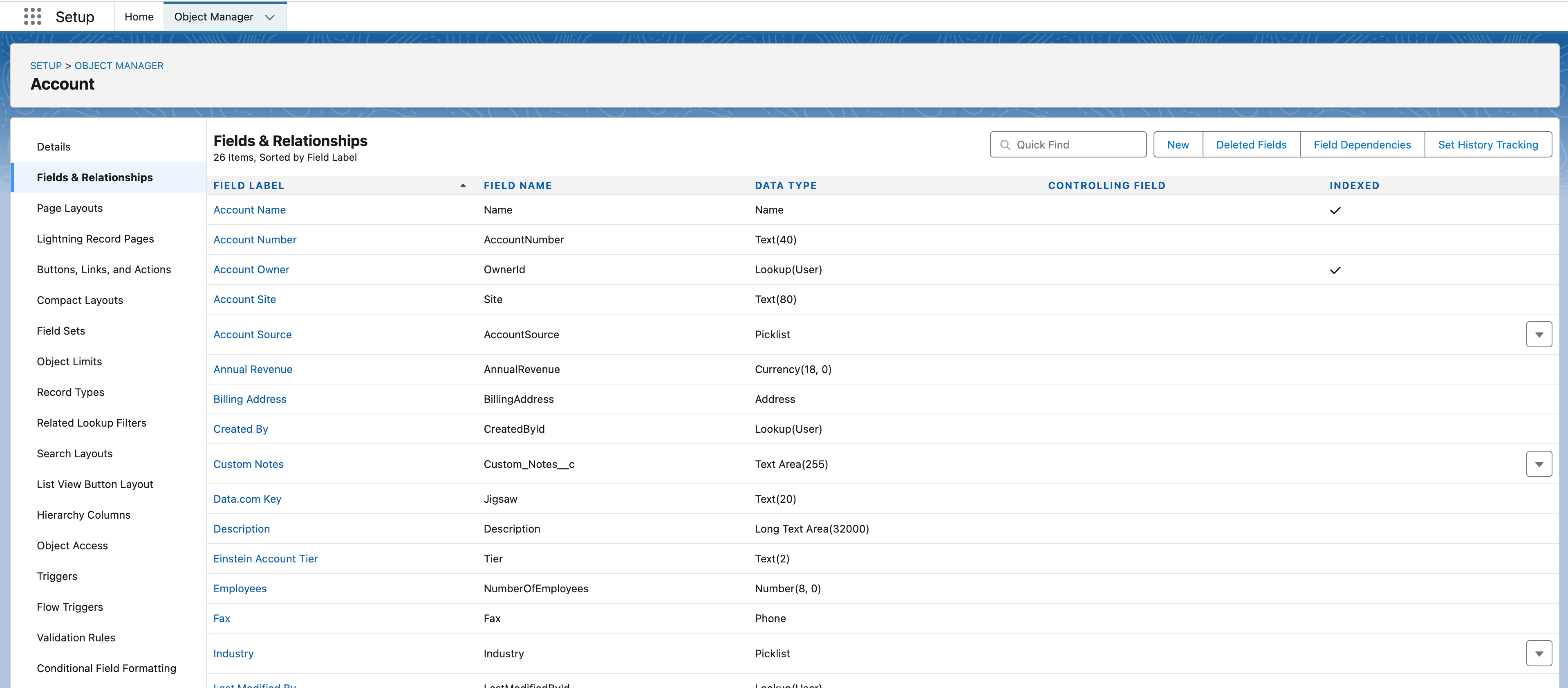 4. Find the field you want to adjust and click it.
5. Click **Set Field-Level Security**.
4. Find the field you want to adjust and click it.
5. Click **Set Field-Level Security**.
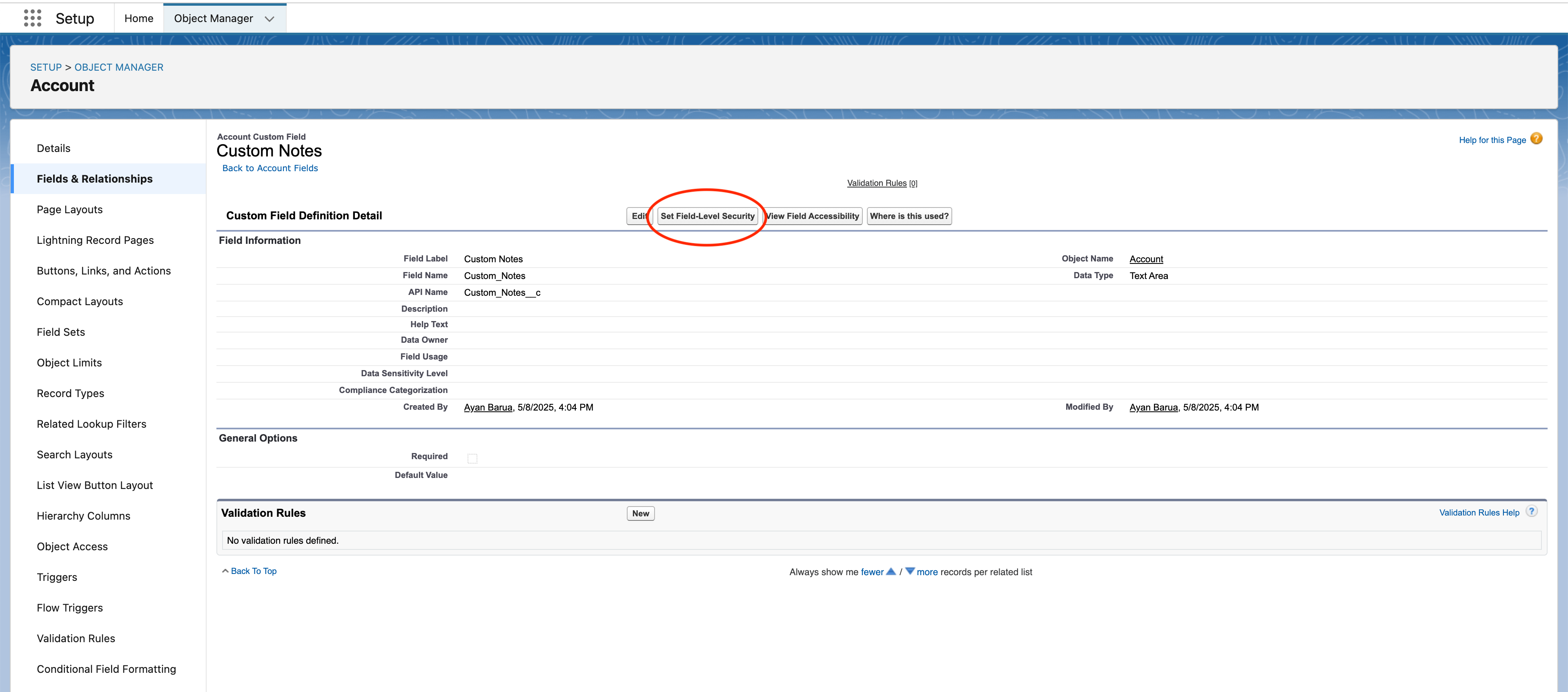 6. Ensure the checkbox for **Visible** is selected for the profile you're interested in. If the profile is not visible in this list, it means that it does not have access to the object. This is not possible to modify.
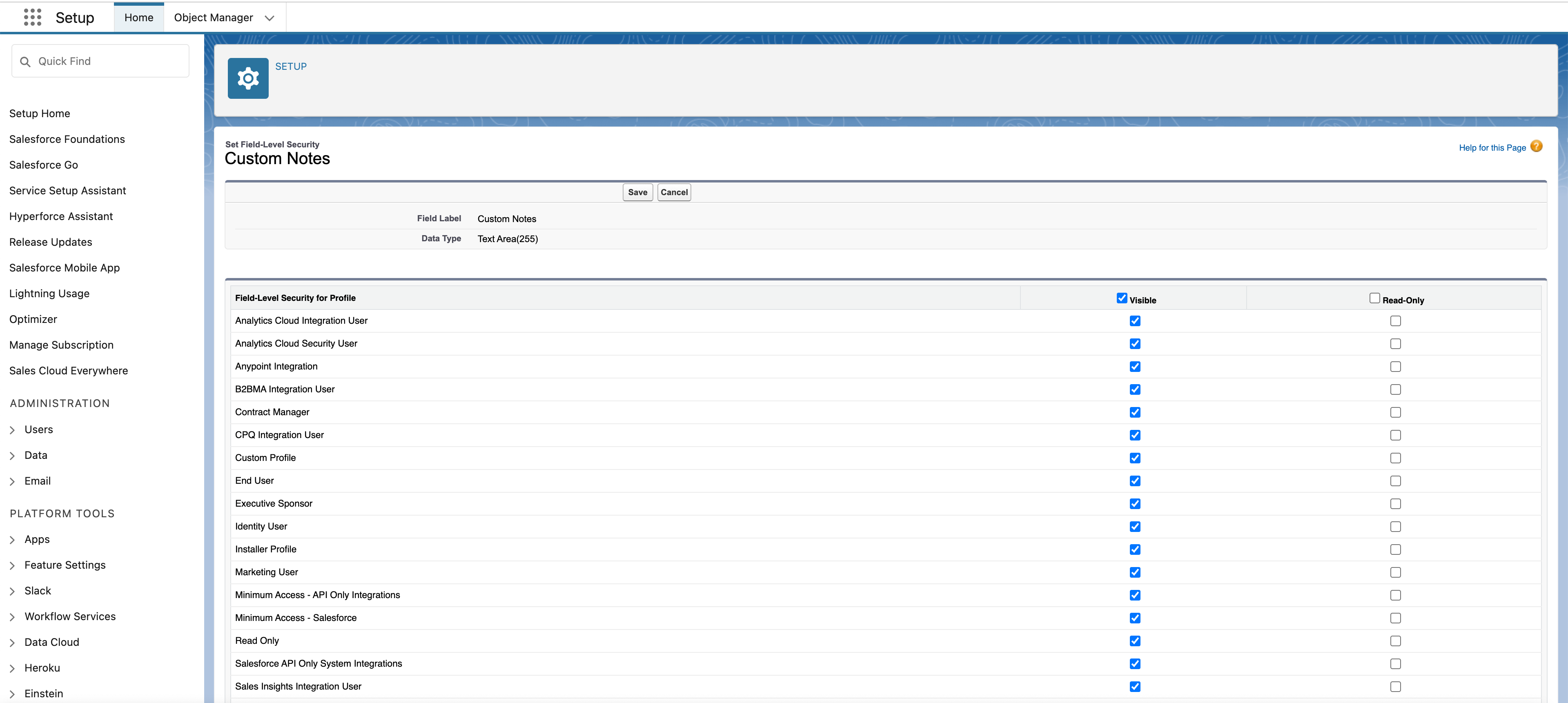 7. Repeat steps 4–6 for all fields that the integration needs to read, especially custom fields.
#### 2b. Object and field permissions for custom profile
If the user has a custom profile, then follow these instructions:
1. Click the gear icon in the top-right corner and select **Setup**.
2. In the left-hand search bar, type **Object Manager** and open it.
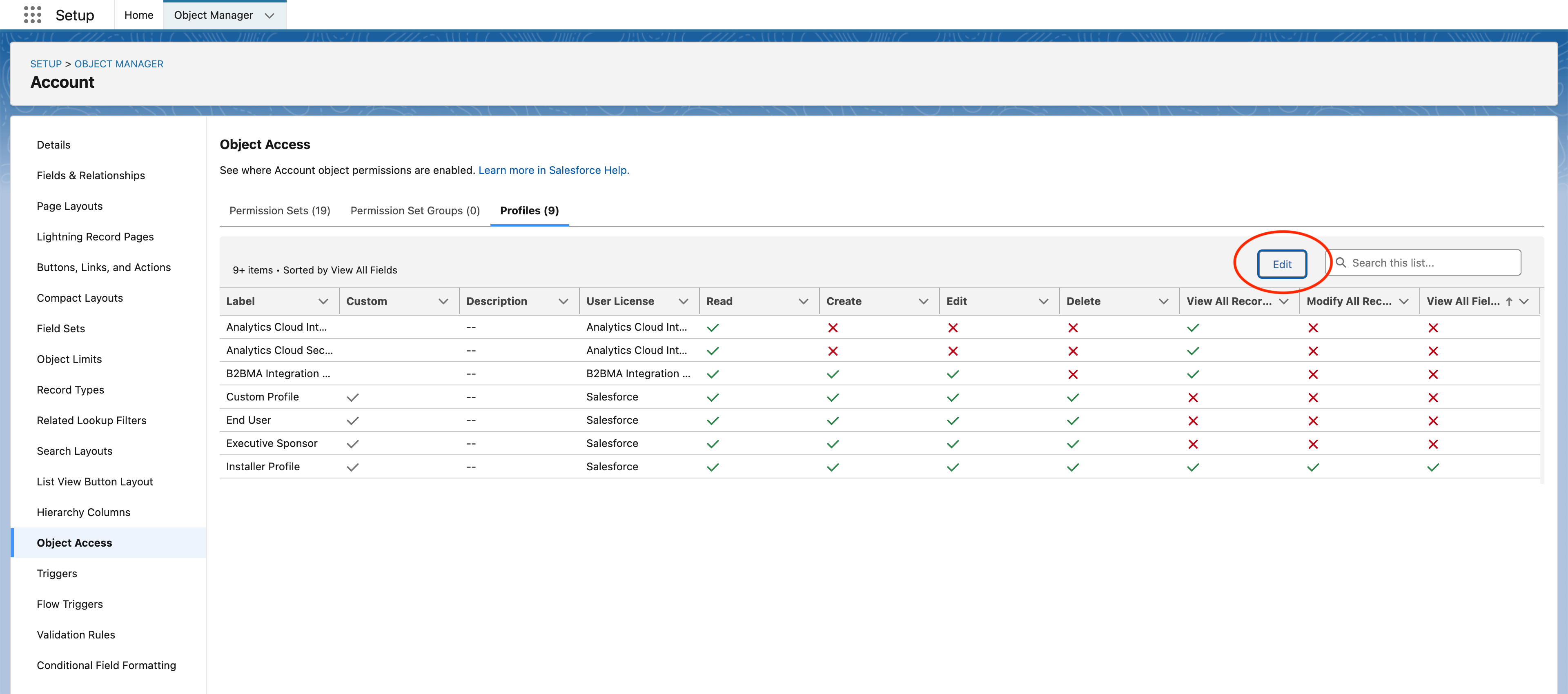
3. Choose the object you need (for example, **Account**) and go to **Object Access** in the left navbar. Select the **Profiles** tab at the top. Click **Edit** and grant the necessary permissions for your custom profile.
* If the integration needs to read data, ensure that `Read`, `View All Records`, and `View All Fields` are checked.
* If the integration needs to write data, ensure that all boxes are checked.
7. Repeat steps 4–6 for all fields that the integration needs to read, especially custom fields.
#### 2b. Object and field permissions for custom profile
If the user has a custom profile, then follow these instructions:
1. Click the gear icon in the top-right corner and select **Setup**.
2. In the left-hand search bar, type **Object Manager** and open it.
3. Choose the object you need (for example, **Account**) and go to **Object Access** in the left navbar. Select the **Profiles** tab at the top. Click **Edit** and grant the necessary permissions for your custom profile.
* If the integration needs to read data, ensure that `Read`, `View All Records`, and `View All Fields` are checked.
* If the integration needs to write data, ensure that all boxes are checked.
 ### Salesforce Integration users
The Salesforce Integration user license type is a special type of license that can be used for integrations and does not have UI access.
#### 1. Create a new user
1. Click the gear icon in the top-right corner and select **Setup**.
2. In the left-hand search bar, type **Users** and open it.
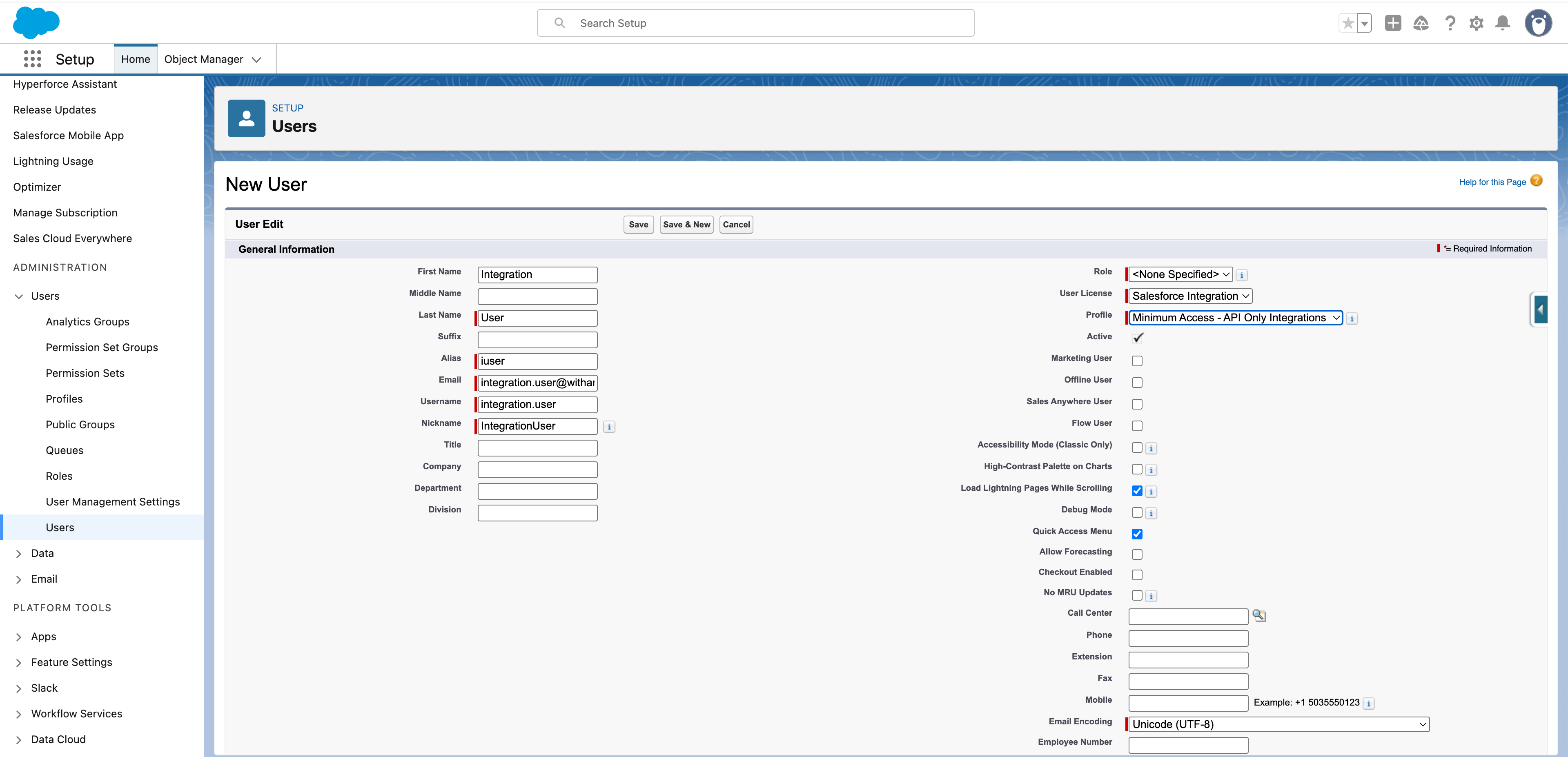
3. Create a new user:
* For **User License**, select `Salesforce Integration`.
* For **Profile**, select `Minimum Access - API Only Integrations`.
### Salesforce Integration users
The Salesforce Integration user license type is a special type of license that can be used for integrations and does not have UI access.
#### 1. Create a new user
1. Click the gear icon in the top-right corner and select **Setup**.
2. In the left-hand search bar, type **Users** and open it.
3. Create a new user:
* For **User License**, select `Salesforce Integration`.
* For **Profile**, select `Minimum Access - API Only Integrations`.
 #### 2. Create a Permission Set
1. Click the gear icon in the top-right corner and select **Setup**.
2. In the left-hand search bar, type **Permission Sets** and open it.
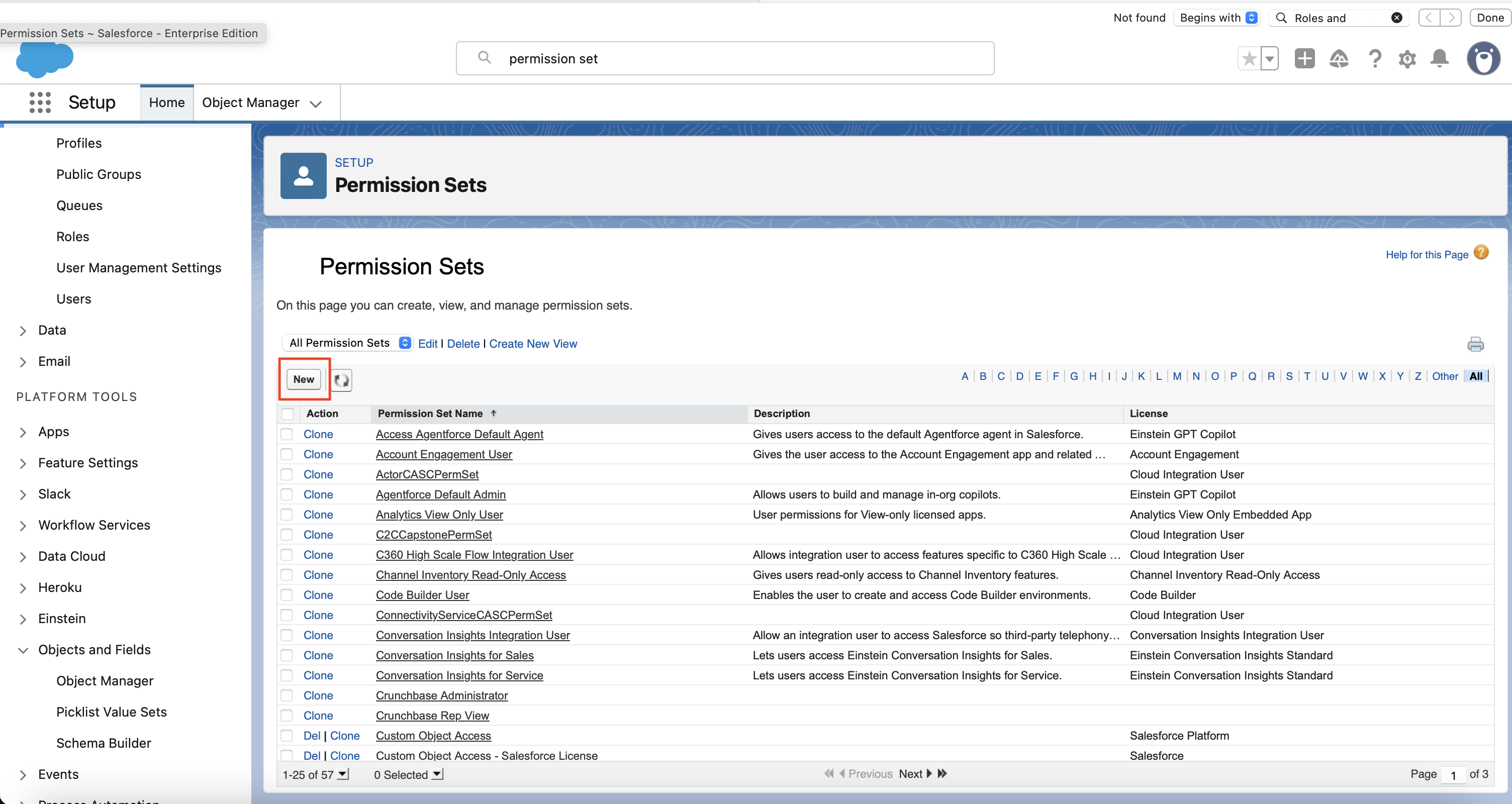
3. Click on "New" to create a new permission set.
#### 2. Create a Permission Set
1. Click the gear icon in the top-right corner and select **Setup**.
2. In the left-hand search bar, type **Permission Sets** and open it.
3. Click on "New" to create a new permission set.
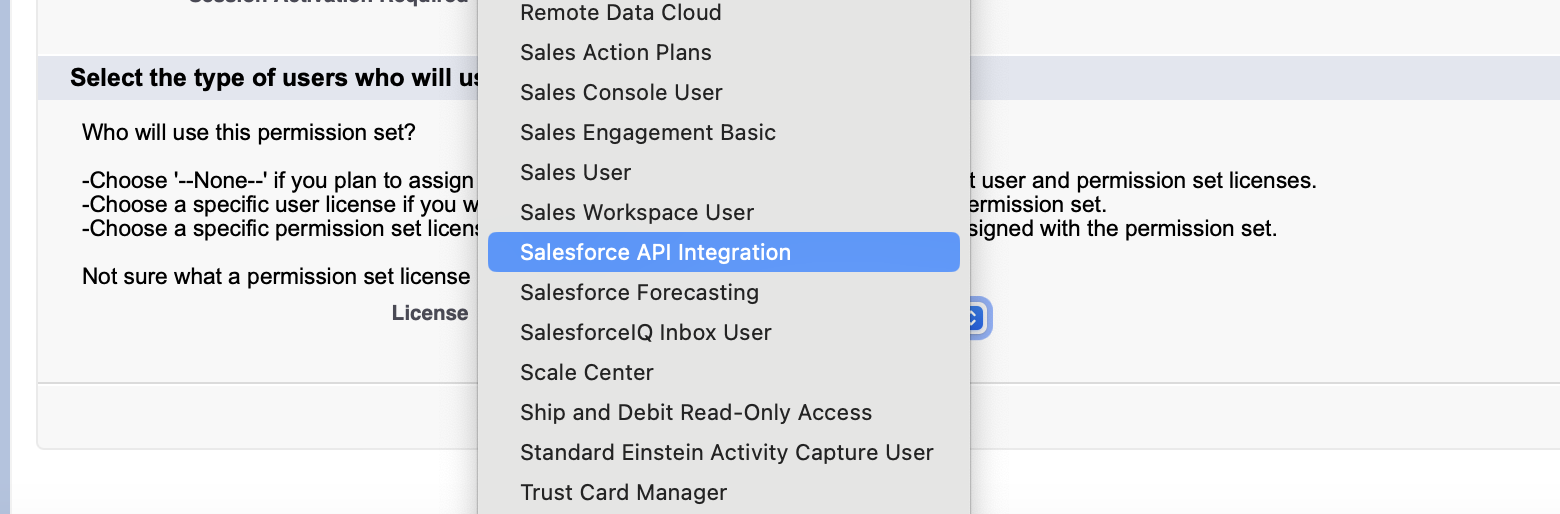
 4. Follow the prompts to create the permission set:
* For the name, you can call it something general like `Integration User Permission Set` or something that describes the level of access it has - such as `Account and Contact Access`.
* In the **License** dropdown, you must select `Salesforce API Integration`.
4. Follow the prompts to create the permission set:
* For the name, you can call it something general like `Integration User Permission Set` or something that describes the level of access it has - such as `Account and Contact Access`.
* In the **License** dropdown, you must select `Salesforce API Integration`.
 #### 3. Configure object permissions
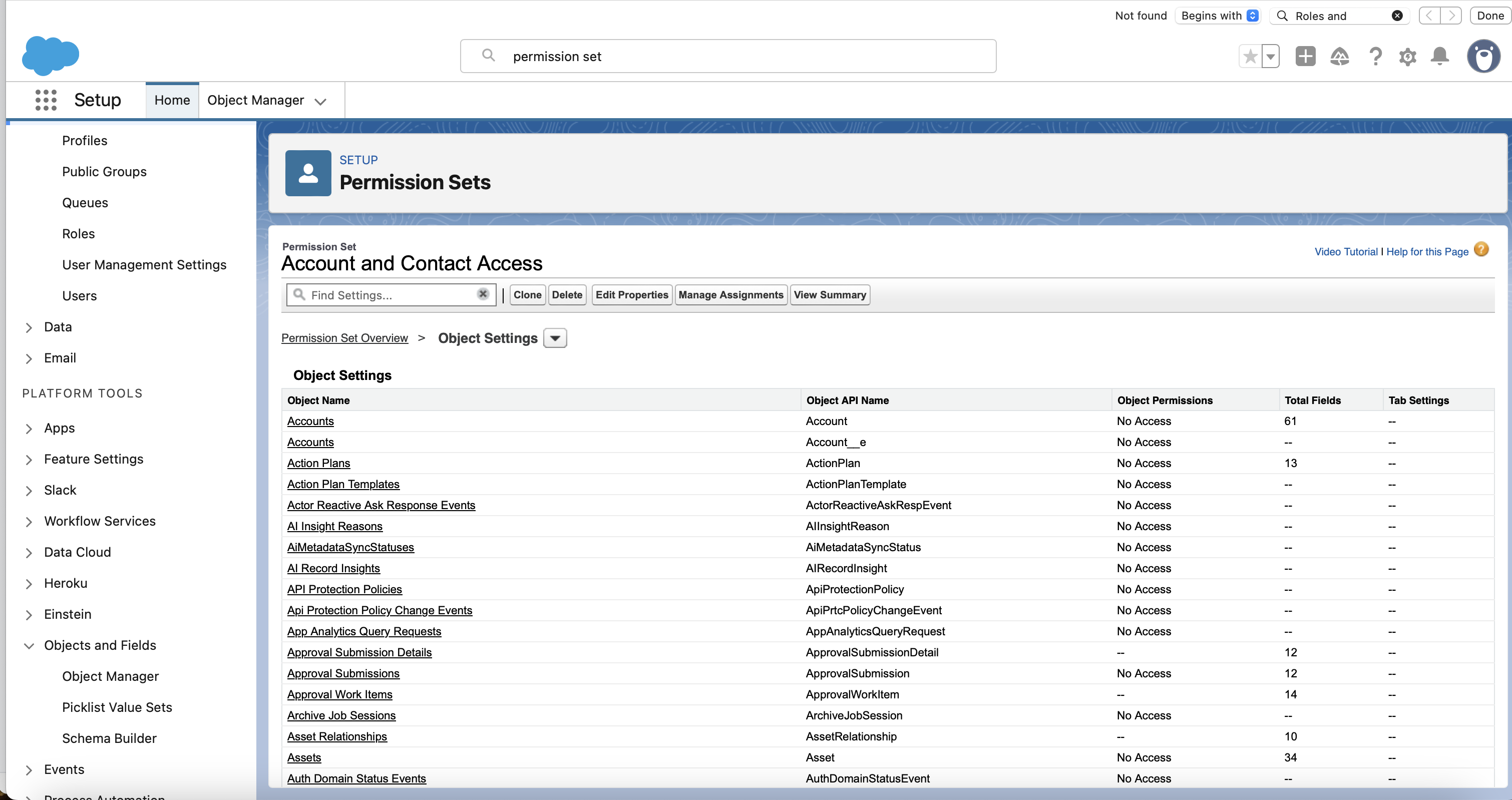
1. Click on **Object Settings**
#### 3. Configure object permissions
1. Click on **Object Settings**
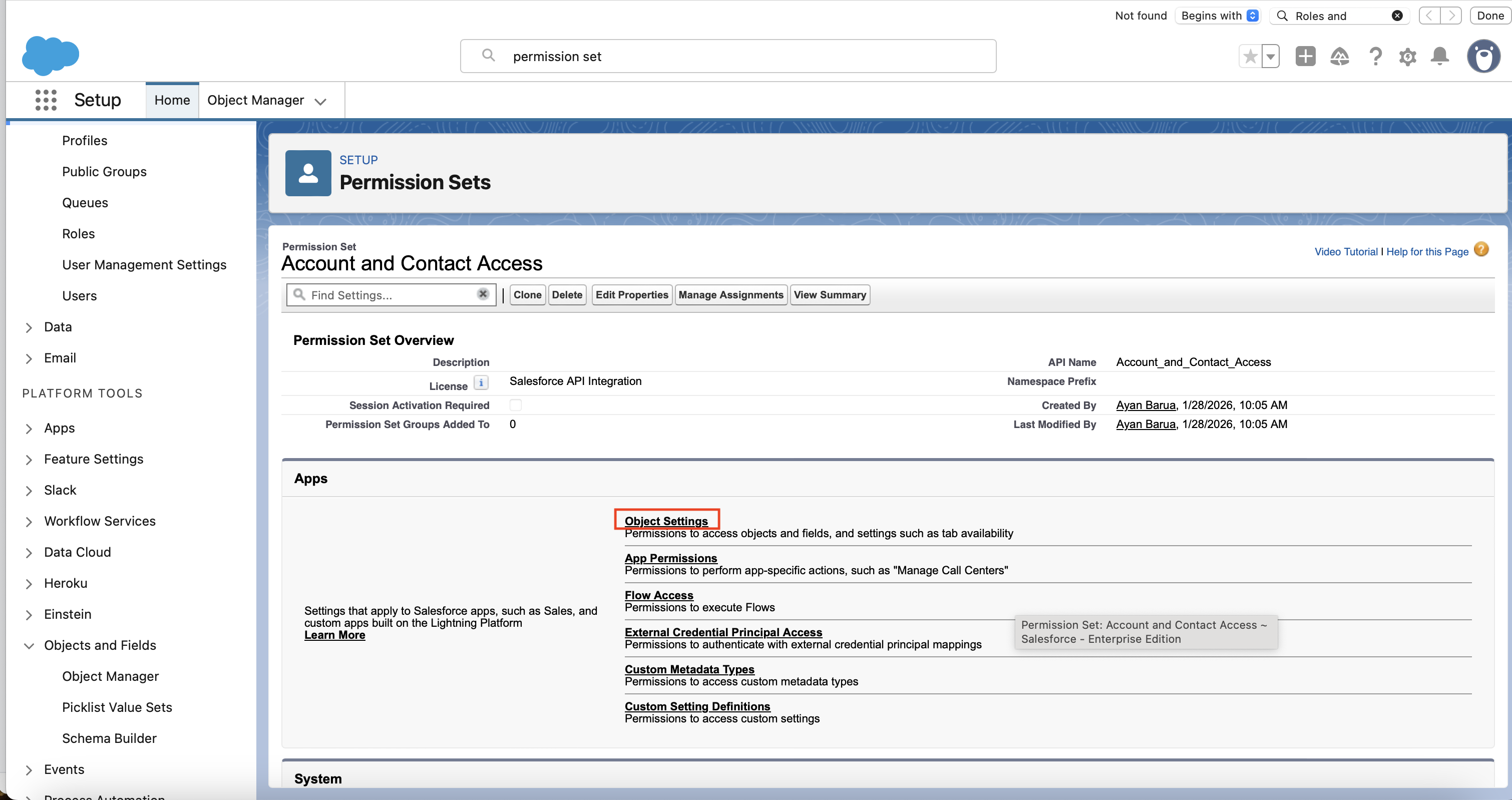 2. For each of the objects that the integration needs to access you need to set up its permissions. Start by clicking on the first object, for example "Accounts".
 3. Edit the permission so that all relevant boxes under **Object Permissions** and **Field Permissions** are checked. Then click on **Save**.
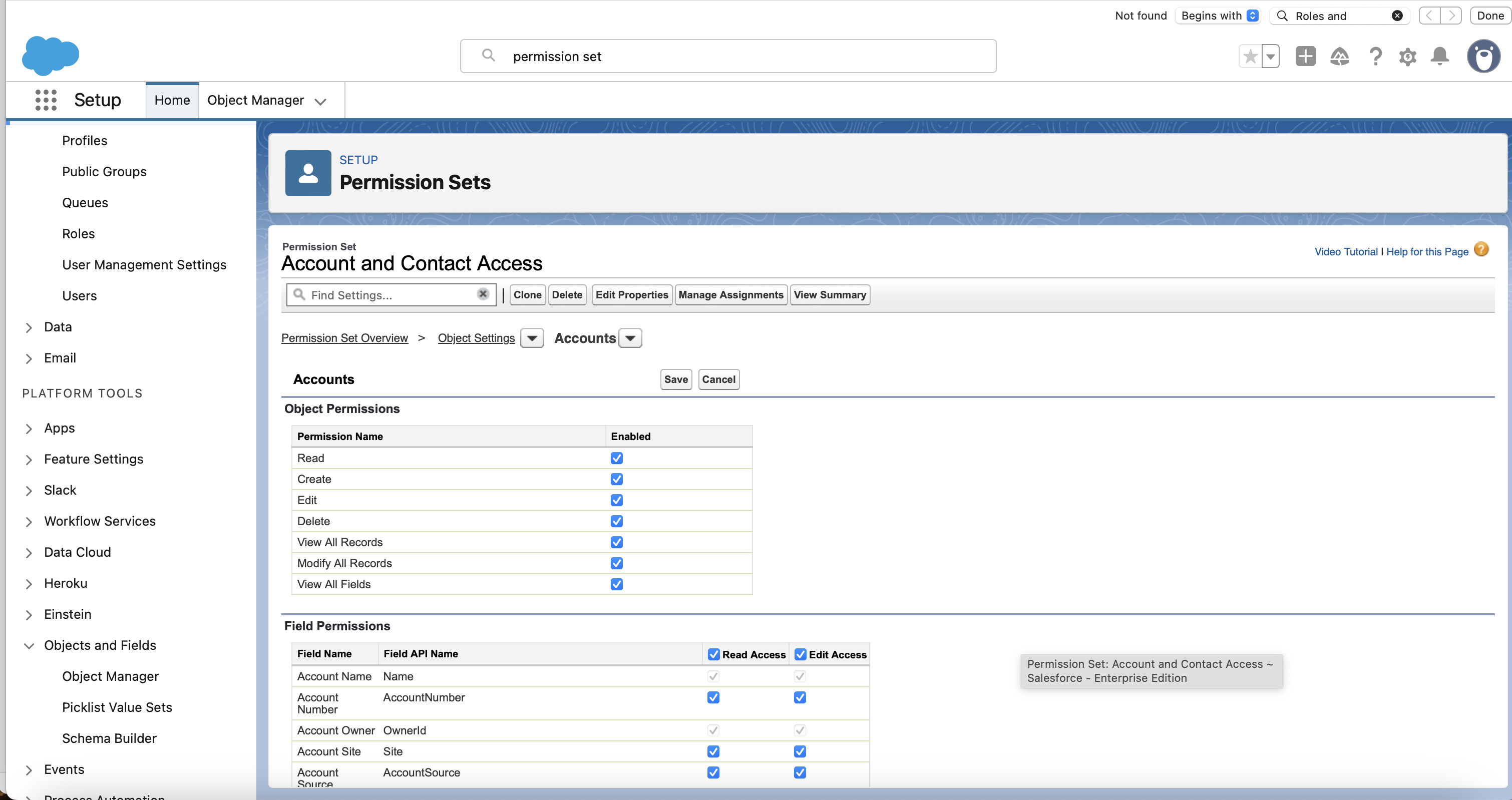 4. Repeat for all the other objects that the integration needs to access.
#### 4. Configure system permissions
1. Select **System Permissions**.
4. Repeat for all the other objects that the integration needs to access.
#### 4. Configure system permissions
1. Select **System Permissions**.
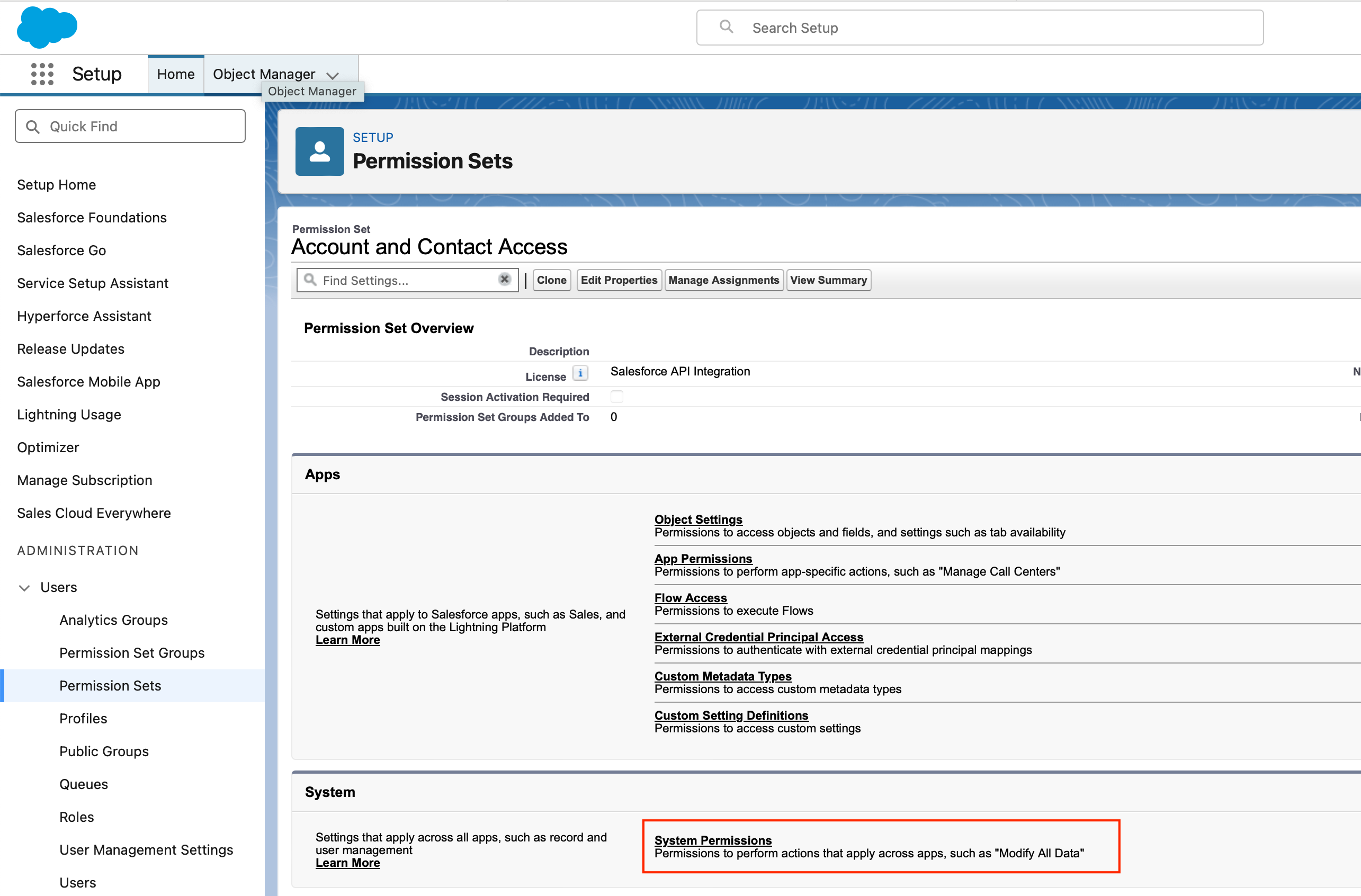 2. Ensure that the checkboxes for the necessary [system permissions](#system-permissions-needed) are selected, and then click **Save**.
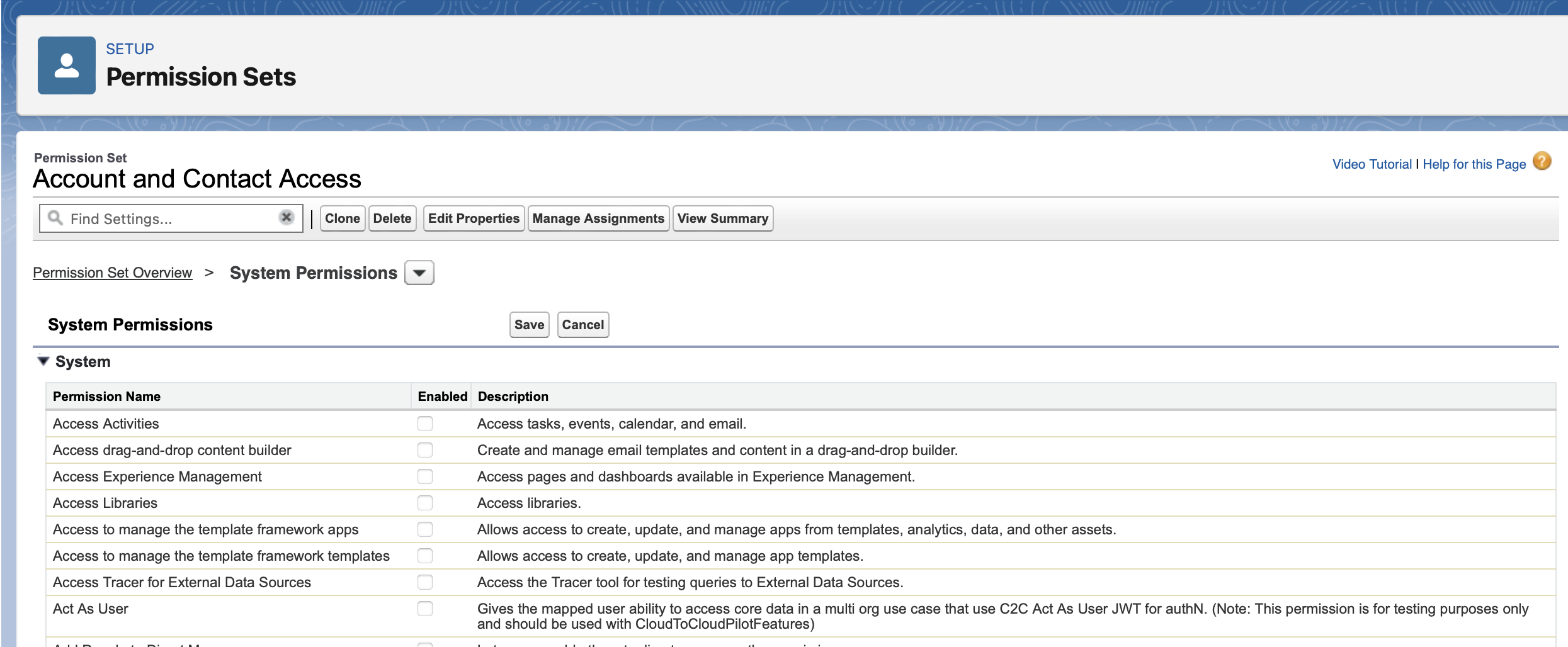 #### 5. Assign permission set to integration user
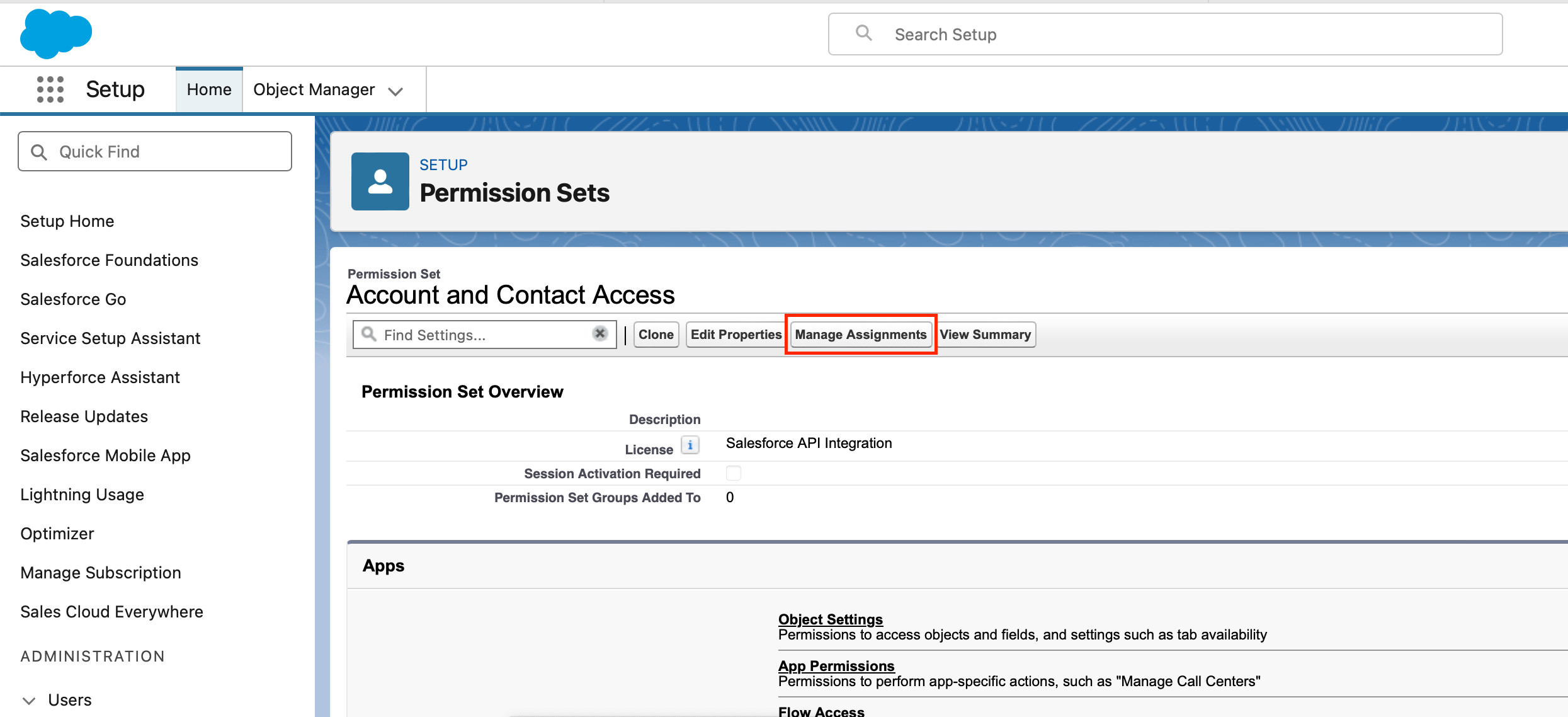
1. Click on **Manage Assignments**.
#### 5. Assign permission set to integration user
1. Click on **Manage Assignments**.
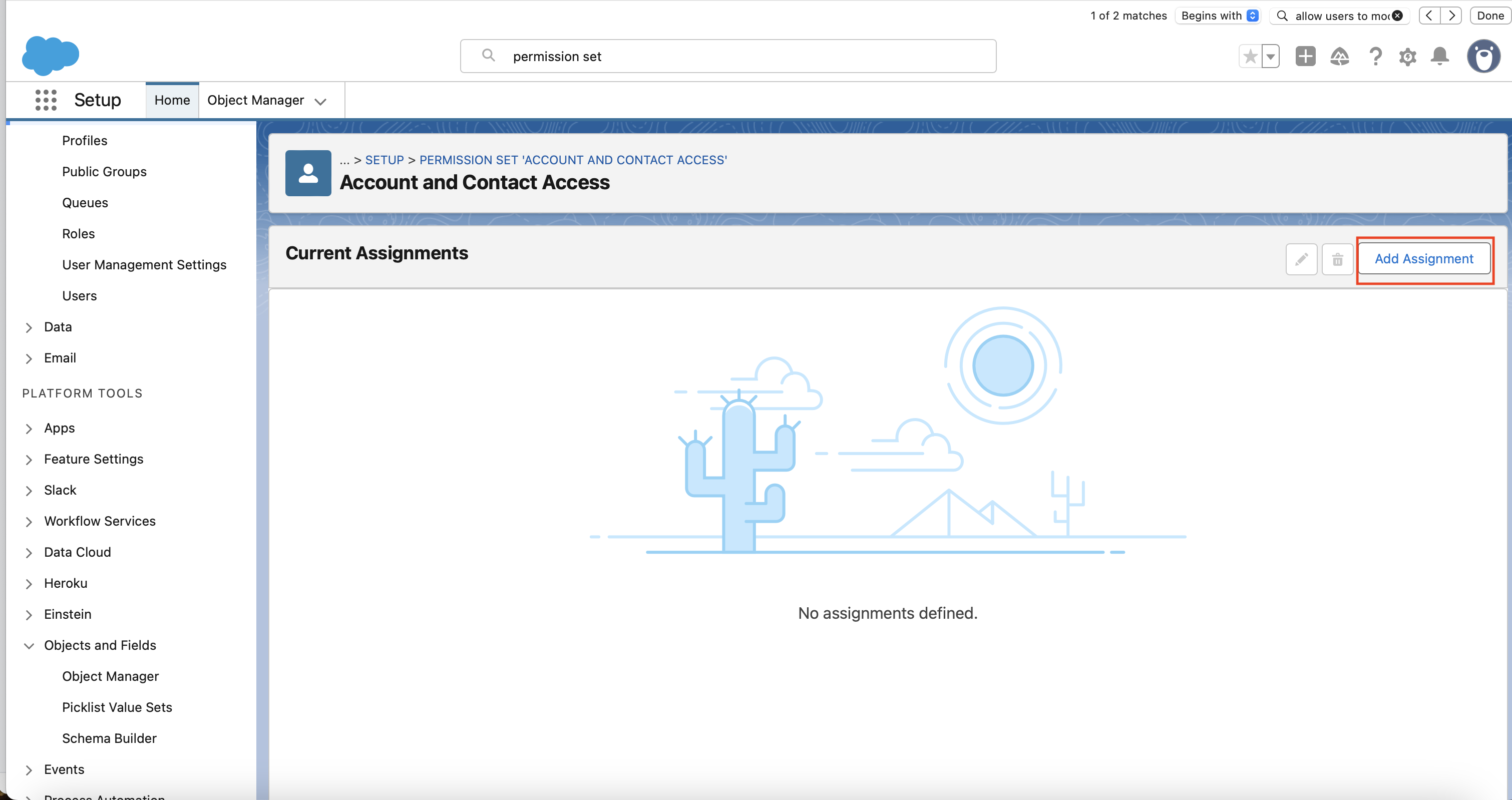
 2. Click on **Add Assignment**.
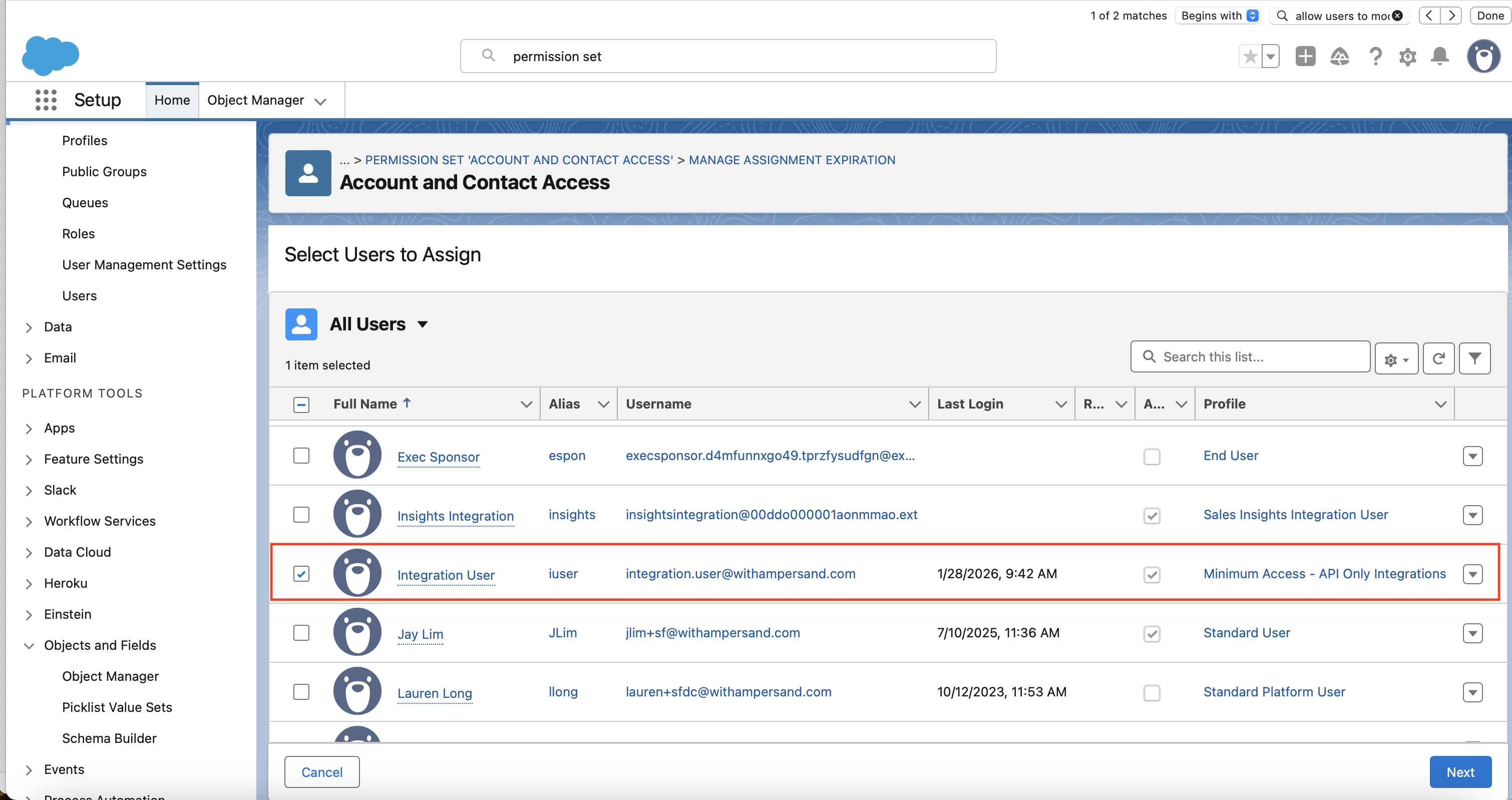
 3. Select the integration user you created in step 1.
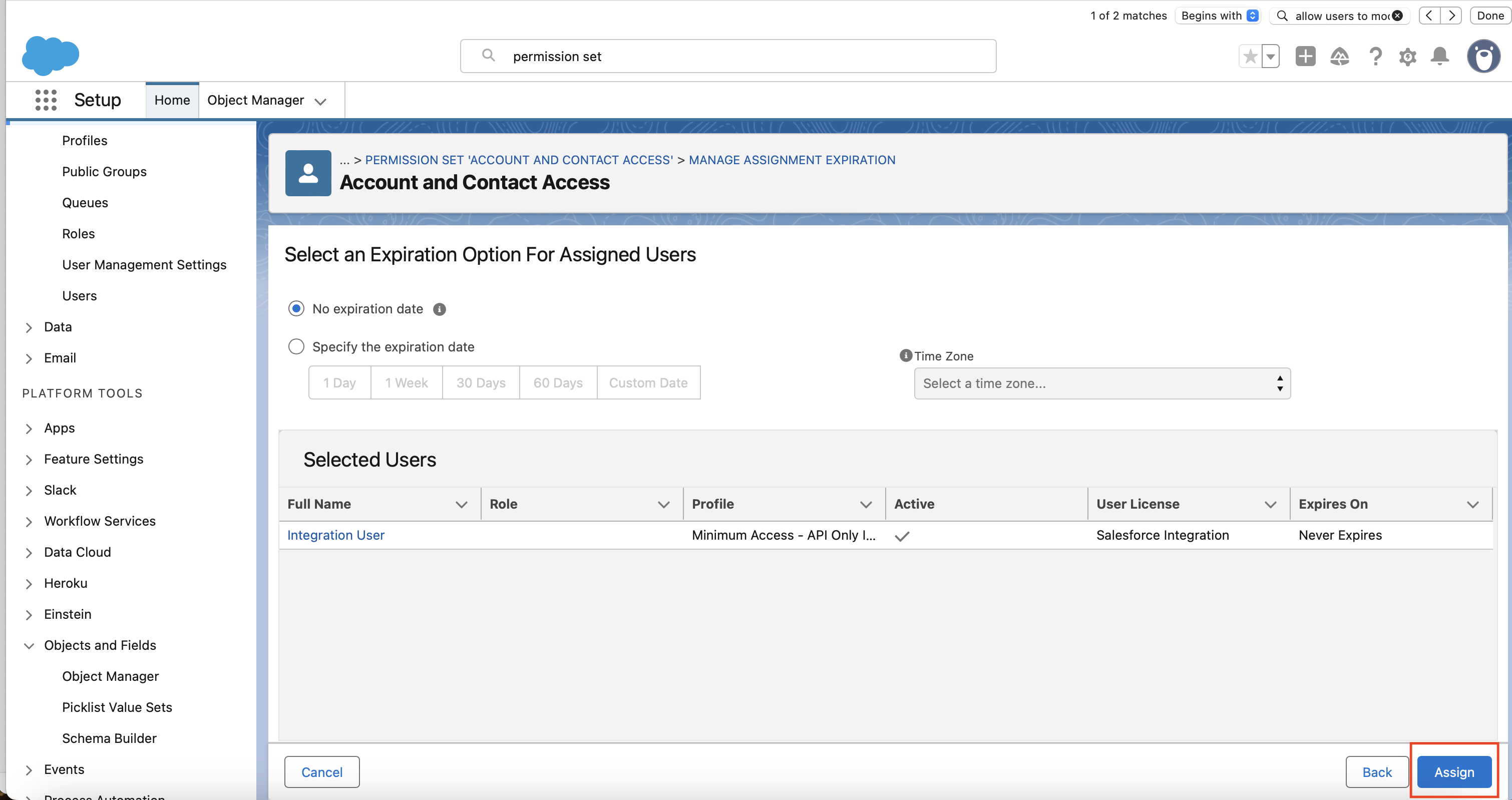
 4. Ensure "Expires On" is set to "Never Expires", and then click on "Assign".
 ## After installing the integration
After the integration is installed, you need to configure OAuth policies to ensure the integration can maintain a stable connection.
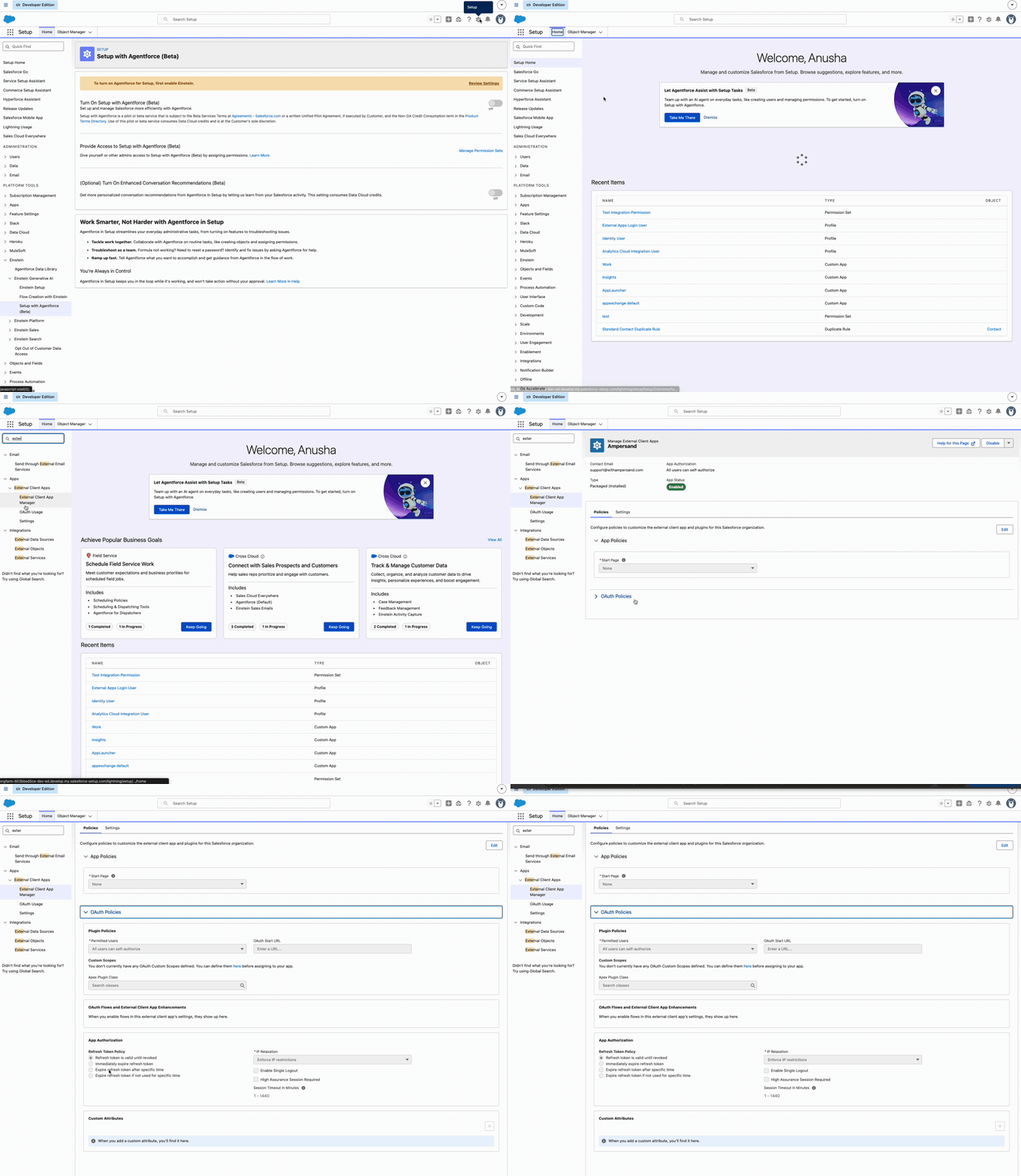
1. Log in to *Salesforce*.
2. Go to **Setup**.
3. In the *Quick Find* box, search for **External Client App Manager**.
4. Click on the name of the installed External Client App.
5. Go to the **Policies** tab and click **Edit**.
6. Under **OAuth Policies**, ensure **Permitted Users** is set to **All users may self-authorize**.
7. Under **App Authorization**, make the following changes:
* Set **Refresh Token Policy** to **Refresh token is valid until revoked**.
* Set **IP Relaxation** to **Relax IP restrictions**.
8. Click **Save**.
## After installing the integration
After the integration is installed, you need to configure OAuth policies to ensure the integration can maintain a stable connection.
1. Log in to *Salesforce*.
2. Go to **Setup**.
3. In the *Quick Find* box, search for **External Client App Manager**.
4. Click on the name of the installed External Client App.
5. Go to the **Policies** tab and click **Edit**.
6. Under **OAuth Policies**, ensure **Permitted Users** is set to **All users may self-authorize**.
7. Under **App Authorization**, make the following changes:
* Set **Refresh Token Policy** to **Refresh token is valid until revoked**.
* Set **IP Relaxation** to **Relax IP restrictions**.
8. Click **Save**.
 Salesforce allows administrators to restrict which applications can access Salesforce data through APIs. You need to ensure that API access isn't limited to only specific connected apps.
To verify your API access control settings:
1. Log in to *Salesforce*.
2. Go to **Setup**.
3. In the *Quick Find* box, search for **Connected Apps OAuth Usage**.
4. Under the list of connected apps, find the one for this integration and click **Manage App Policies**.
5. In the *OAuth Policies* section, ensure the **Permitted Users** status is one of:
* *Admin approved users are pre-authorized* - only selected users can access.
* *All users may self-authorize* - all users can access the app.
If you need to modify these settings:
1. Click on **Install** next to your connected app.
2. In the **OAuth Usage and Policies** section, set the appropriate permissions level.
3. Click **Save**.
## Salesforce terminology
### License
A **license** is purchased from Salesforce and determines the maximum set of permissions that can be granted to a user with that license.
### Profile
A **profile** is a collection of settings that determines what objects, fields, and features a user can access in Salesforce. Each user has exactly one profile. Standard profiles (e.g. Standard User, System Administrator) are provided by Salesforce; you can also create custom profiles by cloning an existing one. A profile is always associated with one user license, but a user license can have multiple profiles associated with it. When you create a new user, you can pick both the license and profile of that person.
### Permission set
A **permission set** is a collection of permissions that you assign to users to grant access to specific objects, fields, and capabilities. Permission sets extend the default permissions of a profile. Users can have only one profile but multiple permission sets. A permission set is tied to a license, and only users with that license type can be granted the permission set.
## System permissions needed
The following system permissions are needed:
* `API Enabled`
* [Subscribe Action Permissions](#subscribe-action-permissions) if the integration includes real-time Subscribe Actions.
The following system permissions are needed:
* `API Enabled`
* [Subscribe Action Permissions](#subscribe-action-permissions) if the integration includes real-time Subscribe Actions.
* One of the following:
* `Use Any API Client` if you see it. (You will only see this option if your organization has enabled [API Access Control](https://help.salesforce.com/s/articleView?id=xcloud.security_api_access_control_about.htm\&type=5)).
* `Approve Uninstalled Connected Apps` if you do not see an option for `Use Any API Client`.
To ensure that you have the necessary system permission, please follow these instructions:
* [For a Profile](#1-configure-system-permissions)
* [For a Permission Set that is assigned to an Integration User](#4-configure-system-permissions)
## Subscribe Action permissions
If the integration contains Subscribe Actions, a number of special permissions are required. Here's an explanation of why each permission is necessary:
These permissions need to be explicitly enabled:
* `Modify Metadata Through Metadata API Functions`: Required to configure event channels and event channel memberships through Metadata API.
* `Customize Application`: Required to configure artifacts like Named Credentials, which allows Ampersand to securely connect to the event channels.
Salesforce auto-enables these when you enable the above permissions, because they dependent permissions:
* `View Setup and Configuration`: Enables the integration to access Salesforce setup configuration in order to create webhook subscription settings.
* `View Roles and Role Hierarchy`: Ensures the integration has the correct visibility context so Salesforce can successfully send events; without this, events may be generated but not delivered.
* `Manage Custom Permissions`: Allows the integration to create and manage dedicated event channels and channel memberships used specifically for the installation's subscription events.
To ensure that you have the necessary permission to use Subscribe Actions, please follow these instructions:
* [For a Profile](#1-configure-system-permissions)
* [For a Permission Set that is assigned to an Integration User](#4-configure-system-permissions)
Salesforce allows administrators to restrict which applications can access Salesforce data through APIs. You need to ensure that API access isn't limited to only specific connected apps.
To verify your API access control settings:
1. Log in to *Salesforce*.
2. Go to **Setup**.
3. In the *Quick Find* box, search for **Connected Apps OAuth Usage**.
4. Under the list of connected apps, find the one for this integration and click **Manage App Policies**.
5. In the *OAuth Policies* section, ensure the **Permitted Users** status is one of:
* *Admin approved users are pre-authorized* - only selected users can access.
* *All users may self-authorize* - all users can access the app.
If you need to modify these settings:
1. Click on **Install** next to your connected app.
2. In the **OAuth Usage and Policies** section, set the appropriate permissions level.
3. Click **Save**.
## Salesforce terminology
### License
A **license** is purchased from Salesforce and determines the maximum set of permissions that can be granted to a user with that license.
### Profile
A **profile** is a collection of settings that determines what objects, fields, and features a user can access in Salesforce. Each user has exactly one profile. Standard profiles (e.g. Standard User, System Administrator) are provided by Salesforce; you can also create custom profiles by cloning an existing one. A profile is always associated with one user license, but a user license can have multiple profiles associated with it. When you create a new user, you can pick both the license and profile of that person.
### Permission set
A **permission set** is a collection of permissions that you assign to users to grant access to specific objects, fields, and capabilities. Permission sets extend the default permissions of a profile. Users can have only one profile but multiple permission sets. A permission set is tied to a license, and only users with that license type can be granted the permission set.
## System permissions needed
The following system permissions are needed:
* `API Enabled`
* [Subscribe Action Permissions](#subscribe-action-permissions) if the integration includes real-time Subscribe Actions.
The following system permissions are needed:
* `API Enabled`
* [Subscribe Action Permissions](#subscribe-action-permissions) if the integration includes real-time Subscribe Actions.
* One of the following:
* `Use Any API Client` if you see it. (You will only see this option if your organization has enabled [API Access Control](https://help.salesforce.com/s/articleView?id=xcloud.security_api_access_control_about.htm\&type=5)).
* `Approve Uninstalled Connected Apps` if you do not see an option for `Use Any API Client`.
To ensure that you have the necessary system permission, please follow these instructions:
* [For a Profile](#1-configure-system-permissions)
* [For a Permission Set that is assigned to an Integration User](#4-configure-system-permissions)
## Subscribe Action permissions
If the integration contains Subscribe Actions, a number of special permissions are required. Here's an explanation of why each permission is necessary:
These permissions need to be explicitly enabled:
* `Modify Metadata Through Metadata API Functions`: Required to configure event channels and event channel memberships through Metadata API.
* `Customize Application`: Required to configure artifacts like Named Credentials, which allows Ampersand to securely connect to the event channels.
Salesforce auto-enables these when you enable the above permissions, because they dependent permissions:
* `View Setup and Configuration`: Enables the integration to access Salesforce setup configuration in order to create webhook subscription settings.
* `View Roles and Role Hierarchy`: Ensures the integration has the correct visibility context so Salesforce can successfully send events; without this, events may be generated but not delivered.
* `Manage Custom Permissions`: Allows the integration to create and manage dedicated event channels and channel memberships used specifically for the installation's subscription events.
To ensure that you have the necessary permission to use Subscribe Actions, please follow these instructions:
* [For a Profile](#1-configure-system-permissions)
* [For a Permission Set that is assigned to an Integration User](#4-configure-system-permissions)